
What Are Nested Custom Fields?
Nested custom fields connect two or more custom fields in a parent-child relationship. A recruiter’s or candidate’s answer in the parent controls whether a child is shown and, for Dropdown or Multi-select children, which options are available.
For example:
- Region is the parent field.
- Selecting Europe shows the Country child field.
- The Country field offers only the countries mapped to Europe.
- Selecting a country can reveal another child, such as Office Location.
This keeps forms relevant and reduces invalid combinations without changing how independent custom fields work.
Availability and Limits
- Available on Business and Enterprise plans.
- Not available on the Pro plan.
- Supported for custom fields only; standard fields cannot be linked.
- A chain can contain up to five fields in total.
- Each parent can have up to five direct children.
- A child can have only one parent.
- Only Checkbox, Dropdown, and Multi-select fields can be parents.
- Parent and child selections cannot be changed after creation. To reparent a field, unlink the existing relationship and create a new one.
Before You Start
Create every custom field that you want to connect. Choose field names and options carefully because options used in a dependency cannot currently be changed.
You also need to select the correct entity. Candidate fields can be linked only to Candidate fields, Job fields only to Job fields, and so on.
Step 1: Open Fields Customization
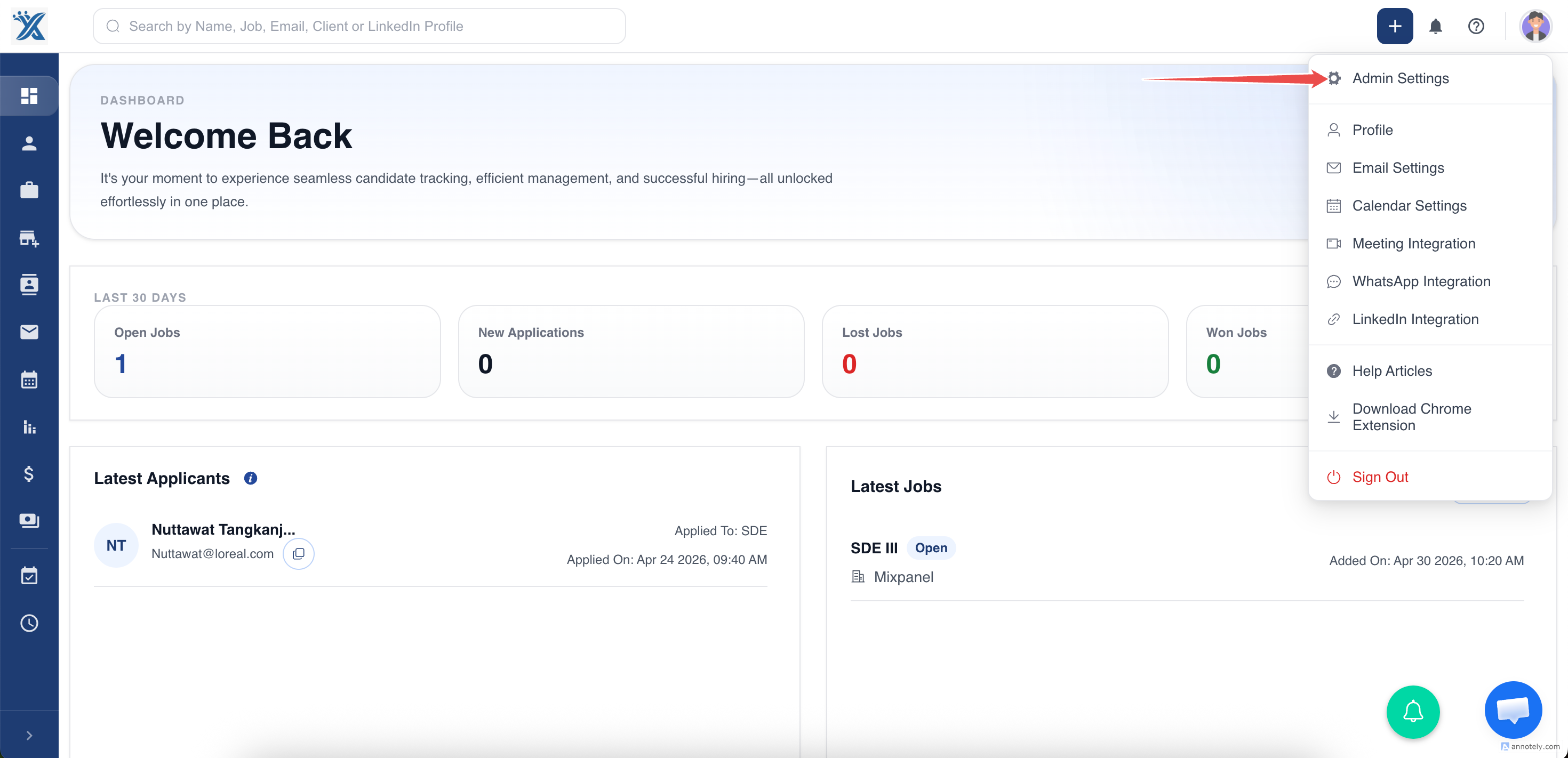
Go to Settings and open Fields Customization. Select the entity whose custom fields you want to connect.
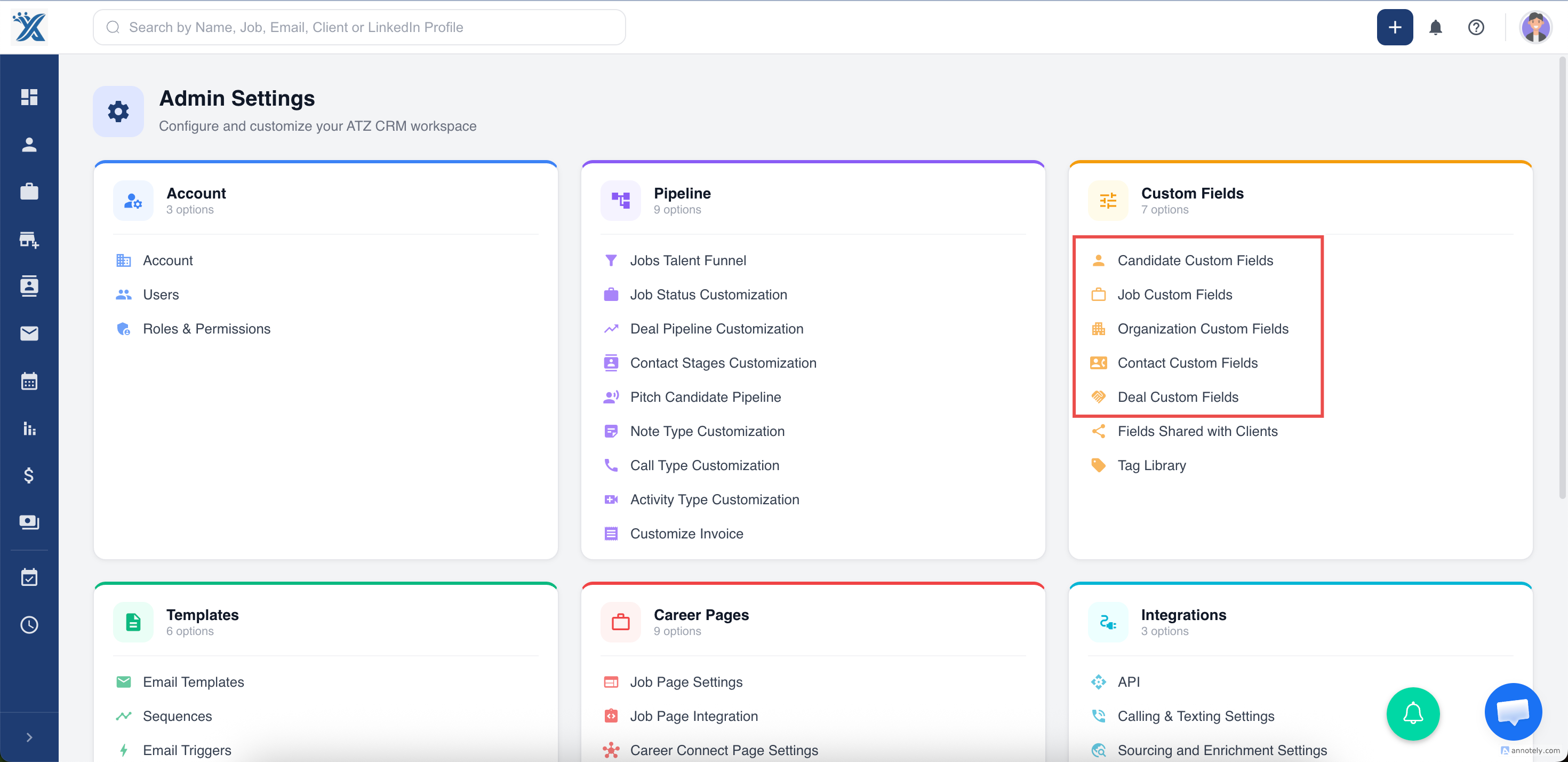
Step 2: Open Manage Dependencies
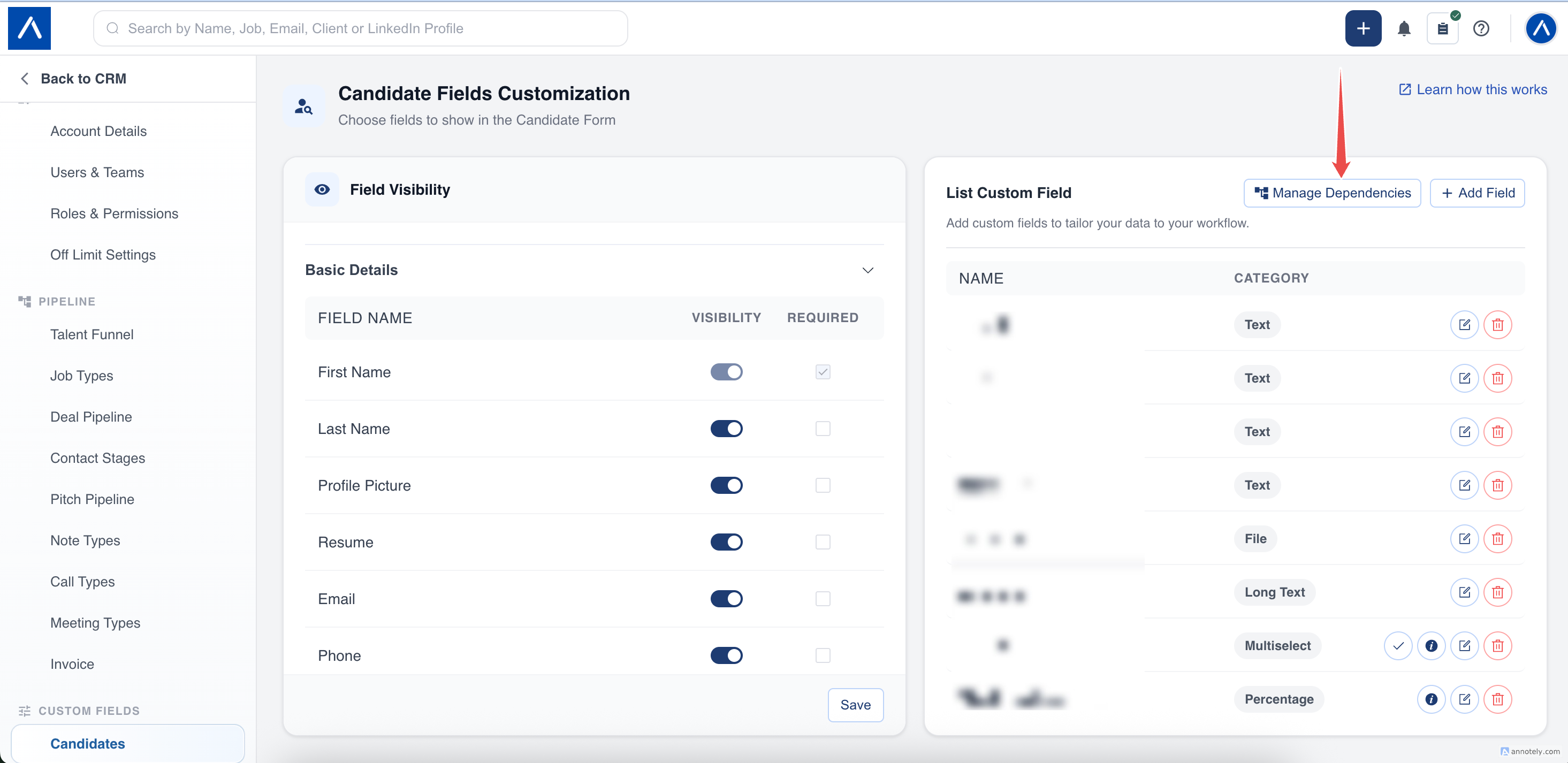
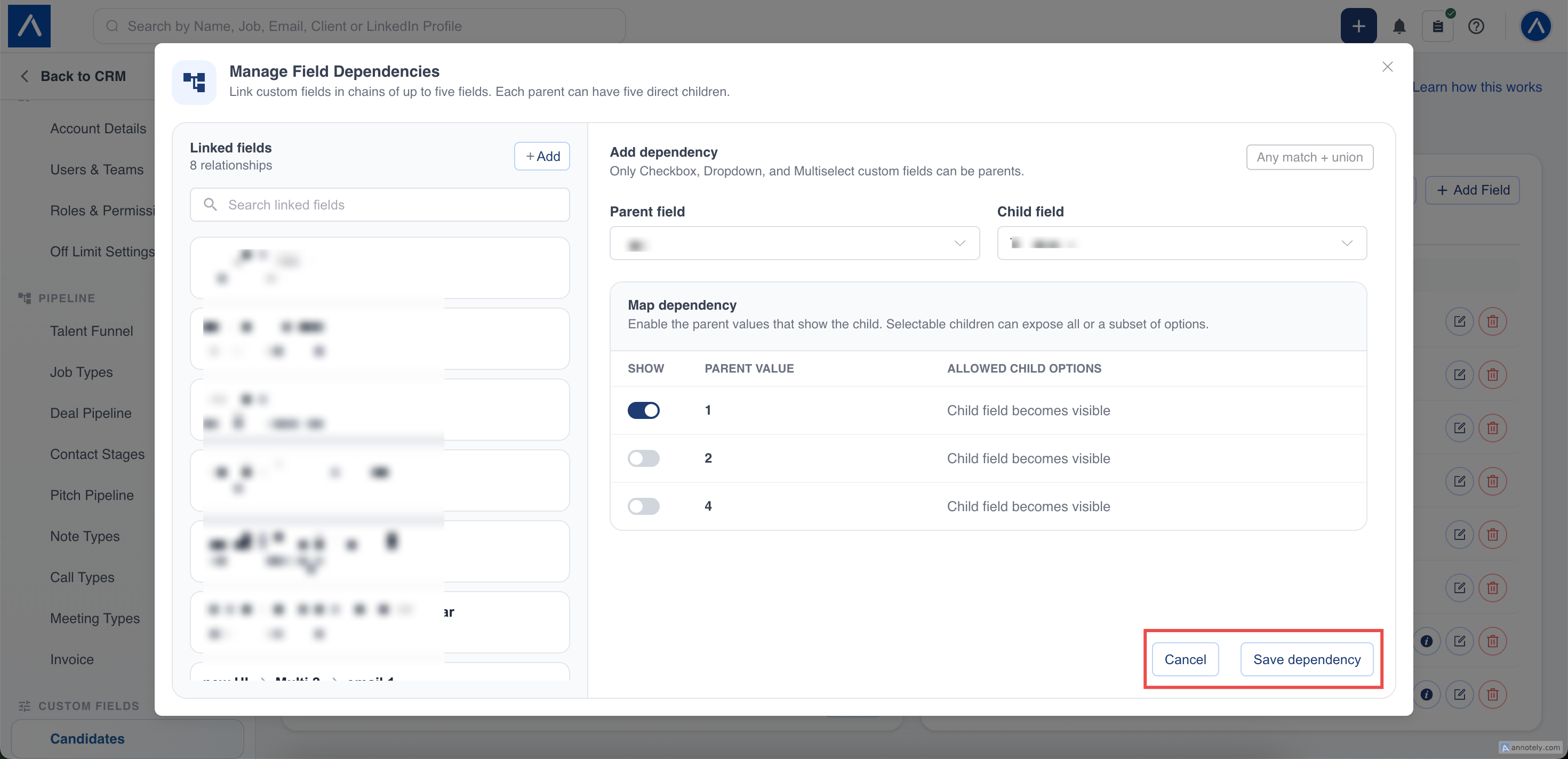
In the List Custom Field section, select Manage Dependencies. This opens a wide relationship-management dialog without changing the normal custom-field list.
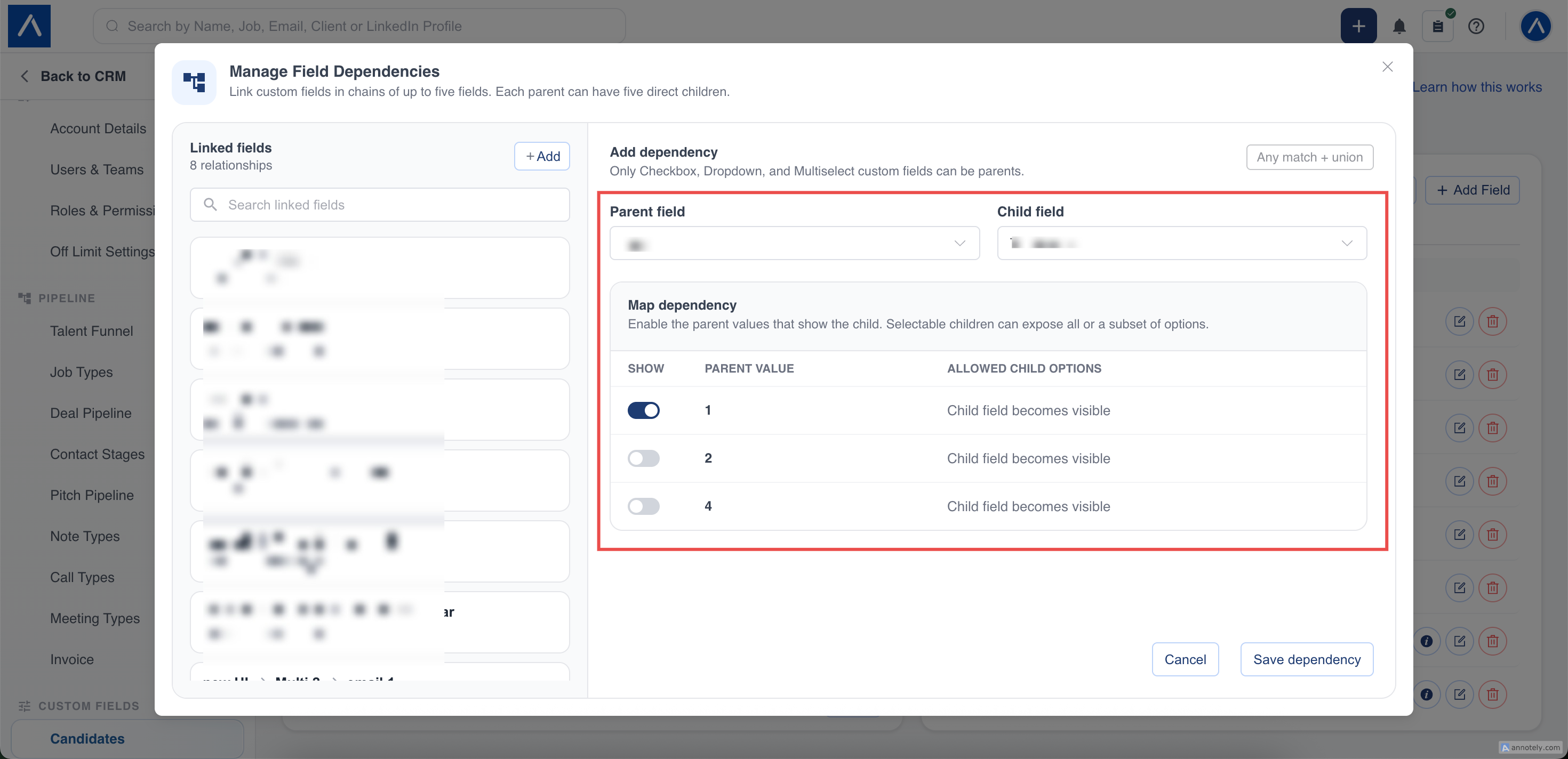
The left panel shows existing linked-field chains. Select a relationship to edit its mappings, or select Add to create a relationship.
Step 3: Select the Parent and Child
Choose:
- A Parent field that controls the condition.
- A Child field that becomes visible when the condition matches.
Eligible parent fields are:
- Checkbox
- Dropdown
- Multi-select
The parent and child become fixed after you save the relationship. Later edits can change mappings only.
Step 4: Map Parent Conditions
Enable the parent values that should show the child.
Checkbox Parent
Choose whether the child appears when the checkbox is Checked or Unchecked.
Dropdown Parent
Choose each dropdown option that should show the child.
Multi-select Parent
Choose the options that should show the child. ATZ CRM uses any match + union behavior:
- The child appears when at least one selected parent option has a mapping.
- If several selected parent options match, their allowed child options are combined.
Step 5: Choose Allowed Child Options
For a Dropdown or Multi-select child, choose one of these policies for each parent mapping:
- All child options: every option in the child field is available.
- Selected options: only the mapped subset is available.
For other child field types, the mapping controls visibility only.
Step 6: Save the Dependency
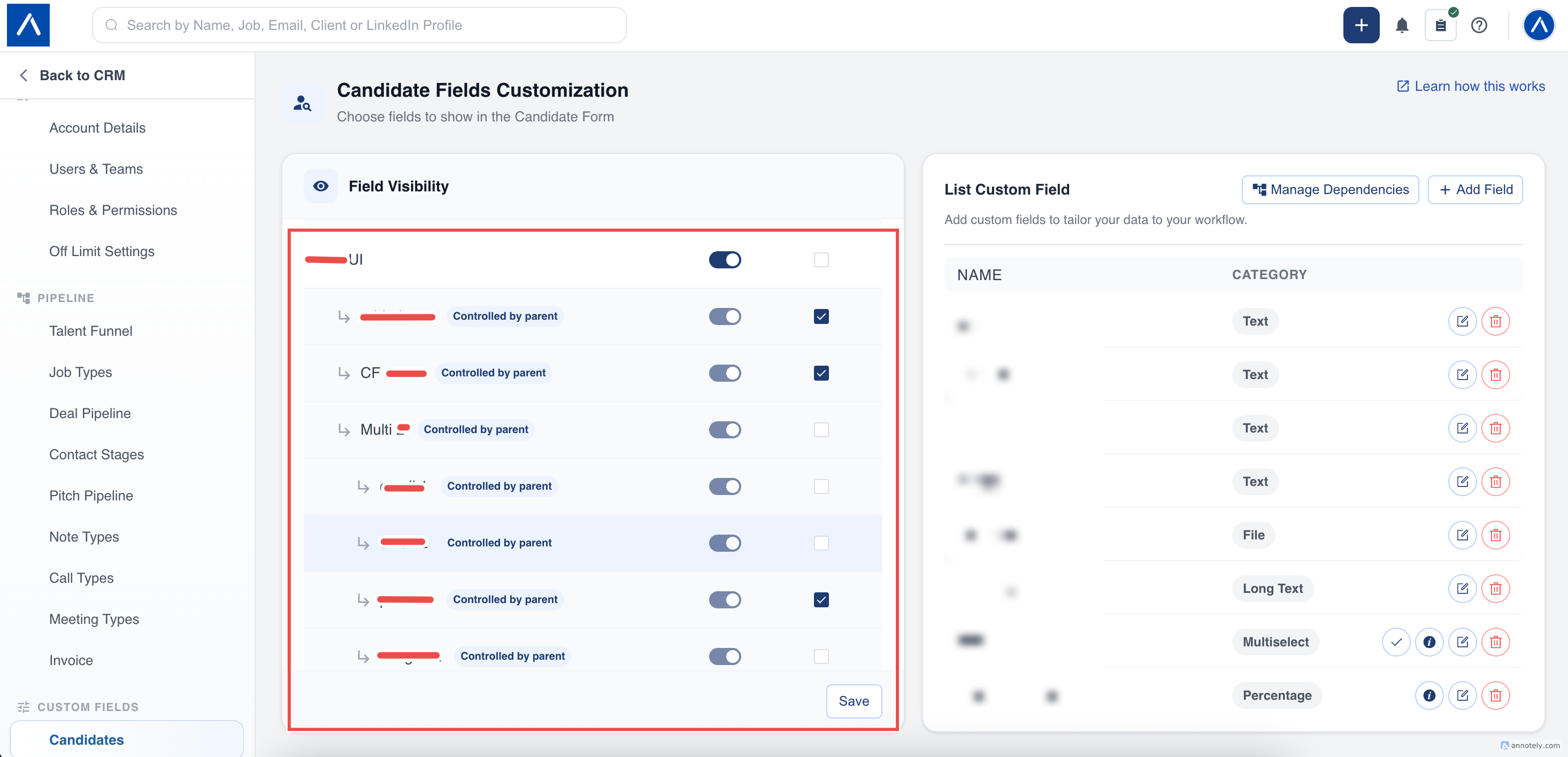
Select Save Dependency. The new relationship appears as a nested chain in Fields Customization.
When the top parent is visible, its linked children are available for their parent conditions. Turning the top parent off in Fields Customization also turns its children off for that surface.
How Required Fields Work
Required status is configured on the child field, but it is enforced only while the complete parent chain makes that child visible.
- Visible child + required + empty: the form cannot be submitted.
- Hidden child + required + empty: validation is skipped.
- When an inline parent edit reveals an empty required child, the parent update succeeds and ATZ CRM tells the recruiter which child needs a value.
This prevents hidden required fields from blocking a recruiter or candidate from submitting a form.
Where Nested Fields Appear
Nested custom fields are evaluated on:
- Candidate, Contact, Organization, Job, and Deal add/edit forms
- Career Connect forms
- Job application and job-specific application forms
- Candidate portal onboarding
- Inline edits
- Bulk updates
- Imports
- ATZ CRM Open API
On add and edit forms, linked fields stay grouped with a subtle border.
What Happens When a Parent Value Changes?
If a new parent selection hides a populated non-file child in an interactive form, ATZ CRM warns the user before clearing the value.
File custom-field values are never removed automatically. They are retained for recovery even if the field is hidden by its parent.
For bulk updates and API integrations, use the available keep or clear policy to decide whether invalid non-file child data should be retained or set to null.
Imports
When an import contains linked custom fields, ATZ CRM asks how to process parent-child values before the import starts.
- Clear invalid child values and continue.
- Skip linked child fields in the import.
Review parent and child columns together before confirming the import. Files remain retained.
Edit or Unlink a Dependency
Open Manage Dependencies and select the relationship.
- You can edit option mappings.
- You cannot replace the parent or child in an existing relationship.
- To use different fields, unlink the relationship and create a new one.
- If the child is also a parent, unlink its own children first. This leaf-first rule prevents broken chains.
Unlinking does not immediately rewrite existing record values. Existing conflicting data is evaluated the next time the record is edited through a dependency-aware surface.
Troubleshooting
A Field Is Not Available as a Parent
Confirm that it is a Checkbox, Dropdown, or Multi-select custom field for the same entity.
A Child Does Not Appear
Check that:
- The top parent is enabled for the current form or surface.
- The current parent value has an enabled mapping.
- Every parent above the child is visible.
A Child Has Fewer Options Than Expected
Review every matched parent mapping. Multi-select parents combine the allowed options from all matched values. A mapping set to All child options exposes the complete option list.
You Cannot Change the Parent or Child
This is expected. Parent and child identities are immutable after creation. Unlink the relationship, then create a new one.
You Cannot Unlink a Middle Field
Unlink its direct children first, then unlink it from its own parent.
Frequently Asked Questions
Can independent custom fields still be used?
Yes. Custom fields without a dependency continue to work exactly as before.
Can one field be both a child and a parent?
Yes, provided the complete chain contains no more than five fields.
Can a parent have several children?
Yes. A parent can have up to five direct children.
Are child fields always required when visible?
No. Recruiters can mark a child as required or optional. Required validation runs only while the child is visible.
What happens to existing data when a new dependency is created?
Existing conflicting values remain in place until the record is next edited through a dependency-aware workflow.