
ATZ CRM uses Nylas to connect Outlook and Office 365 mailboxes, allowing ATZ CRM to mirror email folders and messages.
Quick Answer
Open Email Settings, connect an email account, authenticate through Nylas with Microsoft, grant permissions, and wait for the mailbox to sync.
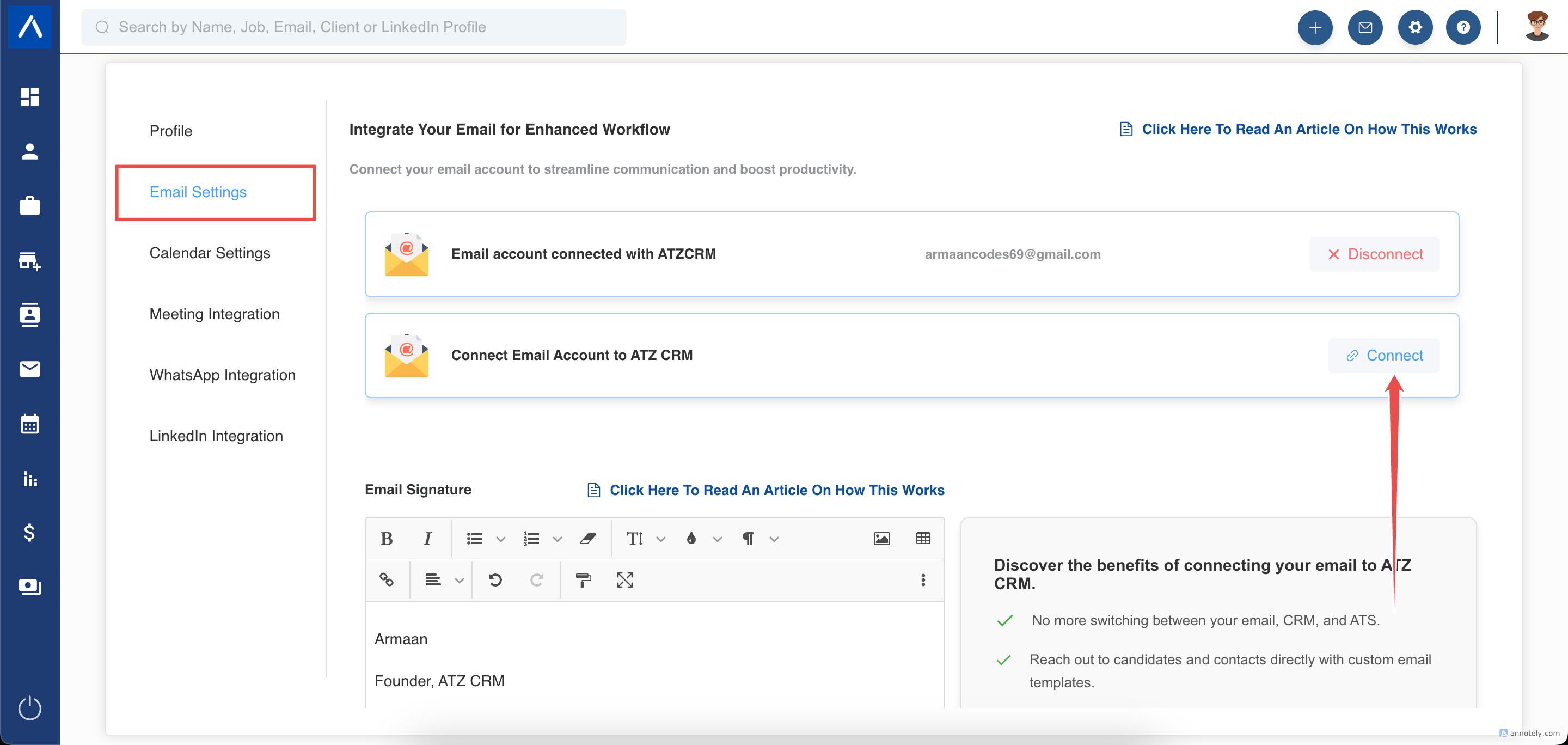
Step 1: Open Email Settings
Go to Email Settings and choose the option to connect email accounts.
You can connect up to two email accounts as an add-on. If one email is connected, it becomes the default sender.
Step 2: Log In Through Nylas
Continue to the Nylas login page.
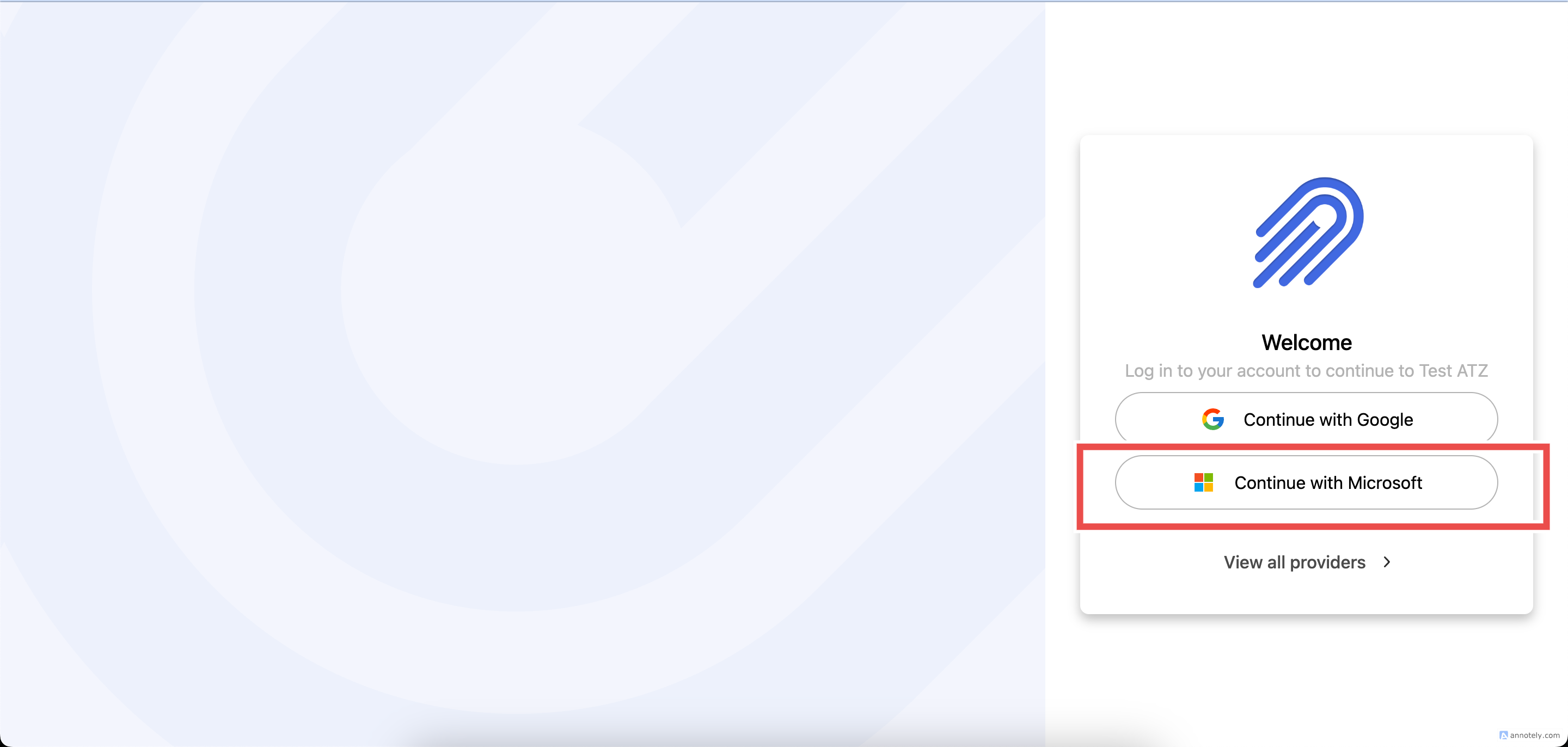
Step 3: Authenticate Microsoft Account
Enter your Microsoft password, sign in, grant requested permissions, and continue.
Step 4: Access Your Mailbox
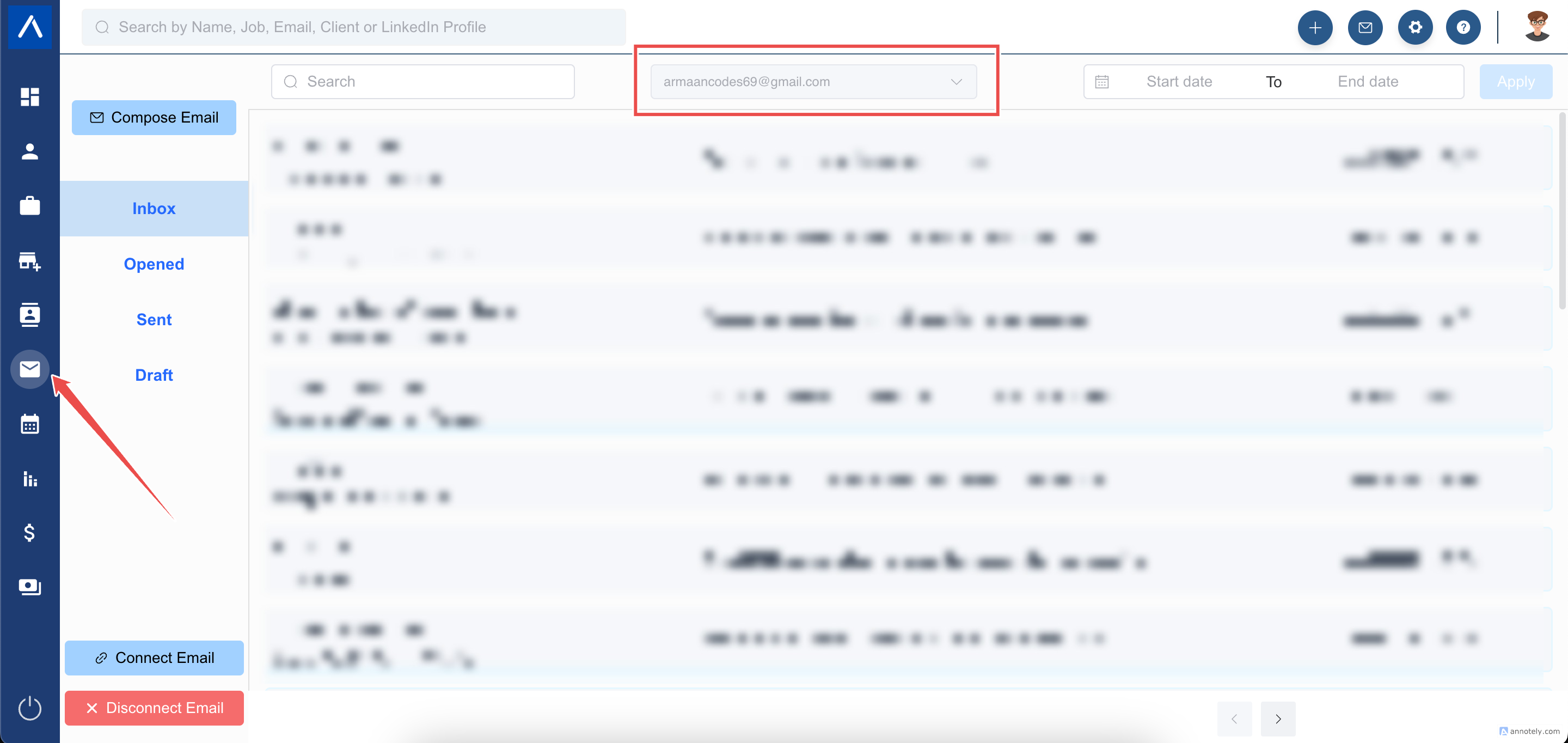
Your mailbox becomes available from the left menu in ATZ CRM.
Folder organization depends on Nylas responses and may not match Outlook exactly. Initial folder sync can take 2 to 3 hours, and older emails may take up to 24 hours.
Special Case: Admin Approval
If your organization has strict security settings, you may see Need Admin Approval.
In that case, your Microsoft or Office 365 administrator must approve the app connection in the Microsoft Azure portal. After approval, users under the same domain can connect.
Special Case: Personal or Free Office Accounts
For Office 365 Family, Personal, or Free accounts, click Select a different provider on the Nylas login page and use Custom IMAP Settings.
See: Connect IMAP email.
Email Policy Requirements
For reliable delivery, configure domain authentication and sender policies: Email policy compliance.
Retain Emails from Deactivated Users
To preserve emails:
- Move deactivated user emails into an active user mailbox.
- Create a shared archive mailbox and connect it to ATZ CRM as an add-on second account.
Troubleshooting
Admin Approval Blocks Connection
Ask your Microsoft administrator to approve the integration in Azure.
Folders Look Different
Folder organization depends on provider and Nylas sync responses.
Sync Takes Too Long
Allow up to 24 hours for older emails to sync.
FAQs
Can I switch between connected Outlook mailboxes?
Yes, if multiple email accounts are connected.
Do I need third-party sync enabled?
Some accounts need POP or IMAP access enabled before connection.
Can Outlook be used for email triggers?
Yes. A connected and verified sender email can be used for email triggers.