
When to Use CSV or XLS Import
Use CSV/XLS import when you need to add many records to ATZ CRM at once. This is useful for candidate databases, contact lists, organizations, and cleaned spreadsheets from another system.
Step 1: Open the Entity
Go to the entity you want to import into, such as Candidates.
Step 2: Select Import CSV/XLS
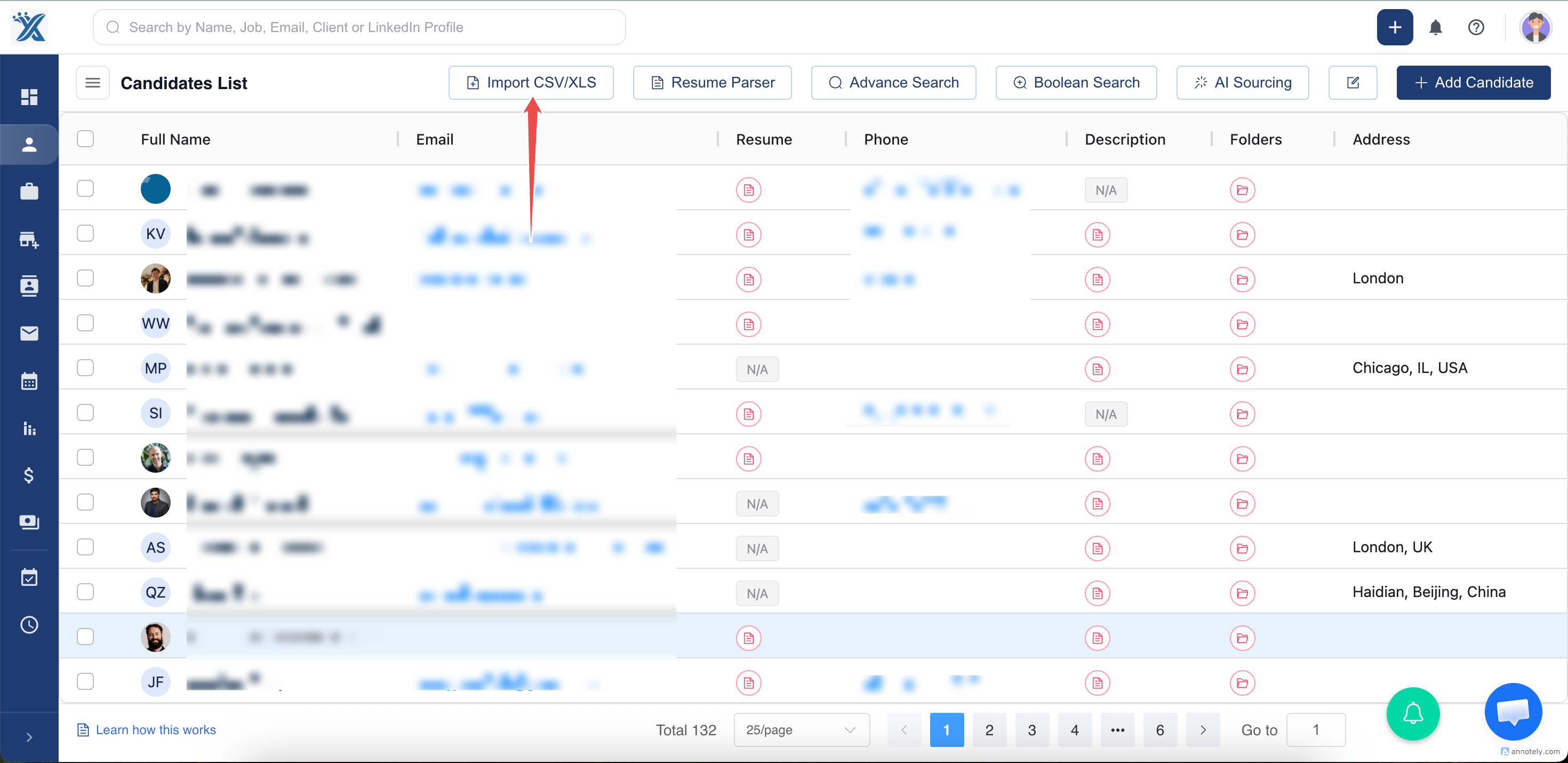
Click Import CSV/XLS from the top actions.
Step 3: Upload Your File
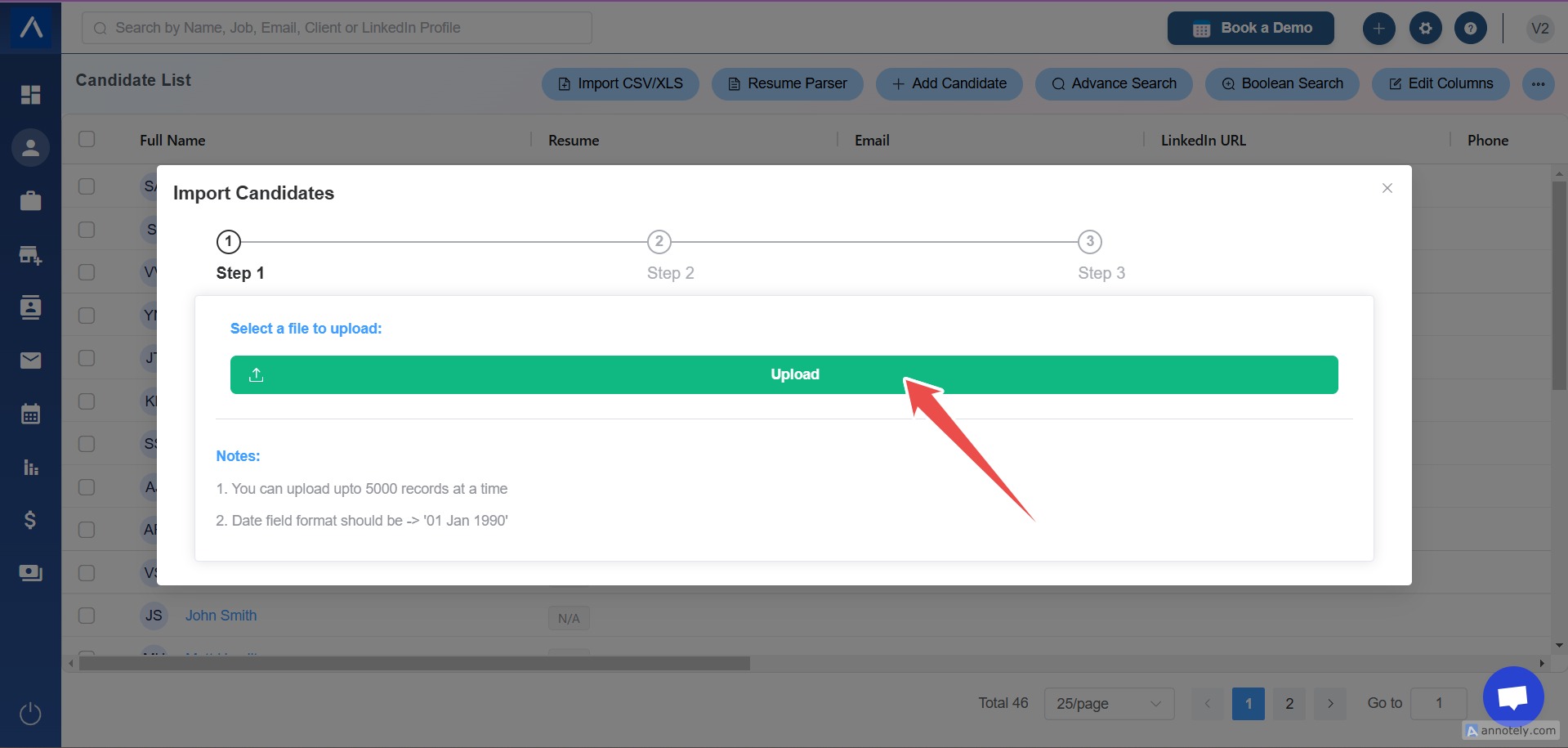
Select Upload and choose your CSV or XLS file from your computer.
Important import notes:
- Upload up to 5,000 records at a time.
- Use a readable date format, such as
01 Jan 1990. - Clean duplicate rows and obvious formatting issues before upload.
Step 4: Map Spreadsheet Columns
Match each column in your file to the correct ATZ CRM field. Make sure all mandatory fields are mapped before continuing.
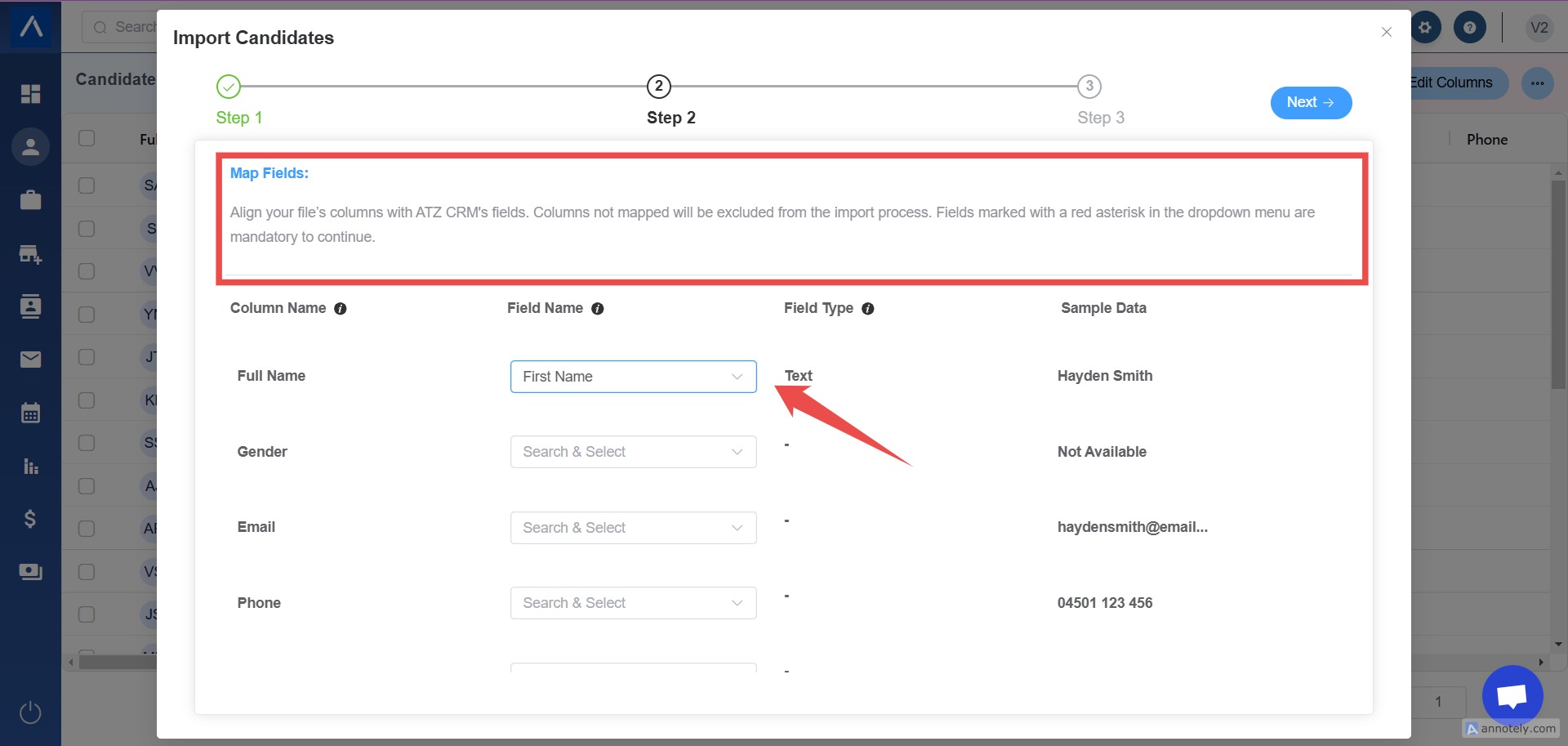
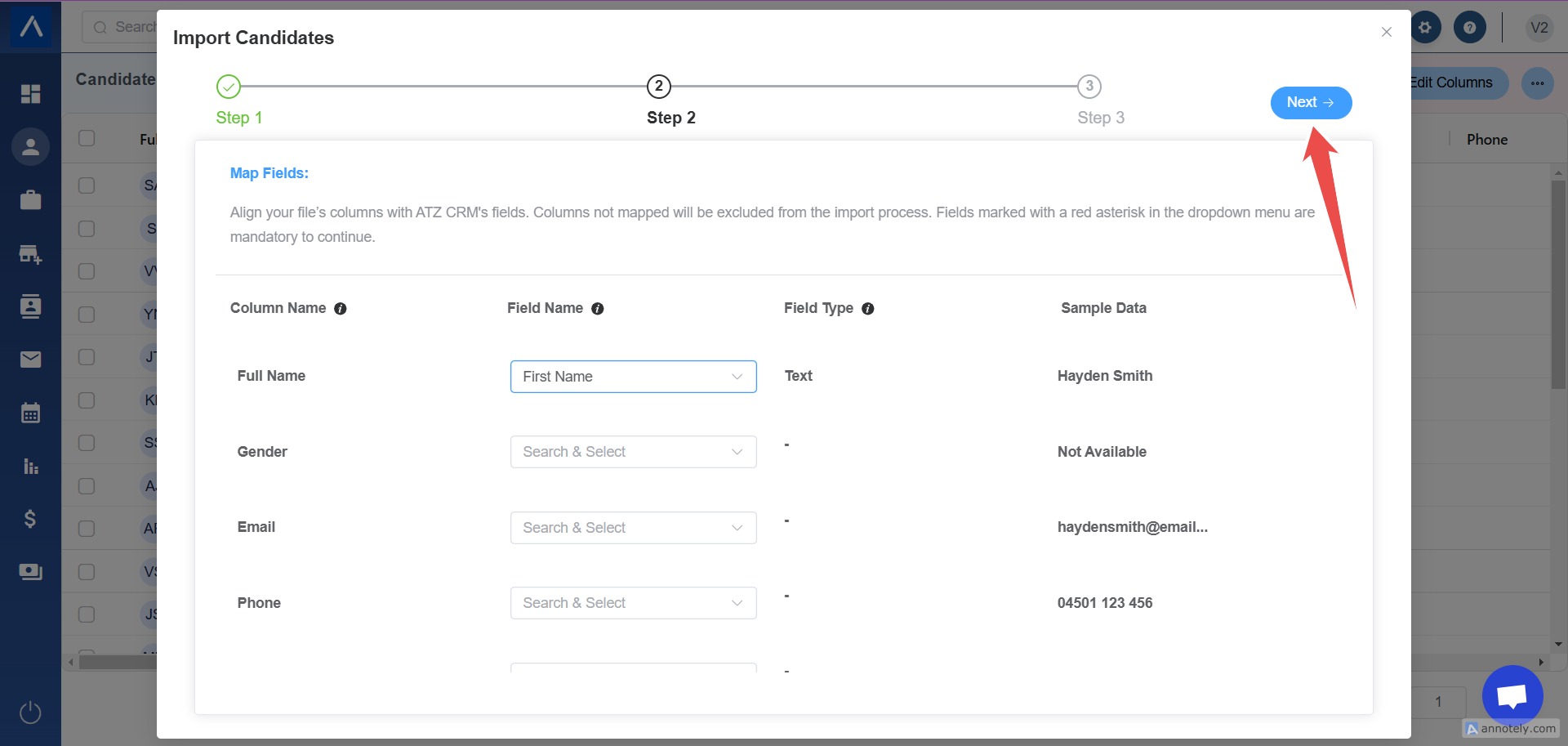
Select Next after mapping fields.
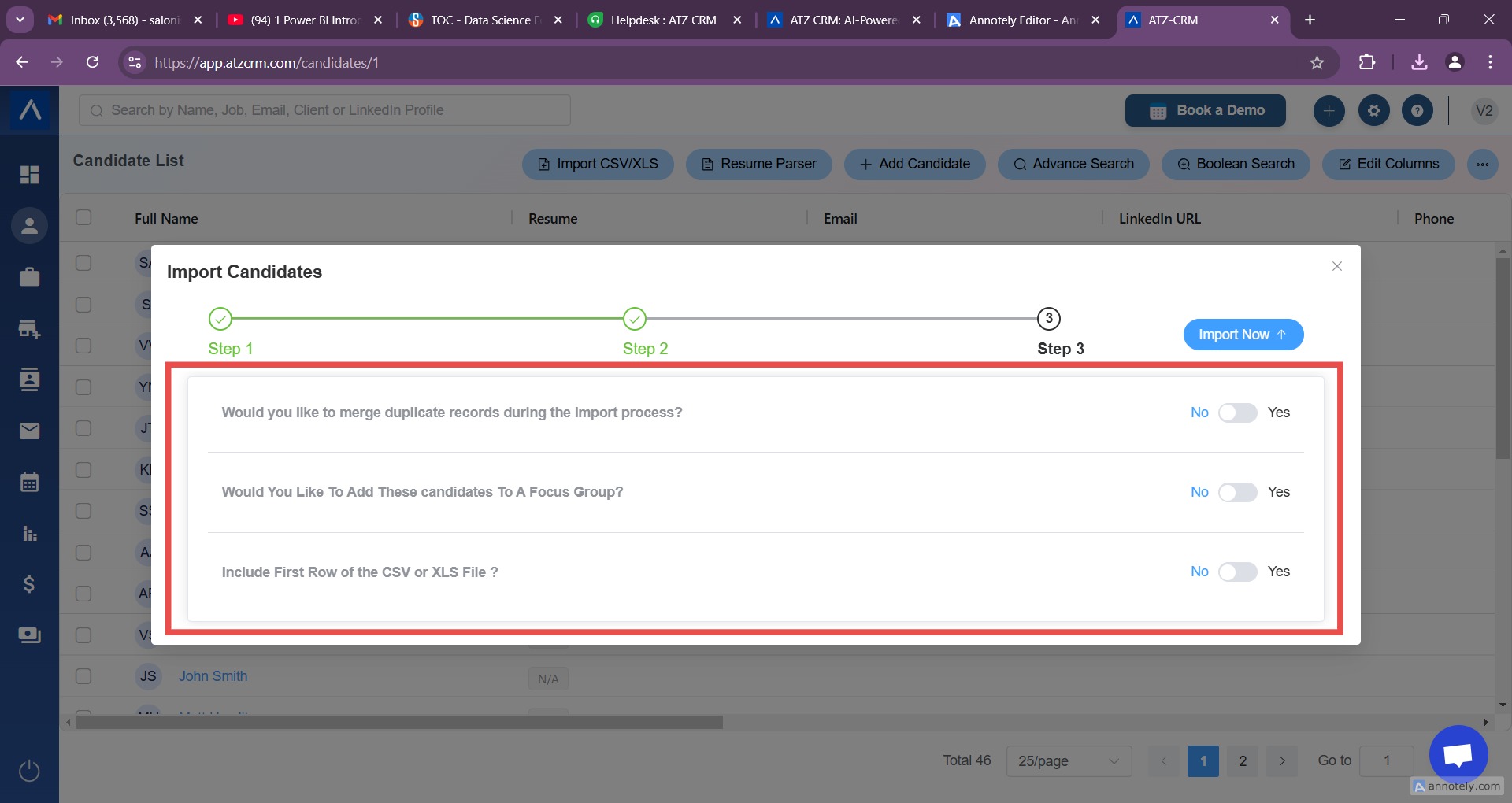
Step 5: Verify Import Settings
Choose how ATZ CRM should handle the import:
- Merge duplicate records when duplicates are detected.
- Choose duplicate identifiers such as email, LinkedIn, or phone where available.
- Decide whether imported data should override existing record data.
- Add imported candidates to a focus group if useful.
- Confirm whether the first row contains headers or data.
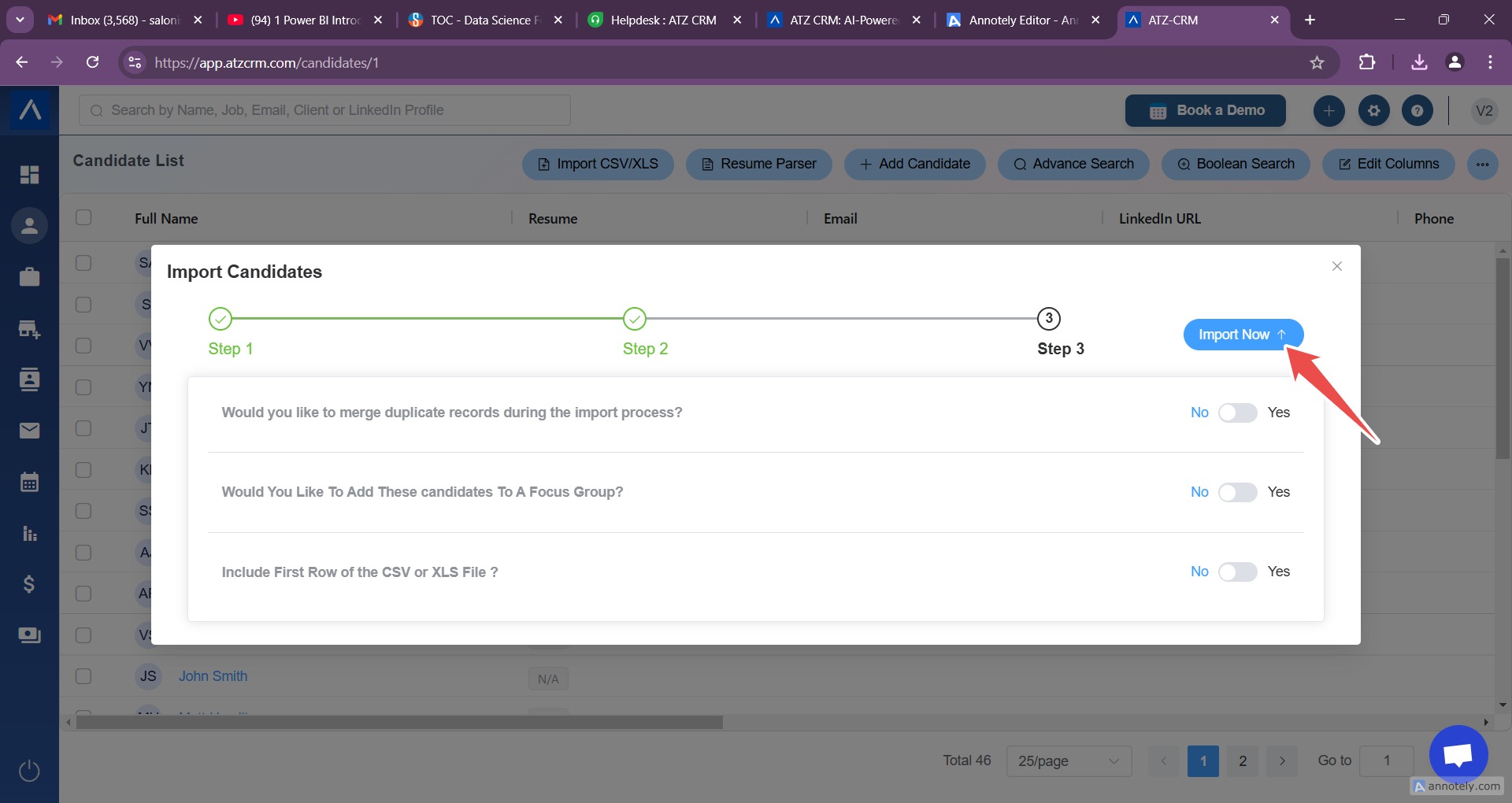
Step 6: Import the Records
Select Import Now. ATZ CRM sends an email notification after the import is complete.
Use Cases
Migrating from Spreadsheets
Bring candidate, contact, or organization data into ATZ CRM from existing spreadsheets.
Bulk Campaign Uploads
Import lists from sourcing campaigns, events, or cleaned lead databases.
Database Cleanup
Use import with duplicate merge settings to update existing records with cleaner data.
Troubleshooting
Mandatory Field Mapping Is Missing
Check required fields for the entity and map those columns before continuing.
Duplicate Records Are Created
Review duplicate identifiers before import. Use email, phone, LinkedIn, website, or organization name where applicable.
Date Fields Import Incorrectly
Standardize date formats before upload and test with a smaller file if needed.
Frequently Asked Questions
Can I import custom field values?
Yes, if the custom fields already exist and you map spreadsheet columns to those fields.
Should I include column headers?
Yes, headers usually make mapping easier. Confirm the first-row setting during import.
What happens after import?
ATZ CRM emails you when processing is complete and provides access to review imported records.