
What Workflow Automation Does
Workflow automation lets you connect ATZ CRM with ATZ CRM itself or with other apps so routine recruiting work can happen automatically. ATZ CRM workflow automation is powered by viaSocket, giving you access to 2,200+ app integrations and built-in tools.
An automation is called a flow. A flow usually has two main parts:
- Trigger: The event that starts the automation. For example, a candidate is added in ATZ CRM.
- Action: The task that runs after the trigger. For example, add a note to the candidate profile, update a candidate, send data to another app, or call an API.
For example, if you want ATZ CRM to add a note whenever a new candidate is added, your trigger is Add candidate and your action is Add note or another candidate update action.
Step 1: Open Workflow Automation
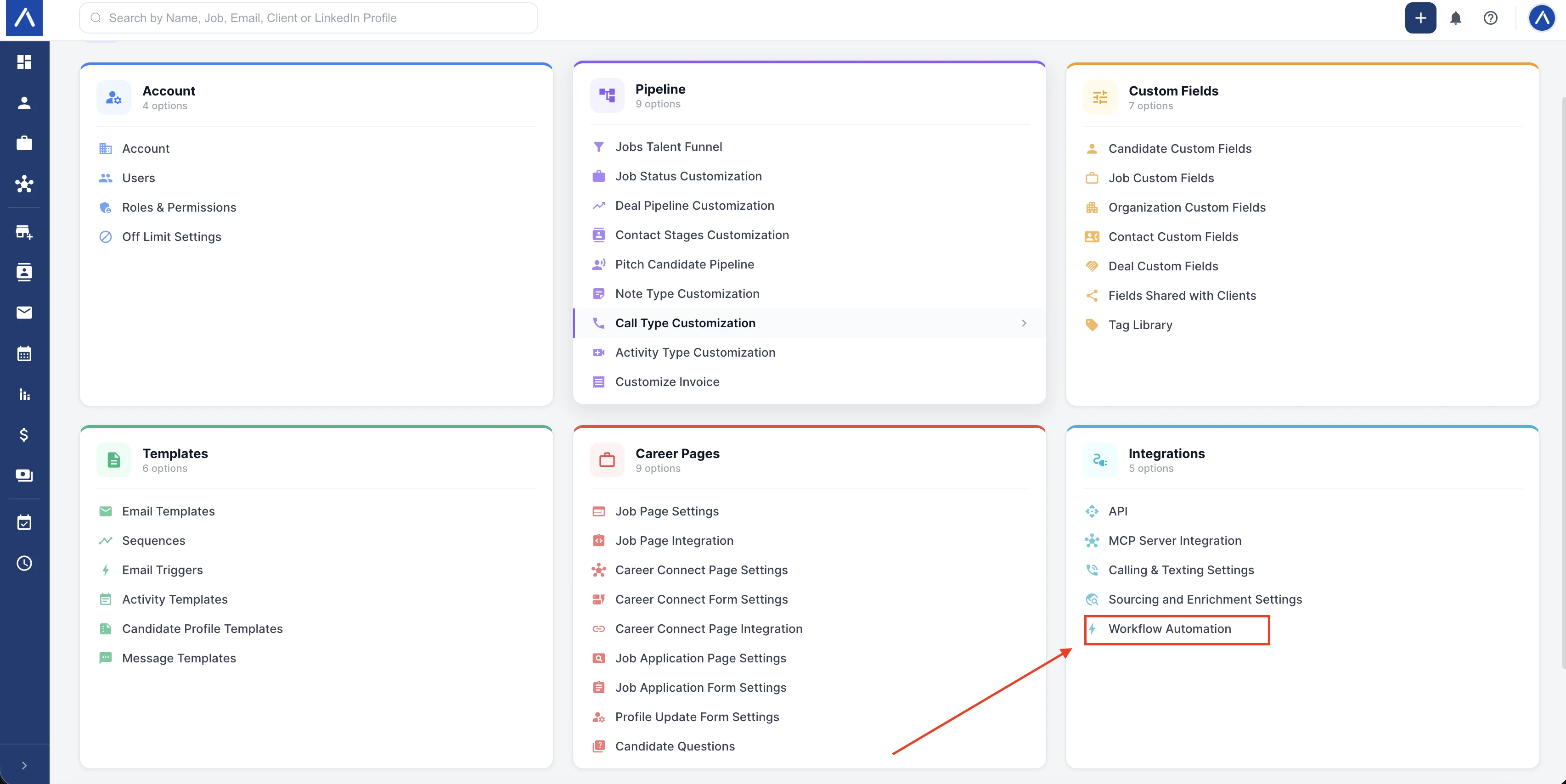
Go to Admin Settings, find the Integrations section, and select Workflow Automation.
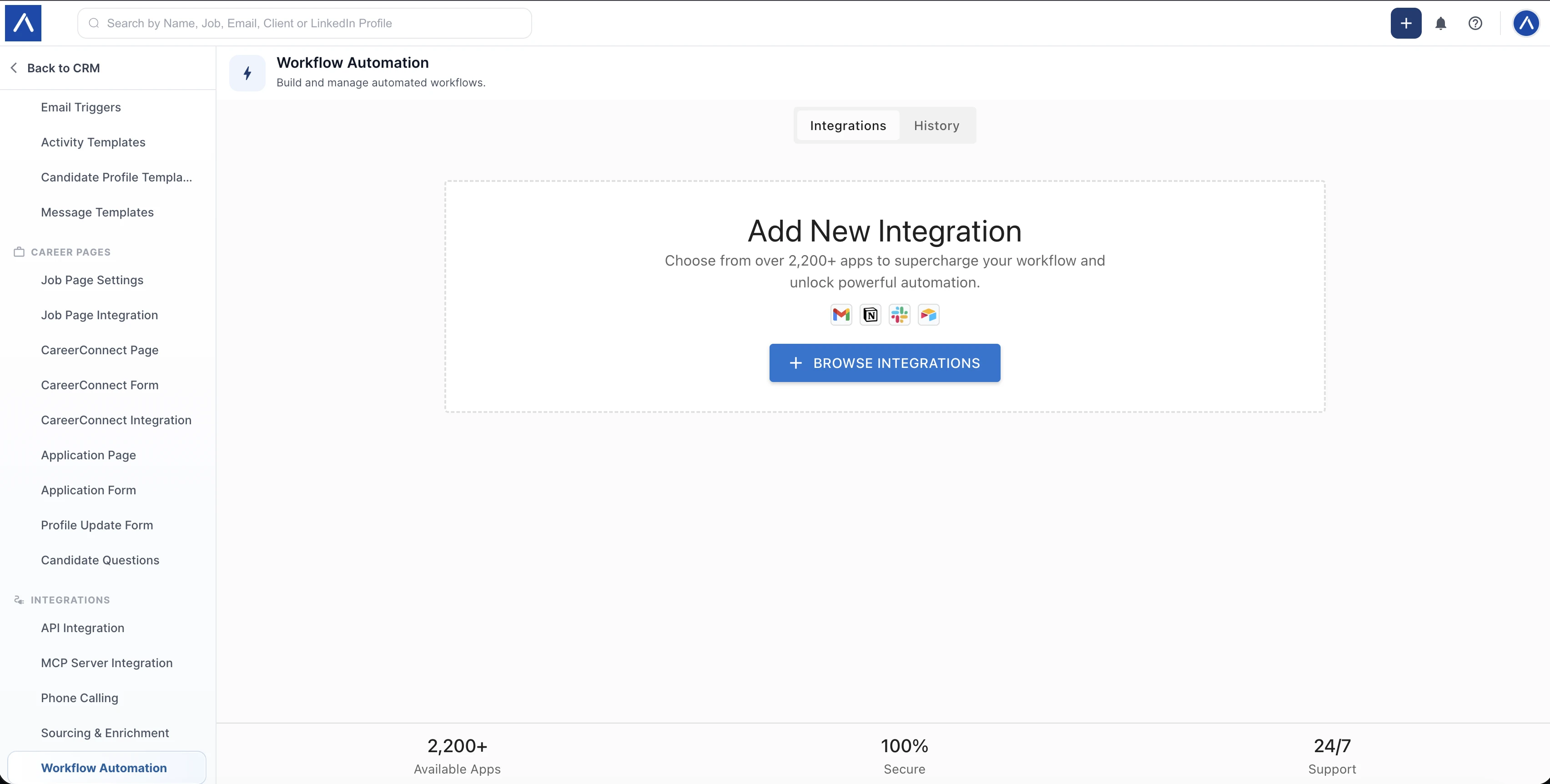
The Workflow Automation page opens with an Integrations tab and a History tab. Select Browse Integrations to start from the app catalog.
Step 2: Choose an App or Add a Custom Flow
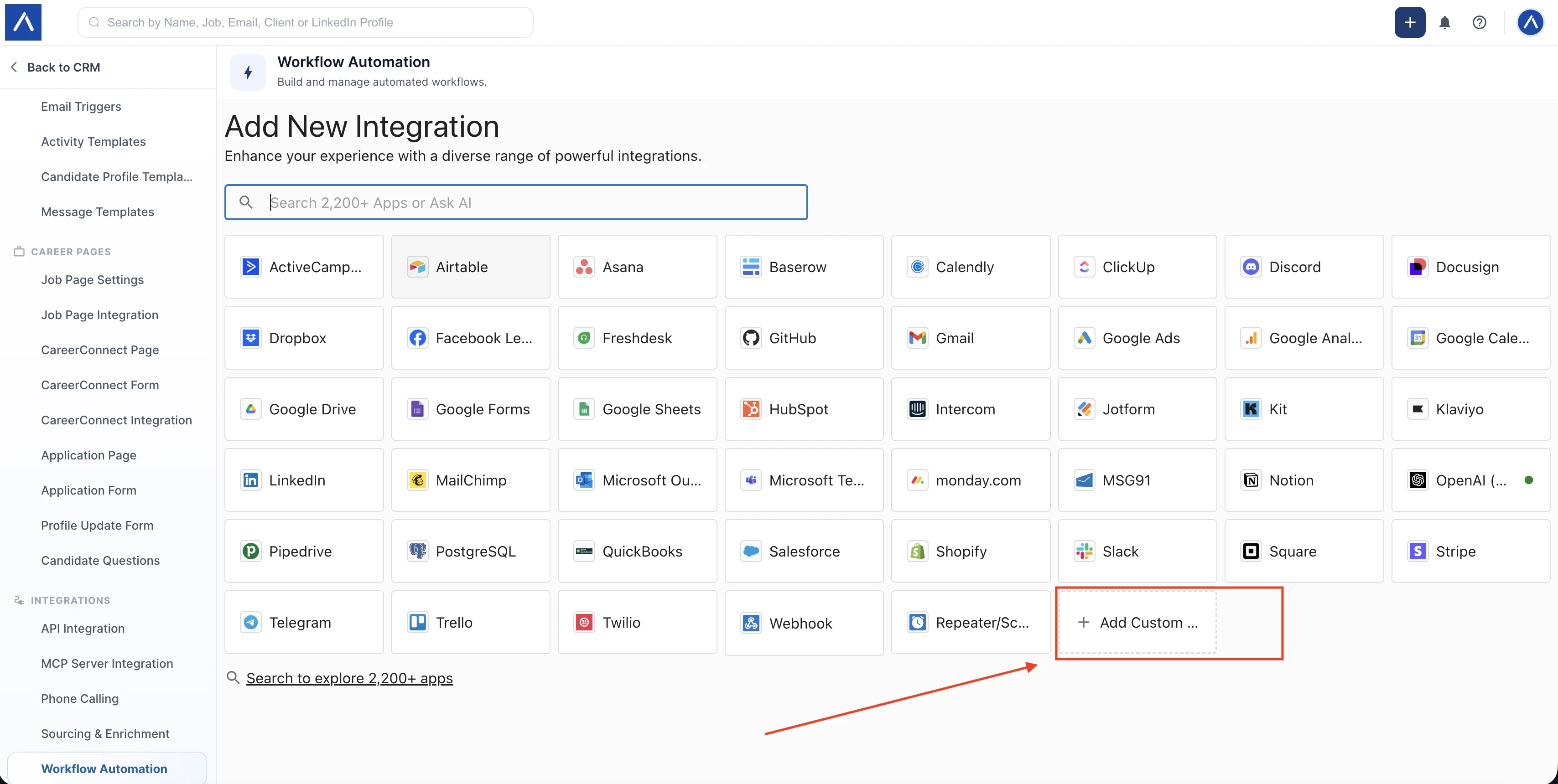
Search for the app you want to connect. You can choose apps such as Gmail, Google Sheets, Slack, OpenAI, Airtable, HubSpot, Salesforce, and many more.
If you do not want to pick the app immediately, select Add Custom. You can choose the trigger and action apps later while building the flow.
Step 3: Add a Trigger
The flow builder opens with a starting point. Select Add Trigger to choose the event that should start the automation.
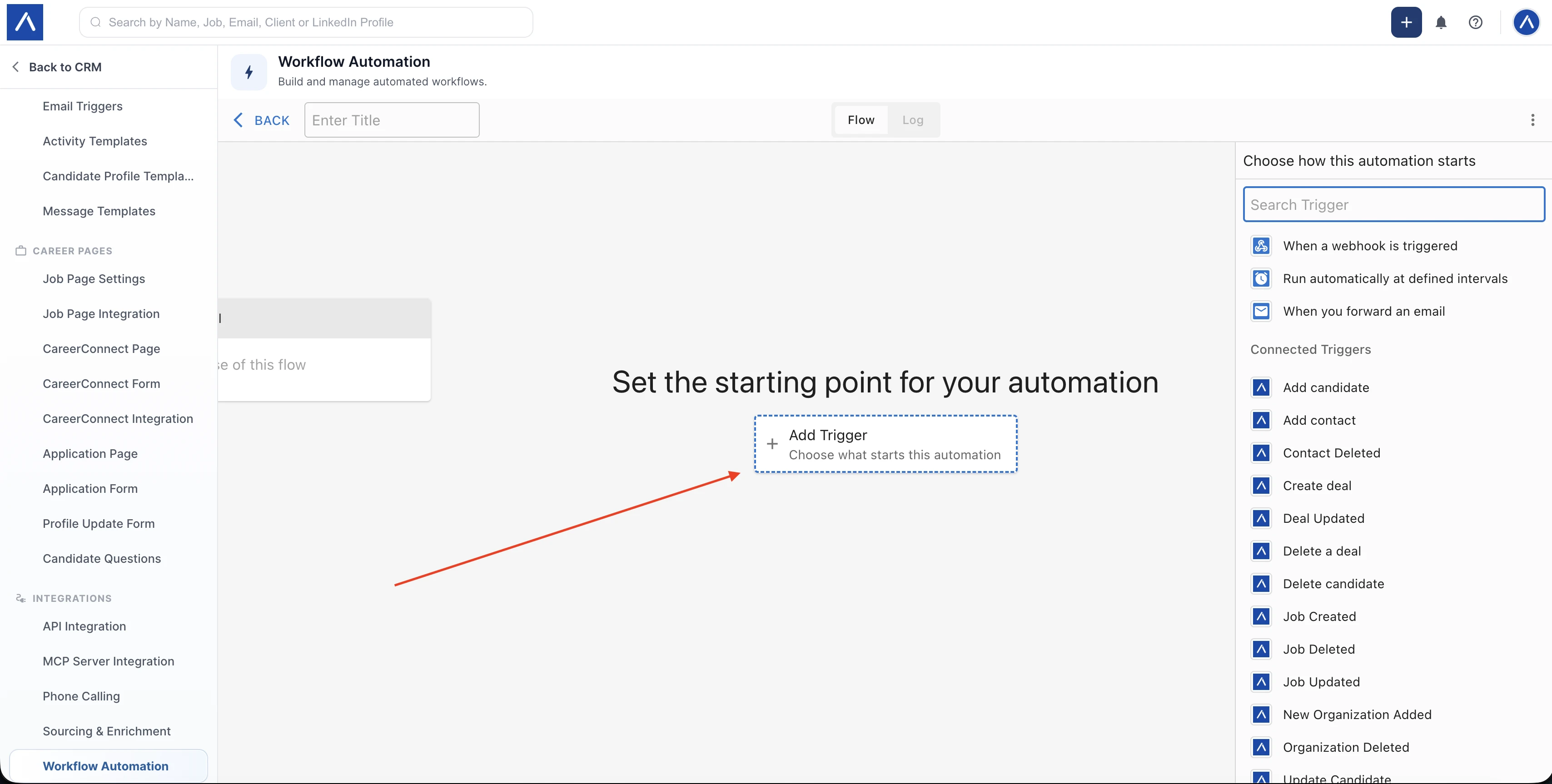
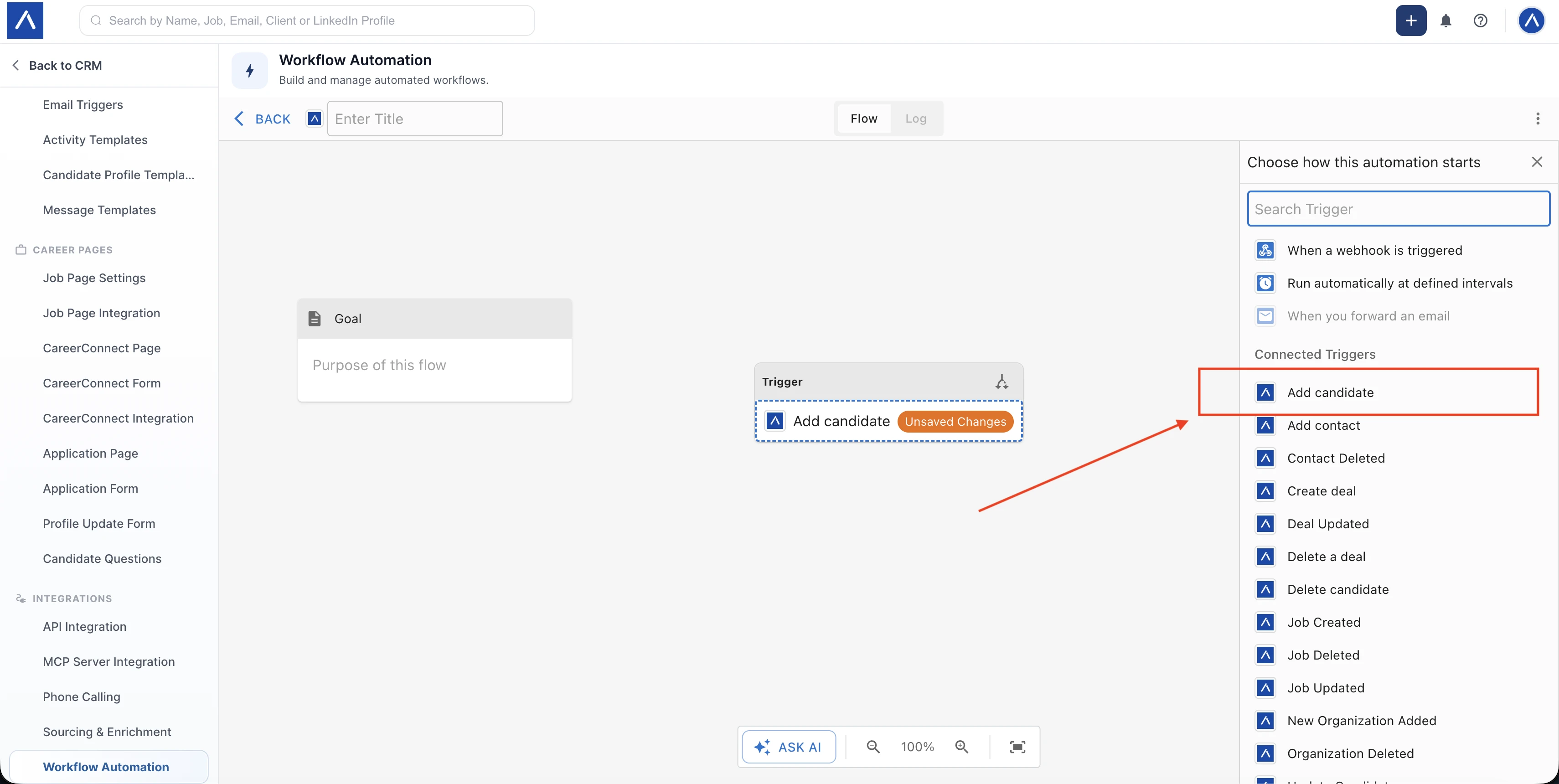
Use the right sidebar to search for a trigger. ATZ CRM includes several connected triggers, including candidate, contact, deal, job, and organization events.
For example, choose Add candidate if the flow should run whenever a candidate is added to ATZ CRM.
Step 4: Connect ATZ CRM
When you choose an ATZ CRM trigger for the first time, select Connect to ATZ CRM. A connection window opens and asks for your ATZ CRM API key.
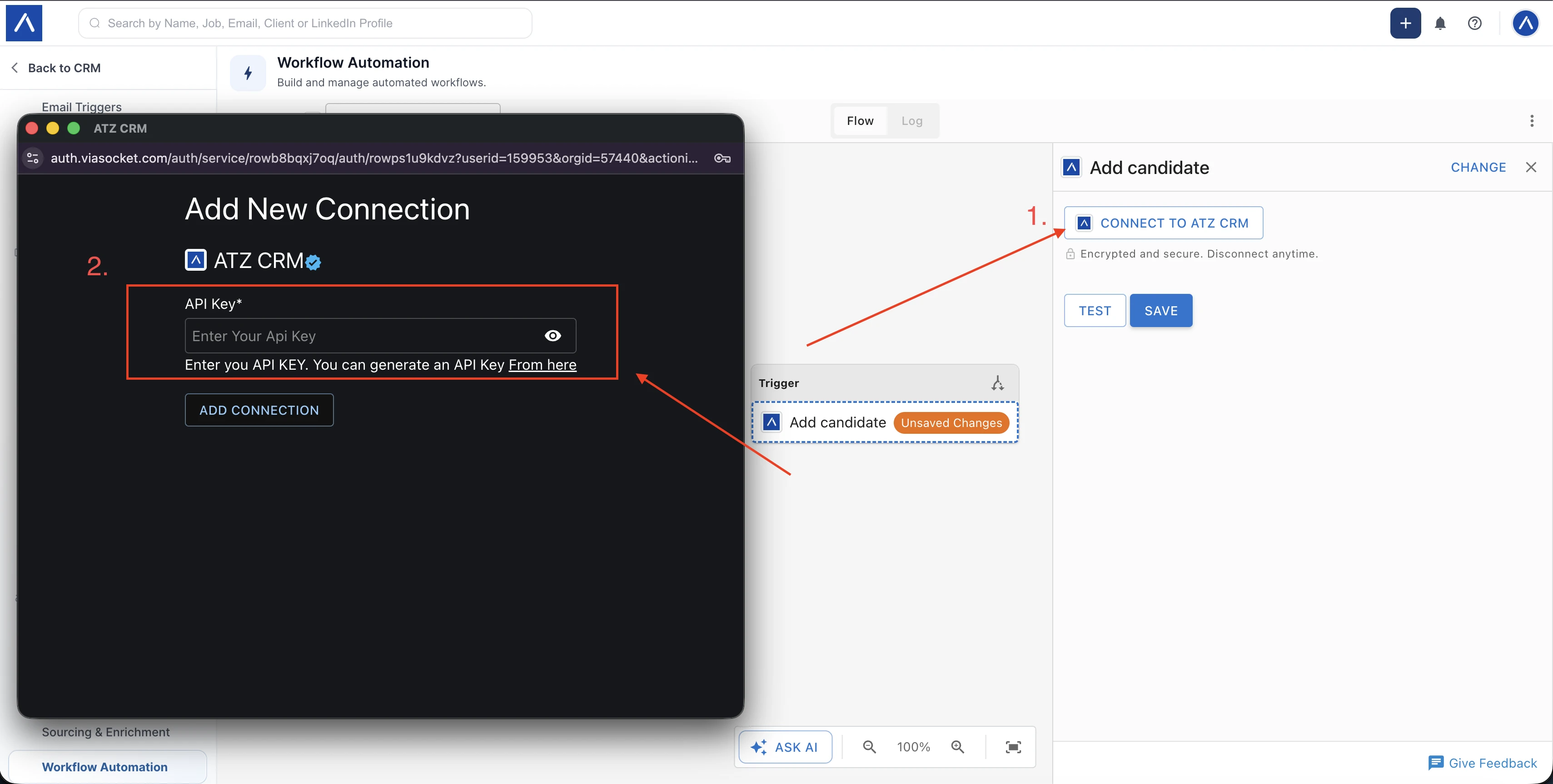
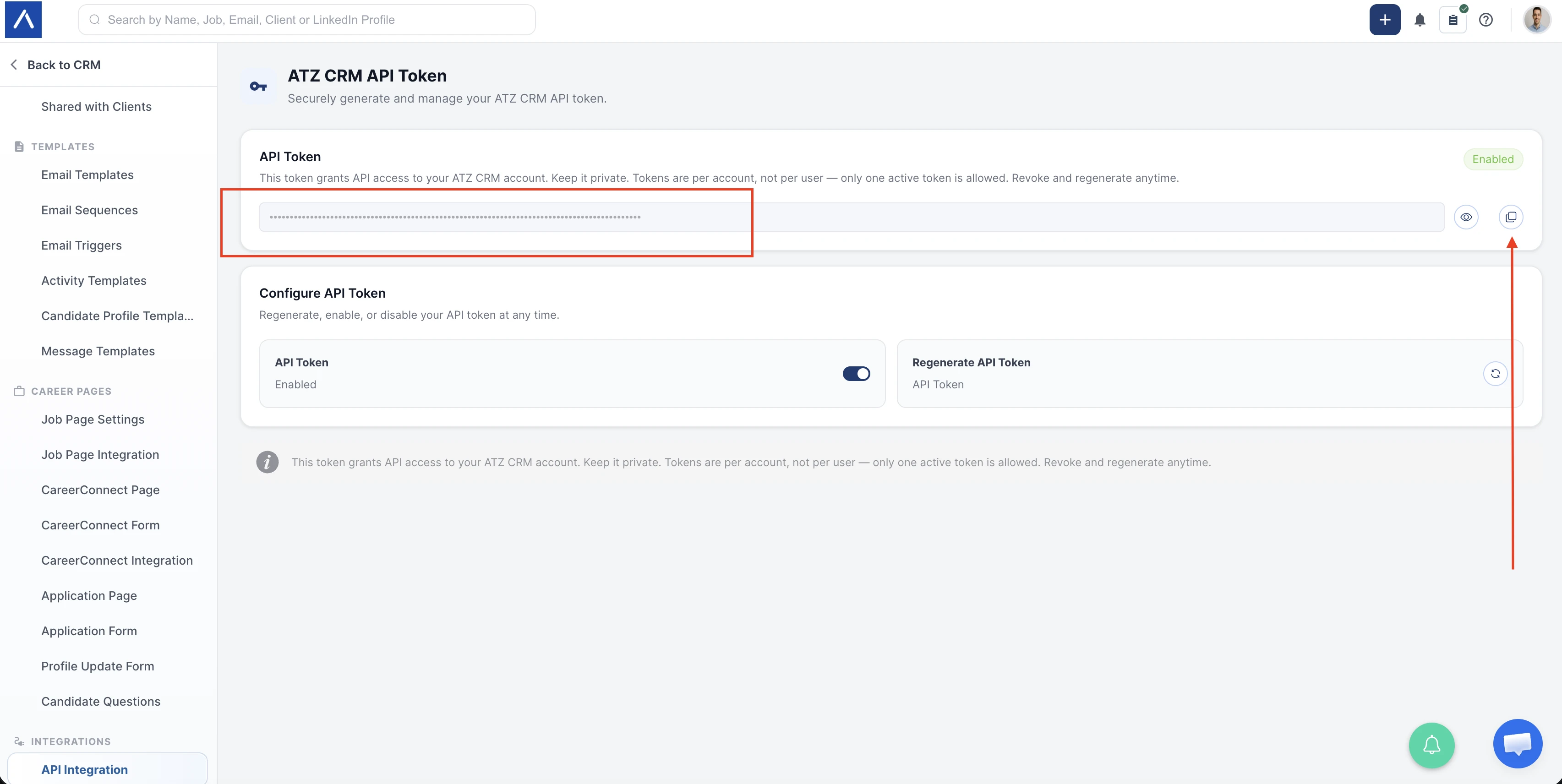
Open ATZ CRM API Token, copy your API token, and paste it into the connection window. This is a one-time process for the connection.
Keep your API token private. It grants API access to your ATZ CRM account.
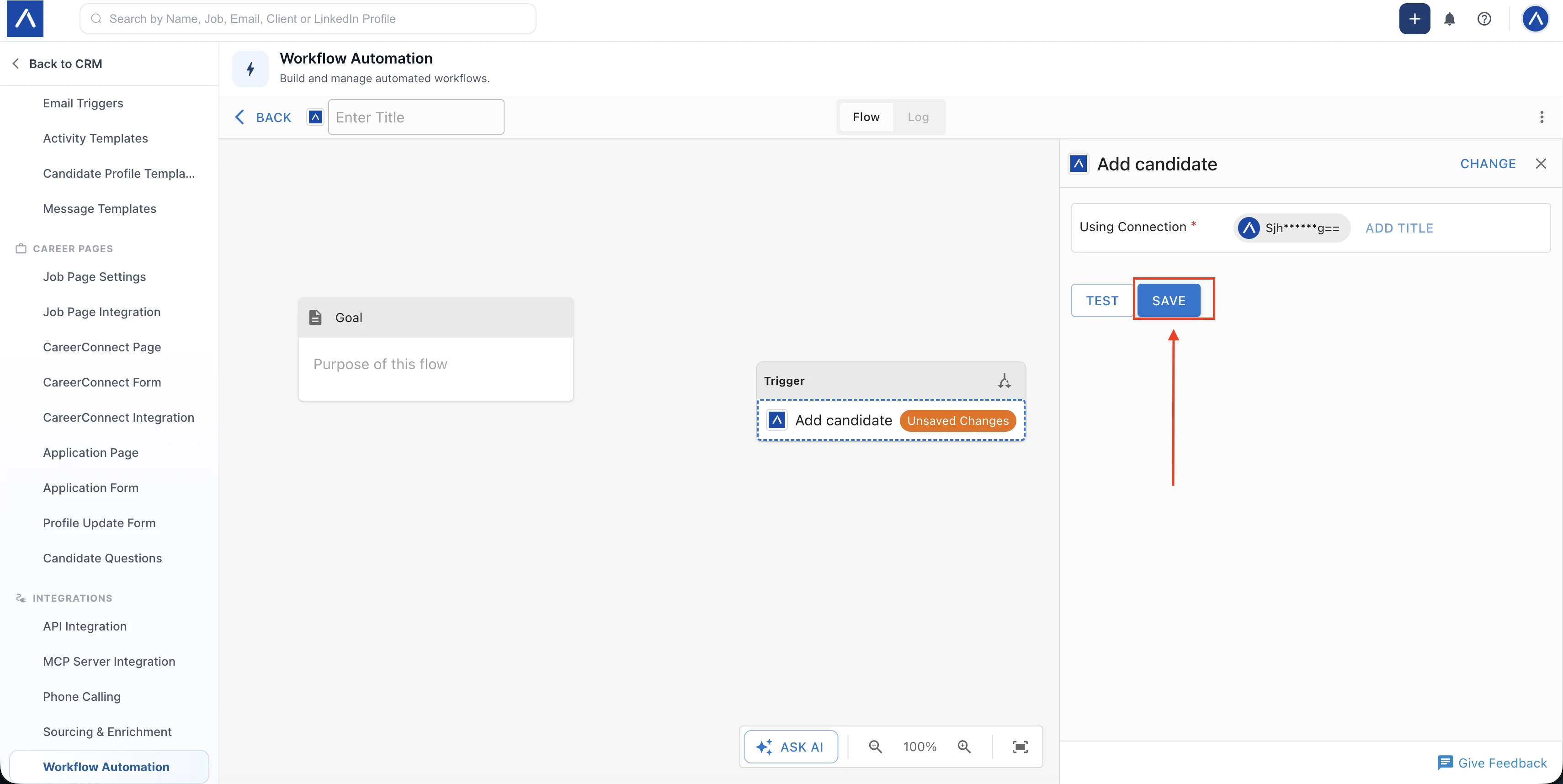
After the connection is added, select Save to save the trigger setup.
Step 5: Add an Action
After the trigger is saved, choose what should happen next. Select Add Step under the Action area.
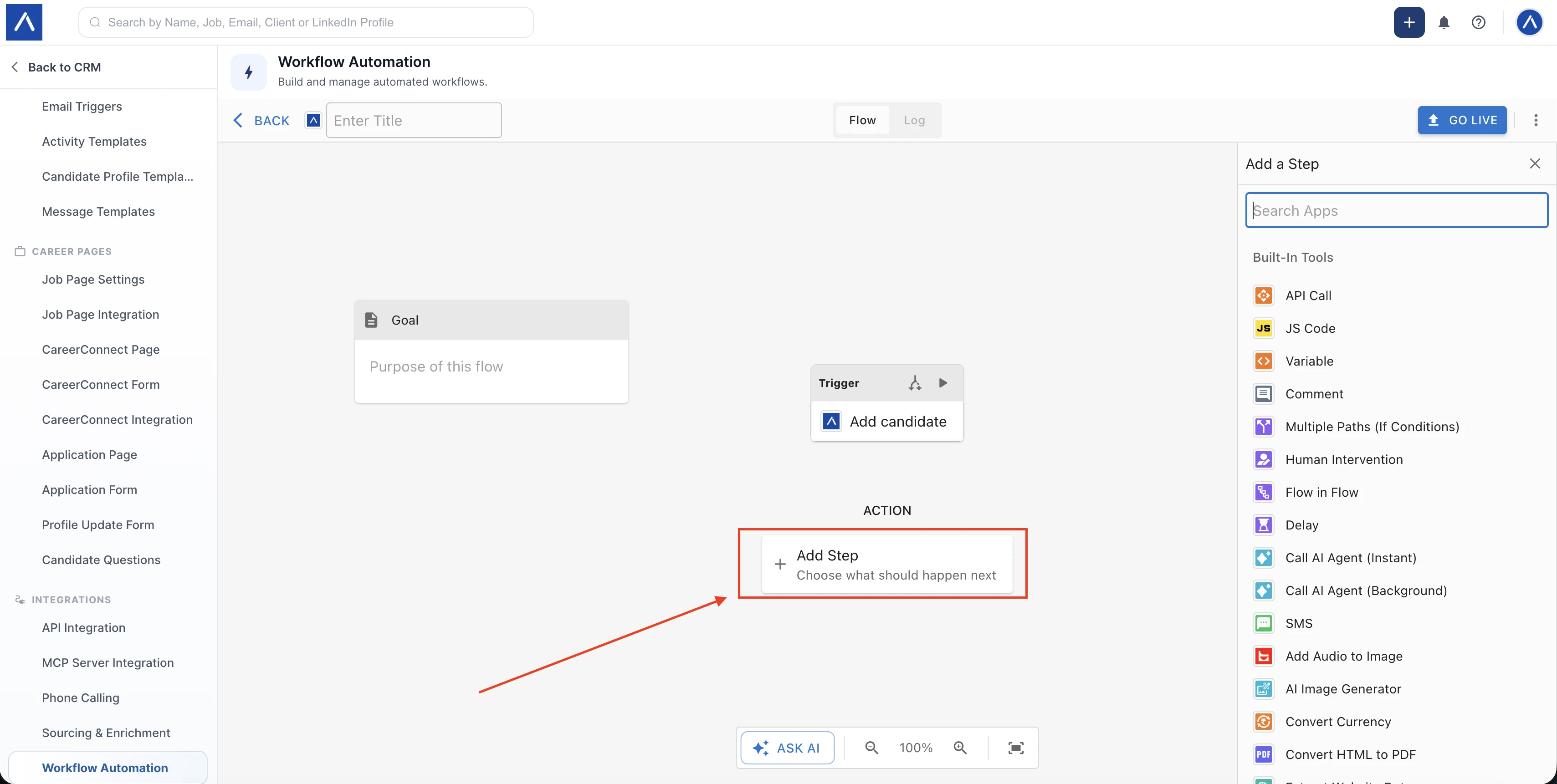
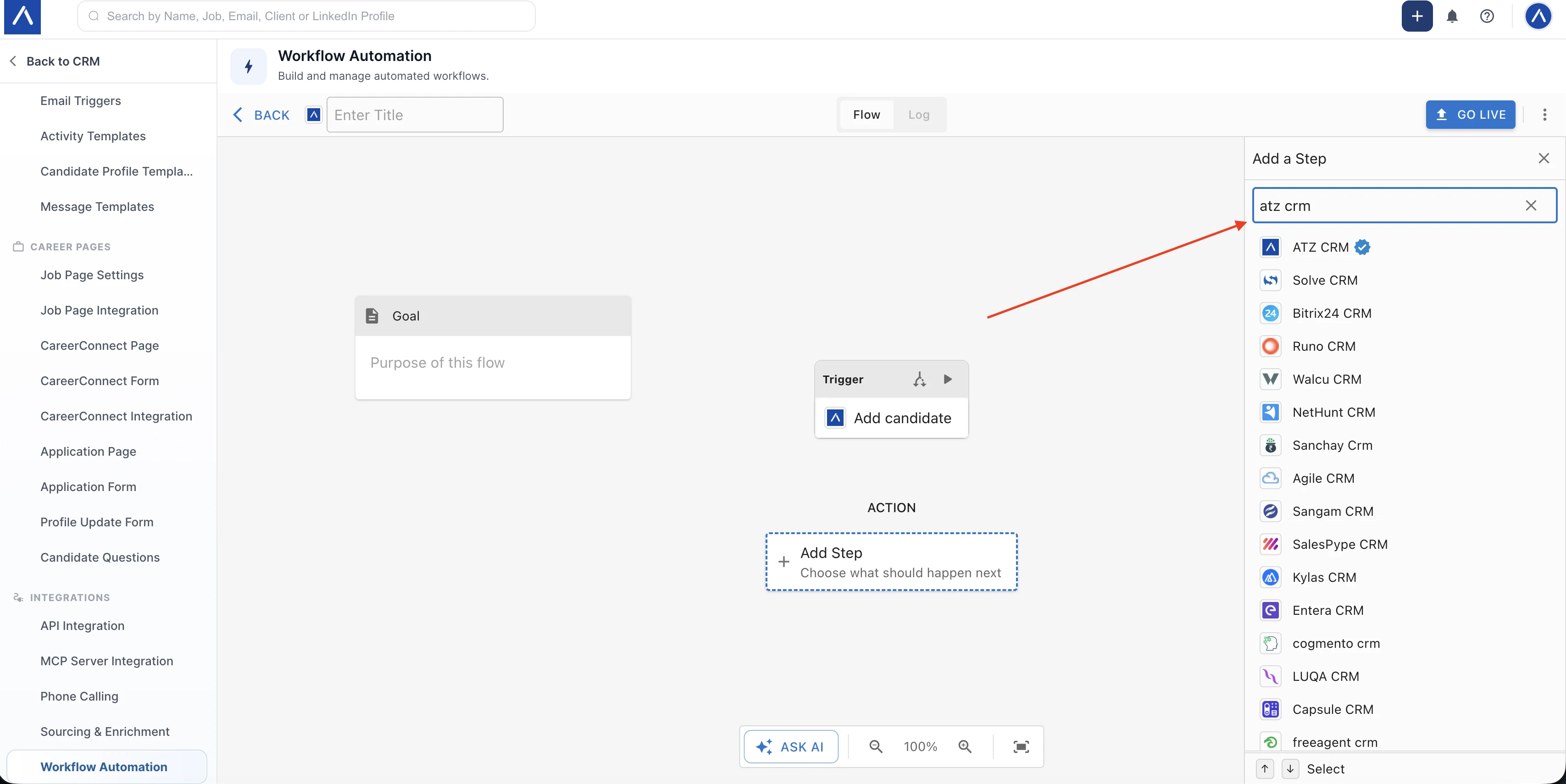
Search for the app that should perform the action. You can select ATZ CRM for an ATZ CRM to ATZ CRM automation, or choose another app for a third-party workflow.
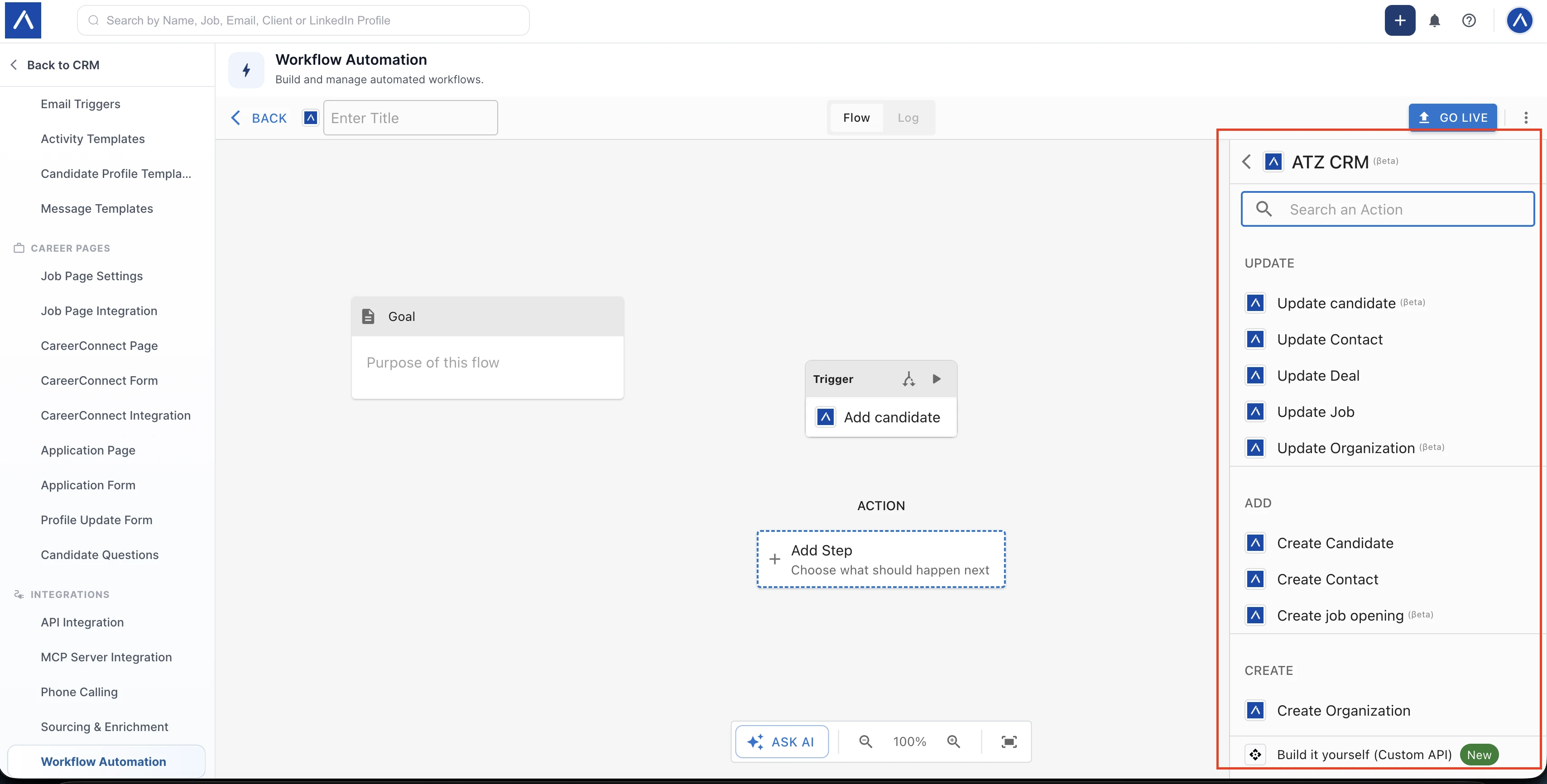
When you select an app, the sidebar shows the actions available for that app. For ATZ CRM, available actions can include updating candidates, contacts, deals, jobs, organizations, creating records, or using a custom API option.
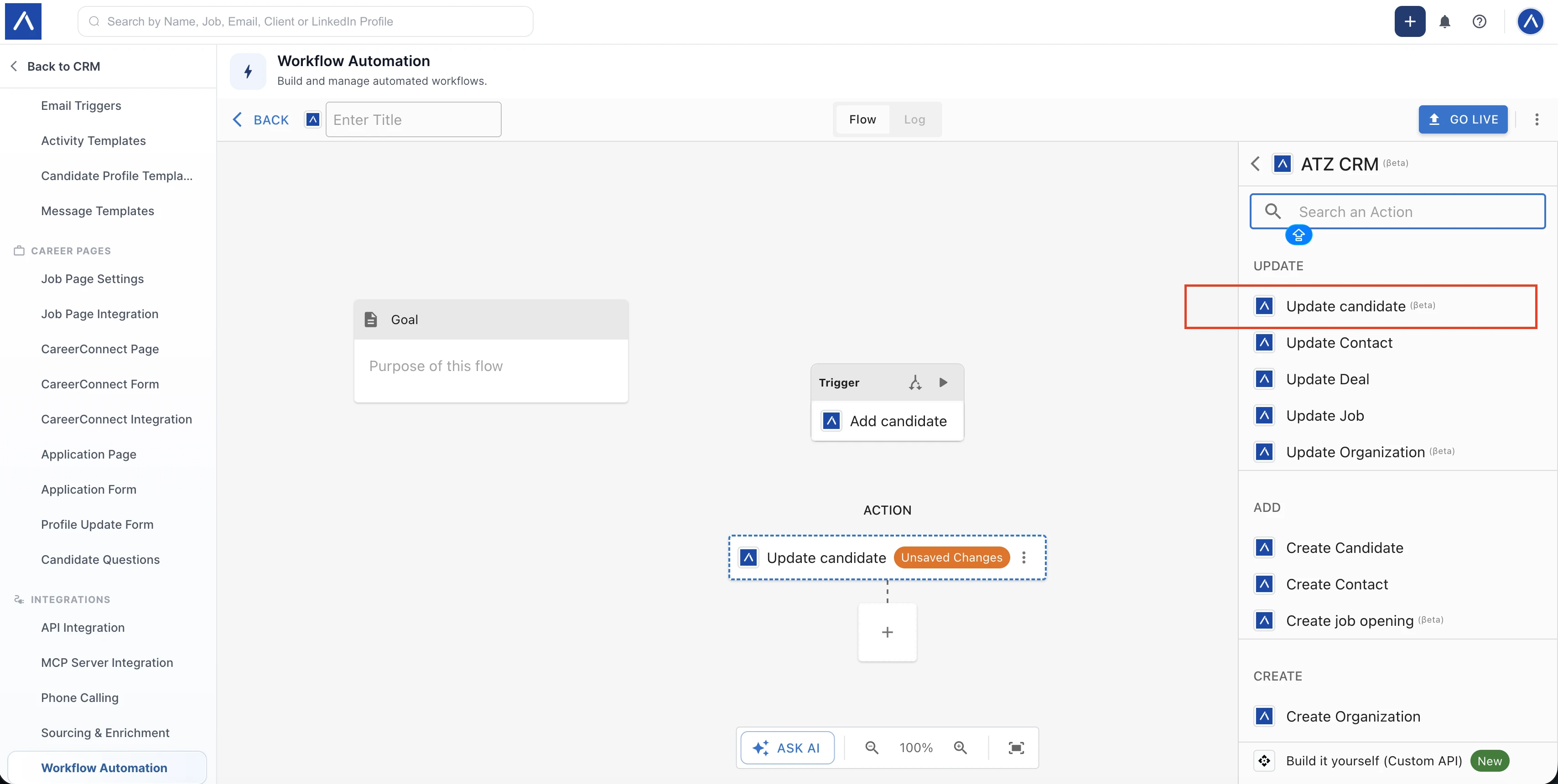
Choose the action you want the flow to run. In this example, the flow uses Update candidate after the Add candidate trigger.
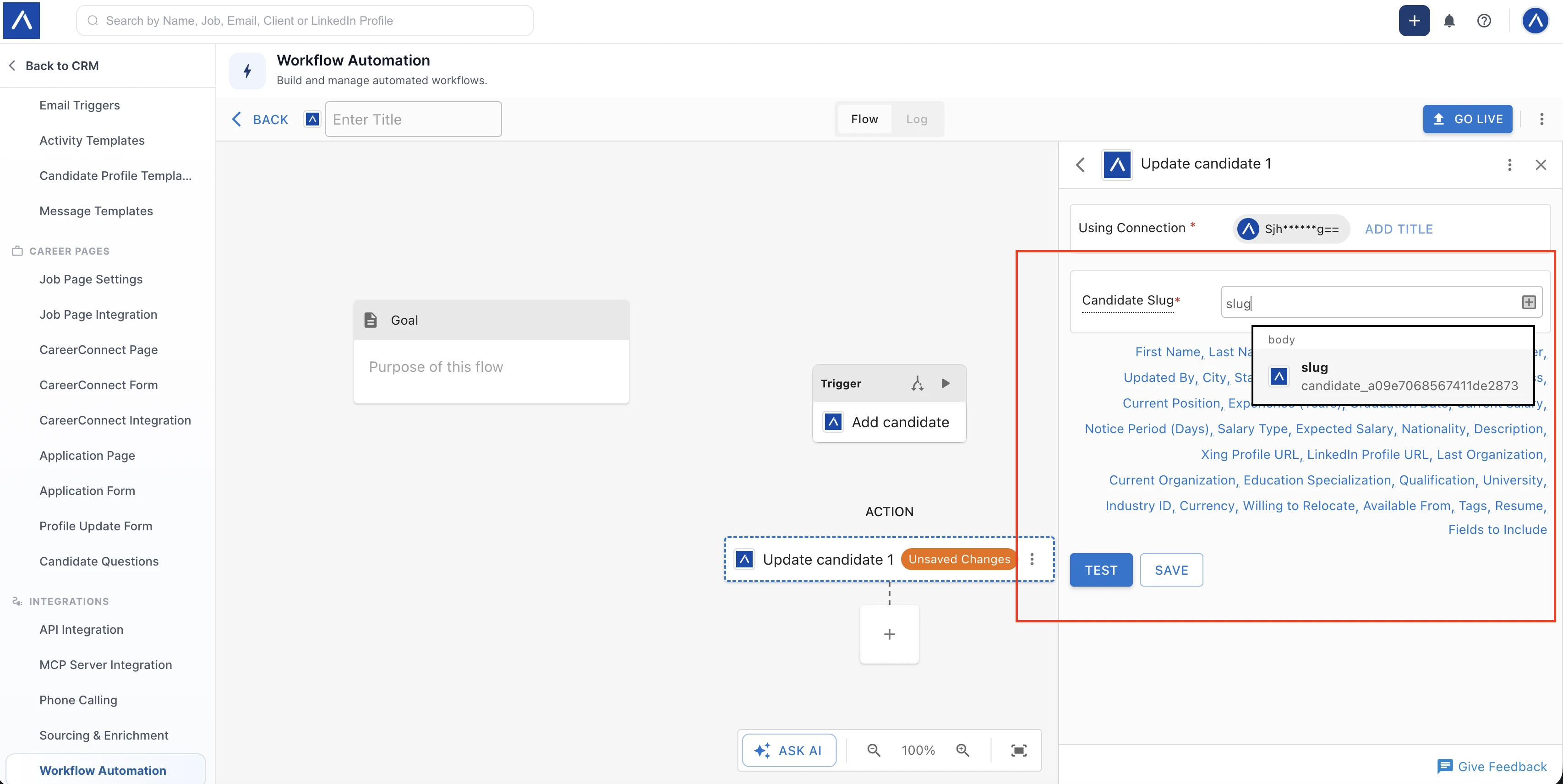
Step 6: Map Data with Data Pills
Next, complete the required fields for the action.
Workflow automation uses data pills for mapping. A data pill is a field value received from a previous trigger or action. For example, when the trigger receives candidate data, you can map the candidate slug, first name, last name, email, tags, or other returned fields into the action step.
Map each required field, then test or save the action.
Step 7: Go Live
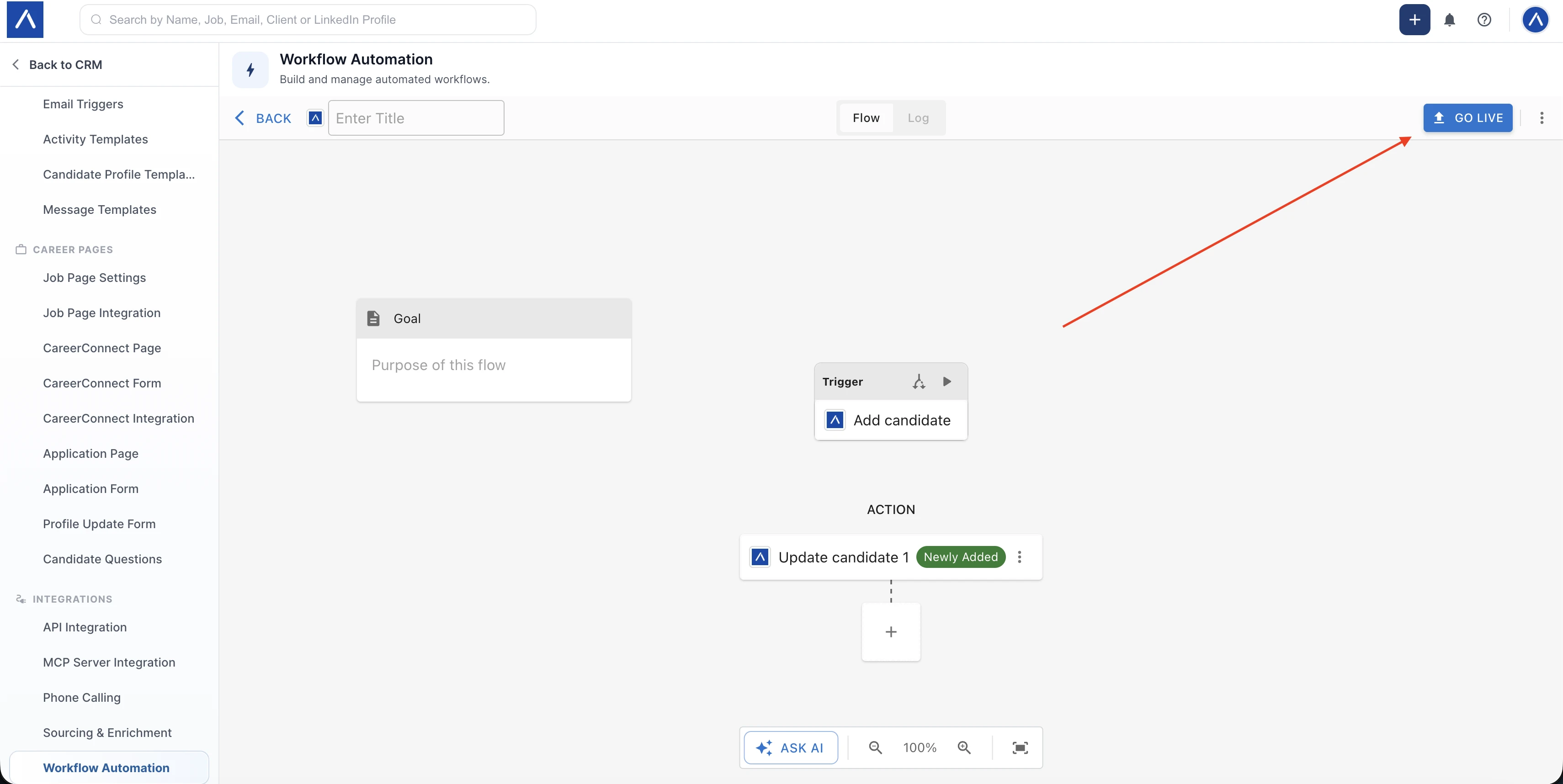
When the trigger, connection, action, and data mapping are ready, select Go Live to turn on the flow.
Step 8: Check Logs and History
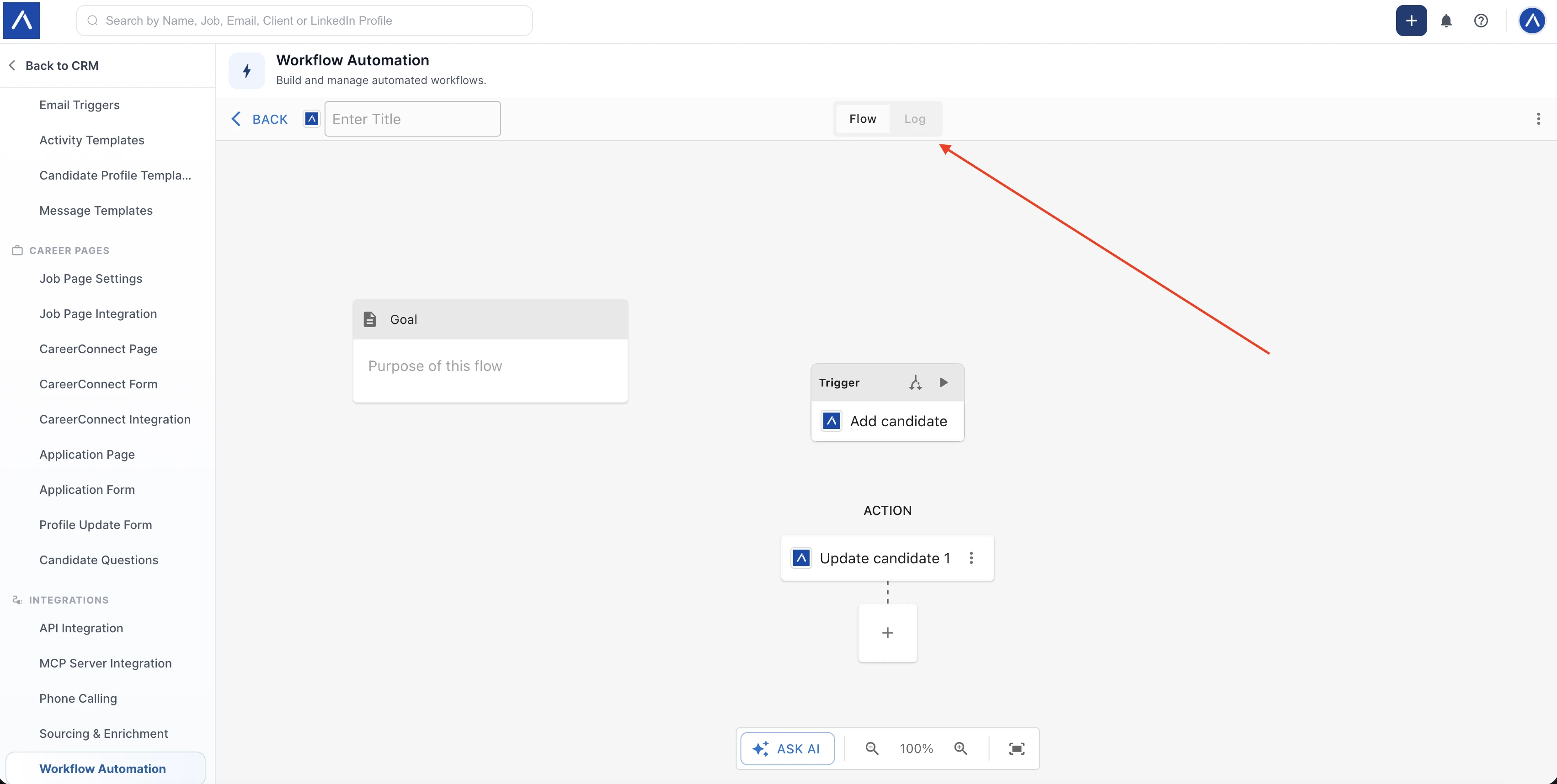
Every time the flow runs, you can review its run history from the Log or History area. Use this to confirm whether the automation ran successfully and to troubleshoot failed runs.
Common Automation Examples
You can use workflow automation for many recruiting processes, including:
- Add a candidate in ATZ CRM, then create or update another ATZ CRM record.
- Add a candidate in ATZ CRM, then send the candidate details to Google Sheets.
- Add a candidate in ATZ CRM, then ask ChatGPT or Claude to generate a summary.
- Update a deal in ATZ CRM, then notify a team in Slack.
- Use a custom API action to connect with an app that is not listed directly.
Troubleshooting
I cannot connect ATZ CRM
Make sure you copied the API key from ATZ CRM API Token. If the token was regenerated, update the connection in workflow automation.
I cannot find the app I need
Search the app catalog first. If the app is not available, use Add Custom or the custom API option where available. You can also contact ATZ CRM support and share the app you want to integrate.
My flow is not running
Check the flow status, confirm the trigger and action are saved, and review the Log or History tab for errors. Failed runs usually point to a missing connection, missing required field, invalid mapped data, or an app-side permission issue.
I need help building an automation
Reach out to the ATZ CRM chat support team. Share the trigger, action, apps, and expected outcome, and the team can help you set up the automation.
Frequently Asked Questions
Can I create ATZ CRM to ATZ CRM automations?
Yes. You can use ATZ CRM as both the trigger app and the action app.
Can I connect ATZ CRM with AI tools?
Yes. You can connect ATZ CRM with supported third-party tools such as ChatGPT, Claude, and other AI or productivity apps available through workflow automation.
What are data pills?
Data pills are values returned by a trigger or a previous action. You use them to map data into later steps, such as passing a candidate slug from the trigger into an action field.
What should I do if an app is not available?
Use the custom API option if the app provides an Open API, or contact ATZ CRM support so the team can help you with the integration path.