
ATZ CRM lets users change the application language from their profile settings, helping teams work in their preferred language.
Quick Answer
Open your profile, scroll to Application Language, choose your preferred language, and click Save Profile.
Supported Languages
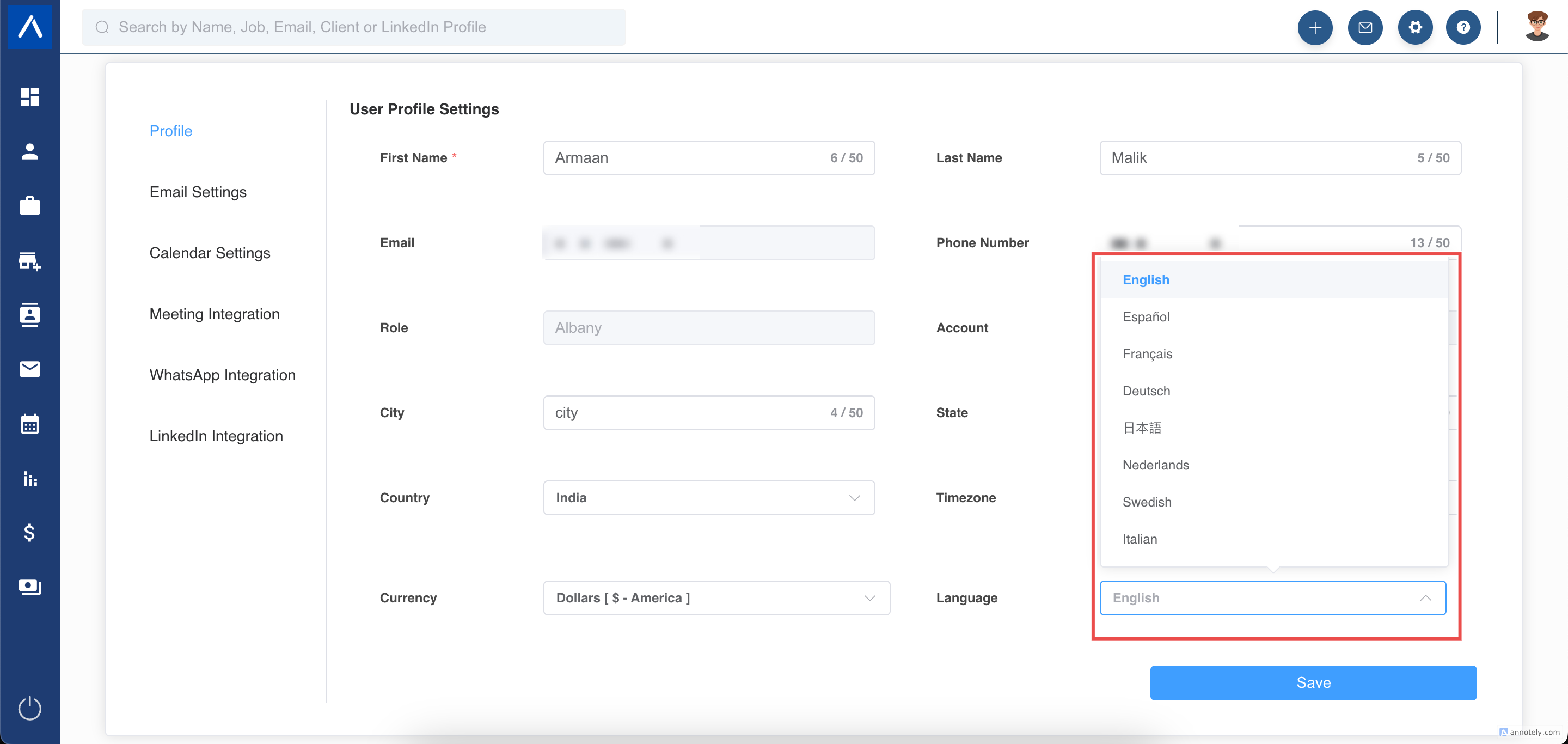
ATZ CRM supports:
- English (US and UK)
- French
- Dutch
- Spanish
- Polish
- German
- Portuguese
- Japanese
- Chinese
- Italian
- Swedish
Step 1: Open Your Profile
Click your profile icon in the top-right corner of ATZ CRM.
Step 2: Select Application Language
Scroll to Application Language and choose your preferred language from the dropdown.
Step 3: Save Your Profile
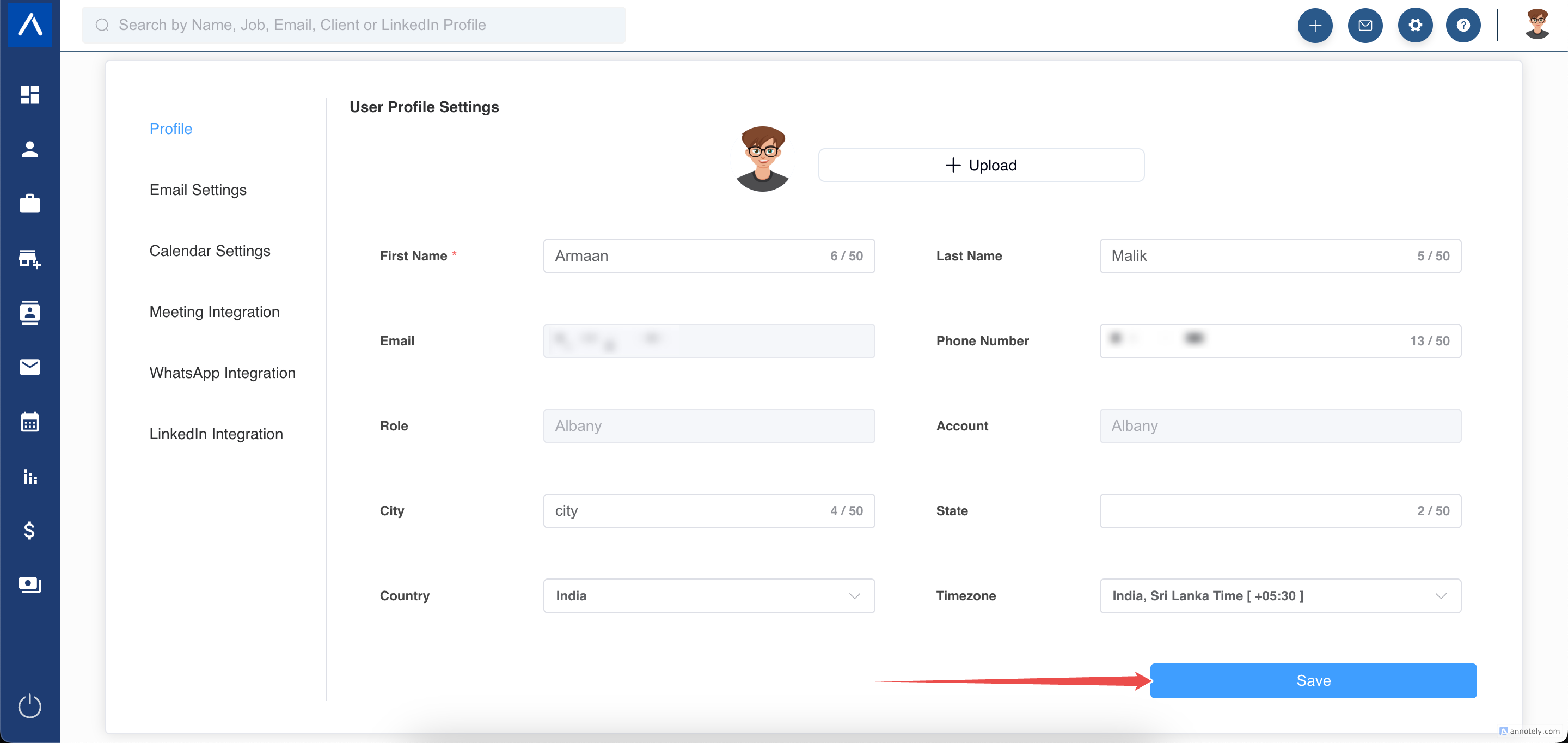
Click the green Save Profile button.
Your ATZ CRM interface displays in the selected language.
External Form Translation
External form labels are also translated when the supported language is selected.
This can help teams create a more localized candidate experience on public forms and pages.
Use Cases
Multilingual Recruiting Teams
Let each user work in the language that is most comfortable for their role or region.
Candidate-Facing Localization
Use translated external labels to make candidate forms easier to understand.
Global Workspace Setup
Support distributed teams working across countries and language preferences.
Troubleshooting
Language Did Not Change
Confirm you clicked Save Profile after selecting the language. Refresh the page if needed.
A Label Is Not Translated
Some custom text may need to be updated separately in the relevant form, job, or page settings.
Another User Still Sees a Different Language
Language is a user profile setting. Each user should update their own profile.
FAQs
Does changing language affect every user?
No. The language setting applies to the current user profile.
Can I switch back to English later?
Yes. Return to profile settings, choose English, and save.
Are custom descriptions translated automatically?
Custom text you enter, such as page descriptions or form text, may need to be translated manually.