
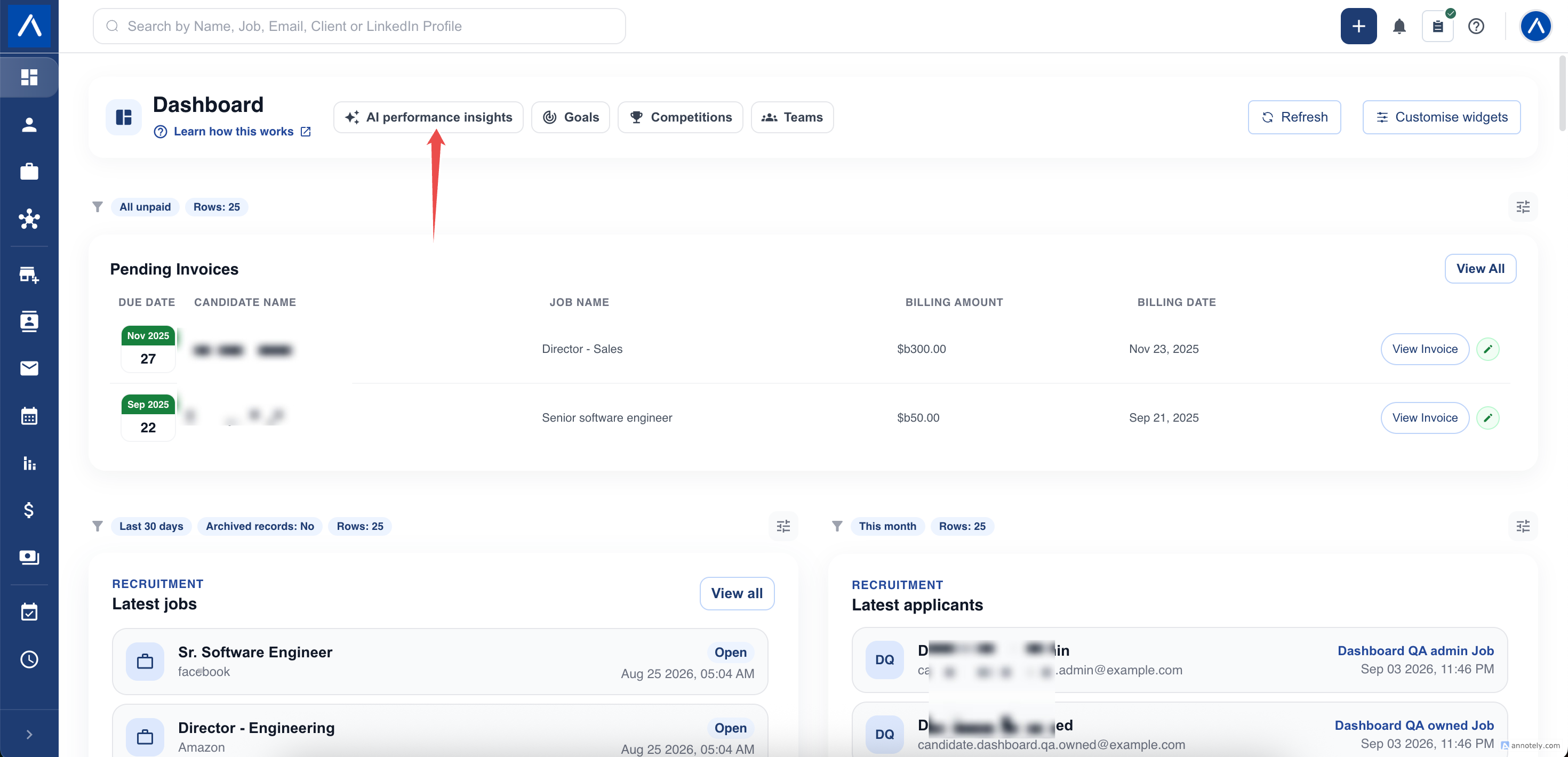
Tailor an AI Insight report to the conversation you are preparing for. You can keep a focused view on screen and open a PDF with the sections you chose.
Choose Visible Sections
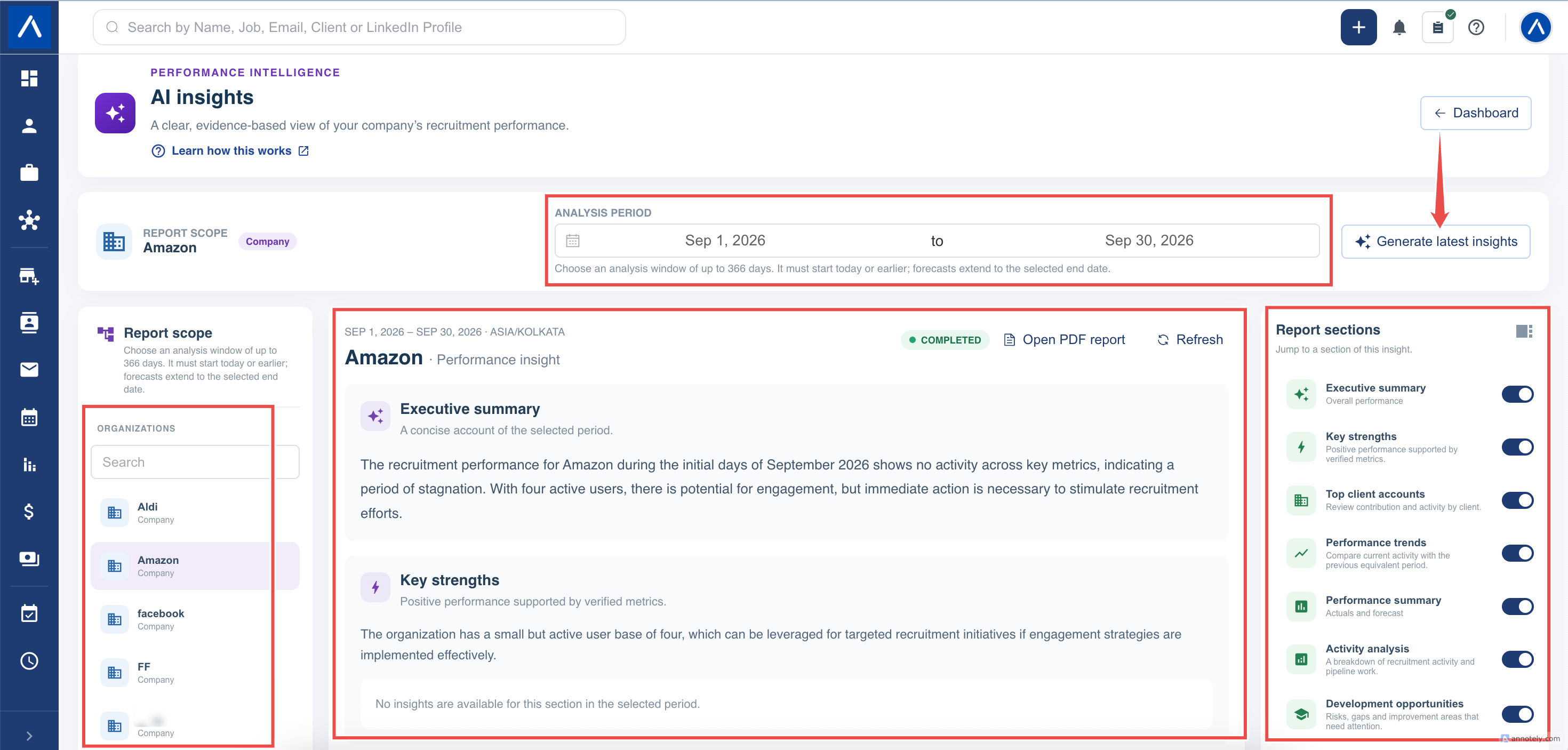
- Open an AI Insight report.
- Find Report sections.
- Turn off the switch beside a section you want to hide.
- Leave the sections you need switched on.
- Use the section names to move through the visible report.
All eight sections are on by default. For a brief review, you might keep Executive summary, Performance summary, and Strategic recommendations visible.
Section choices apply to the presentation, not to what CRM records you are authorized to access. Hiding content is not a substitute for access controls.
Return to Your Preferred View
Your browser remembers section visibility for your account and user. When you return, your choices are applied again.
If you change browsers, clear site storage, or use a different account, review the switches before preparing a report for someone else.
Turning a section off does not remove the saved report or prevent you from switching it on later.
Open and Download the PDF
- Open the completed report you want to use.
- Confirm the subject and analysis dates.
- Review the section switches and keep the required sections on.
- Select Open PDF report.
- Review the PDF in the viewer.
- Use the viewer’s Download option to save it.
The PDF contains the selected visible sections. If you change the switches after opening it, open the PDF again to obtain a version using the new choices.
Share Carefully
A downloaded report can contain employee-performance and client information. Share it only with the appropriate audience and review its content before sending it.
Downloading a PDF does not create a public dashboard or report link. Access to the original report in ATZ CRM still follows current permissions.
Troubleshooting
If Open PDF report is unavailable, check that generation has completed and that you still have access to the report.
If expected content is missing, check its section switch and whether the saved report actually contains information for that section. Keep at least one useful section visible before opening a PDF.
If the viewer or download fails, retry after checking the report status. If it still fails, contact support with the subject, period, and the action you selected.
FAQs
Are all sections visible by default?
Yes. All report-section switches start on. You can hide individual sections.
Will my section choices be remembered?
Yes. They are remembered in the browser for your account and user. A different browser or cleared storage may require you to choose them again.
Does hiding a section delete its report data?
No. It changes the presentation and the sections included in the PDF you open. It does not delete the saved report.