
Your team may use stage names such as Client interview, Final shortlist, or Ready to place. Dashboard Metric Mappings tell ATZ CRM which of those account-specific stages represent standard reporting milestones.
The mapping changes how reports understand your workflow. It does not rename, move, or delete any candidate, job, submission, or deal.
Open Dashboard Metric Mappings
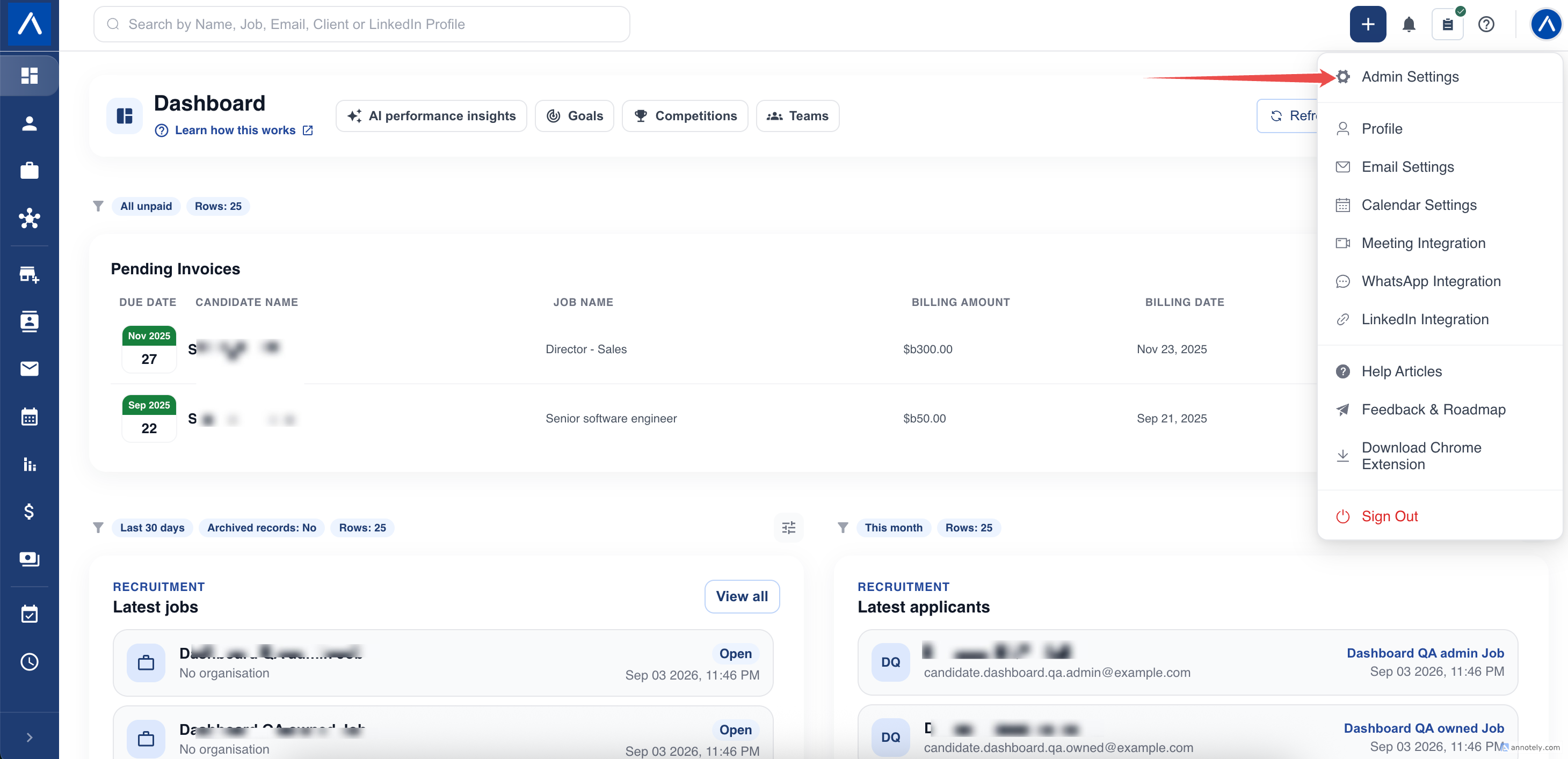
- Open Admin Settings.
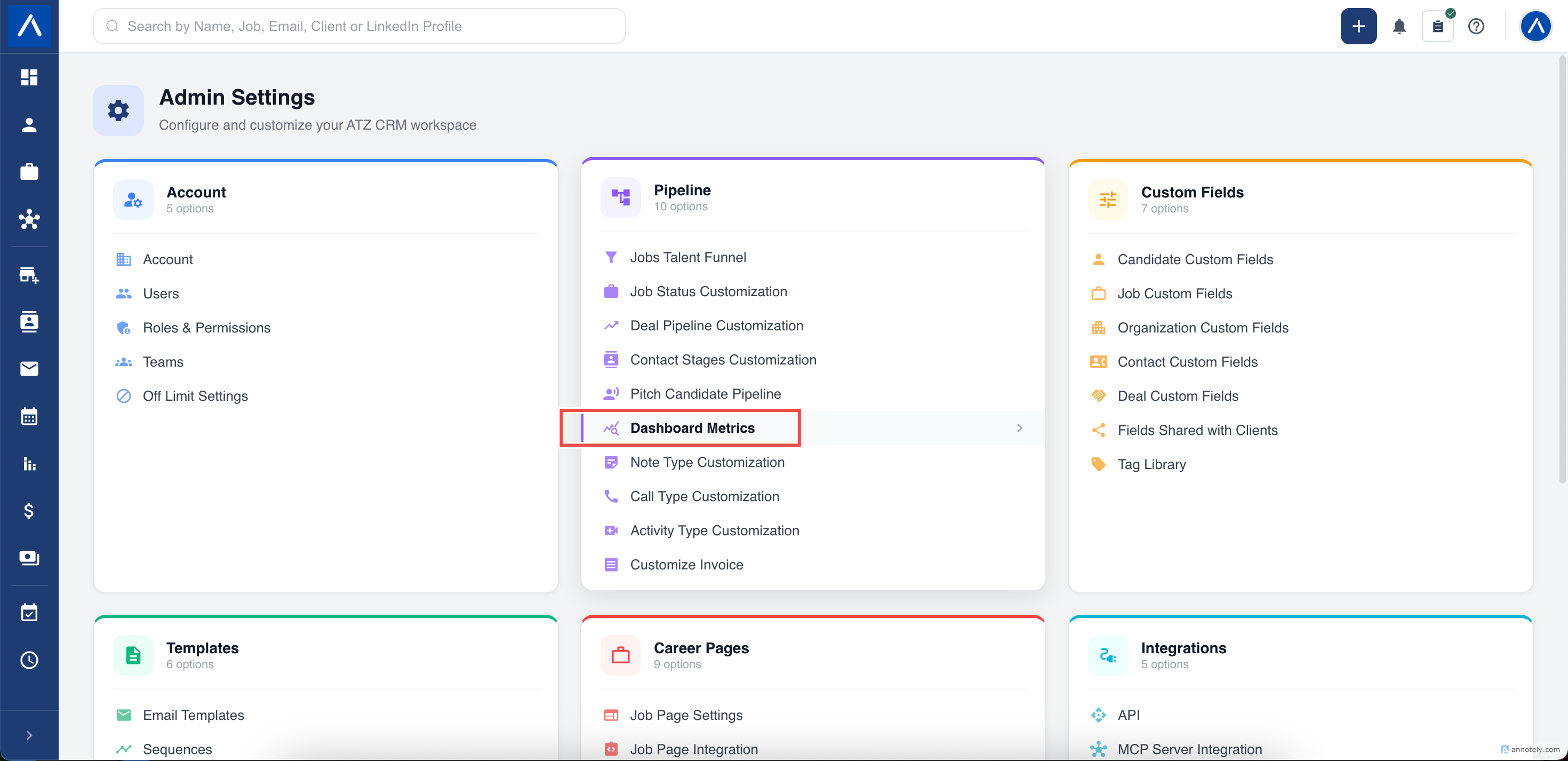
- Find the Pipeline card.
- Select Dashboard Metric Mappings.
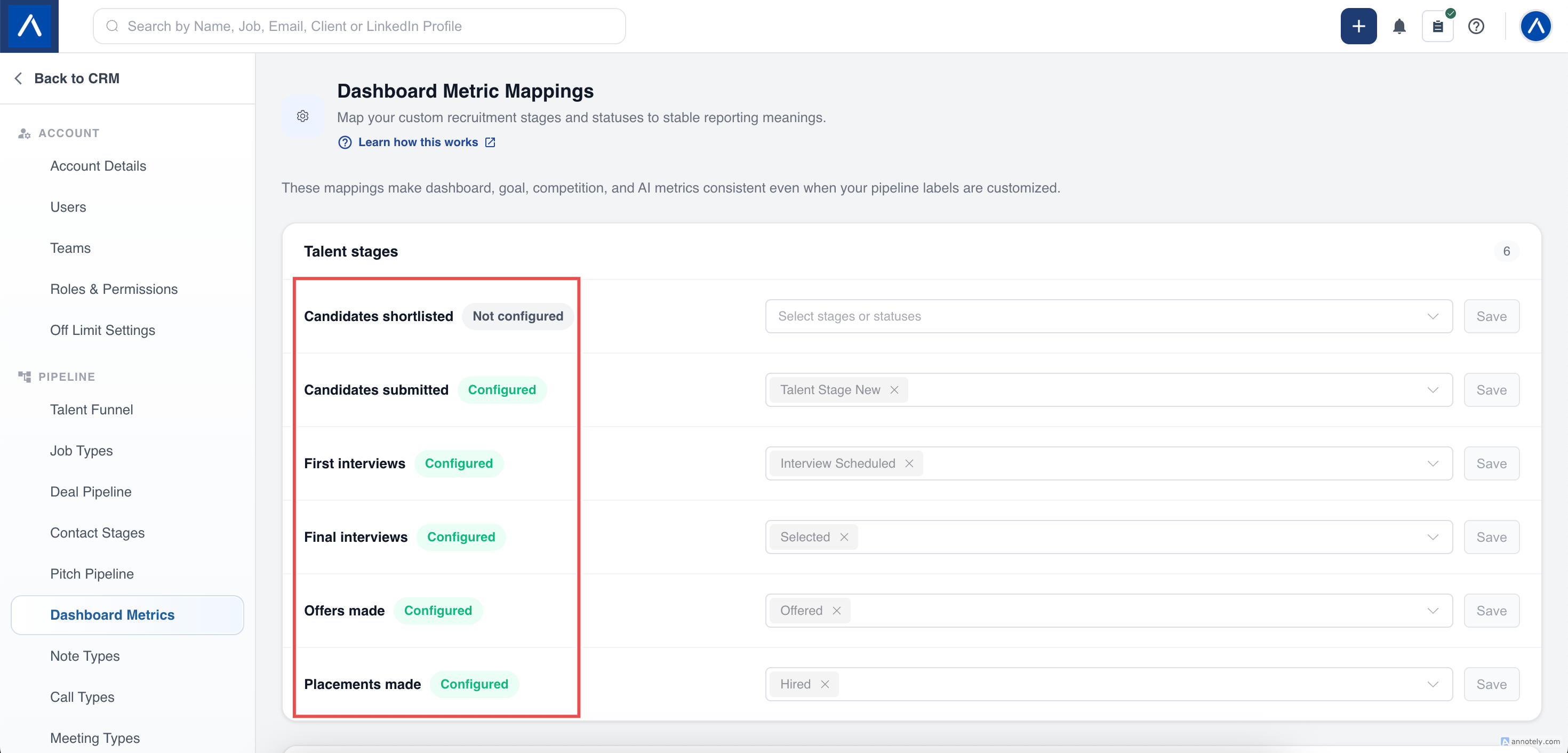
- Find the reporting milestone you want to configure.
- Select the matching stage or status and choose Save.
Only users with the required Roles and Permissions access can manage these definitions.
If No Stages Appear
The choices come from the stages and statuses configured for your account. If a section has no suitable options, first create or configure that pipeline in Admin Settings, then return to Dashboard Metric Mappings.
Do not choose an unrelated stage simply to remove the Not configured label. An incorrect mapping makes reports misleading.
If a Mapping Is Not Configured
ATZ CRM follows a conservative rule:
- A standard system milestone can use its built-in meaning where a safe default exists.
- A custom milestone with no safe default matches nothing until it is configured.
- Existing CRM records remain unchanged.
This prevents a missing mapping from being interpreted as every stage or status. If a KPI shows zero unexpectedly, check its mapping before assuming no work was completed.
What Each Mapping Changes
The mapping page shows this information beside every option. Use the table below when reviewing an existing setup.
| Mapping | Reports and features affected | If no option is selected |
|---|---|---|
| Candidate shortlisted, submitted, first interview, final interview, or offer | Stage-based Goal progress and Competition podium results | No stage is assumed, so that milestone remains zero until it is mapped. |
| Hired/placed | Goal progress, Competition podium, Candidate source performance, Recruiting funnel quality, Revenue forecast & collections, and Outstanding revenue | ATZ CRM uses the built-in Hired stage. |
| Open job | Performance snapshot and Job health | ATZ CRM uses the built-in Open job status. |
| Won/filled job | Performance snapshot | ATZ CRM uses the built-in Won job status. |
| Lost/cancelled job | Performance snapshot | ATZ CRM uses the built-in Lost job status. |
| Candidate pitched | Reserved for candidate-pitch reporting and does not change a live dashboard report today | No candidate-pitched stage is assumed. |
| Won or lost deal | Reserved for semantic deal reporting and does not change a live dashboard report today | No deal stage is assumed. |
The fallback applies only when the saved selection is empty. As soon as an administrator selects one or more values, ATZ CRM uses those selected values.
Select More Than One Stage or Status
You can select several sources when your workflow has more than one route to the same business milestone. For example, two different final-interview stages can both represent Final interviews.
The selected values work as an any of these rule:
- A current-state report includes a matching record once, even when several selected values could describe it.
- An event-based KPI counts qualifying movements. If one application moves through two selected stages, those are two separate movements and can contribute twice.
- Conversion measures that identify unique candidate-job relationships continue to use their own unique-record counting rules.
Choose multiple stages only when each one genuinely represents the same reporting outcome. Review event totals after changing a mapping so your team understands the new definition.
Where Mappings Are Used
Mappings keep milestone meanings consistent across Home dashboard reports, expanded reports, Goals, Competitions, and AI Insights. A change affects future report calculations and recalculations; it does not rewrite historical CRM activity.
Changes are limited to your ATZ CRM account. Another account’s pipelines and mappings cannot be selected or affected.
FAQs
What happens if I do not configure a mapping?
ATZ CRM uses a safe built-in meaning where one is available. Custom milestones without a safe default show no matching results until an administrator maps them.
Can I select more than one stage?
Yes. Any selected stage can qualify. Current-record reports count each record once, while event-based KPIs can count each separate qualifying stage movement.