
When to Add a Job Manually
Add a job manually when you need to create a new role in ATZ CRM from a client requirement, internal requisition, or hiring intake call.
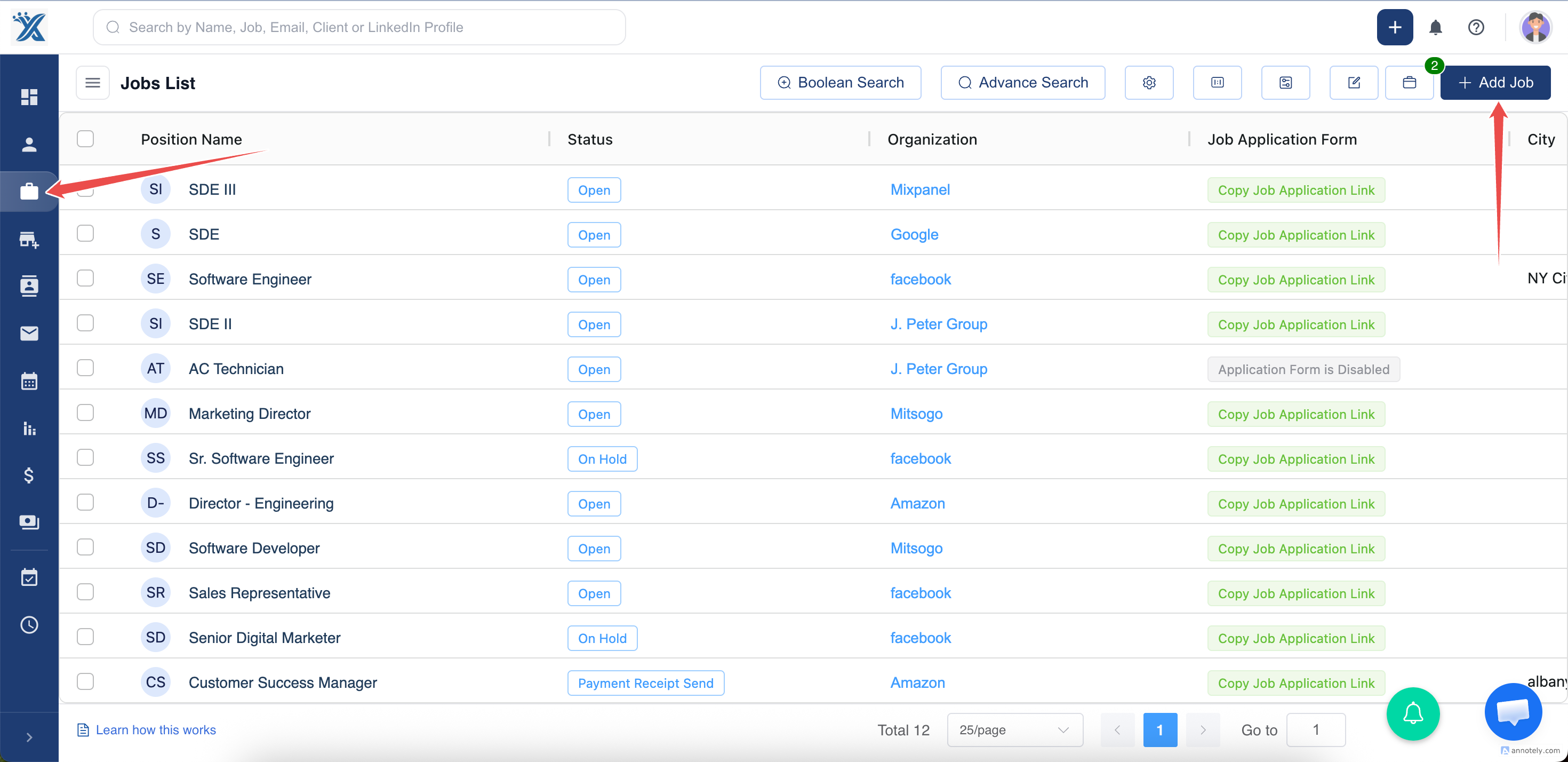
Step 1: Open Jobs
Log in to ATZ CRM and select Jobs.
Step 2: Select Add Job
Click Add Job to open the job form.
Step 3: Enter Job Details
Complete the job fields, including:
- Position name
- Organization
- Chief contact and backup contacts, if applicable
- Talent funnel
- Job description and location details
- Salary, experience, and other job board fields when needed
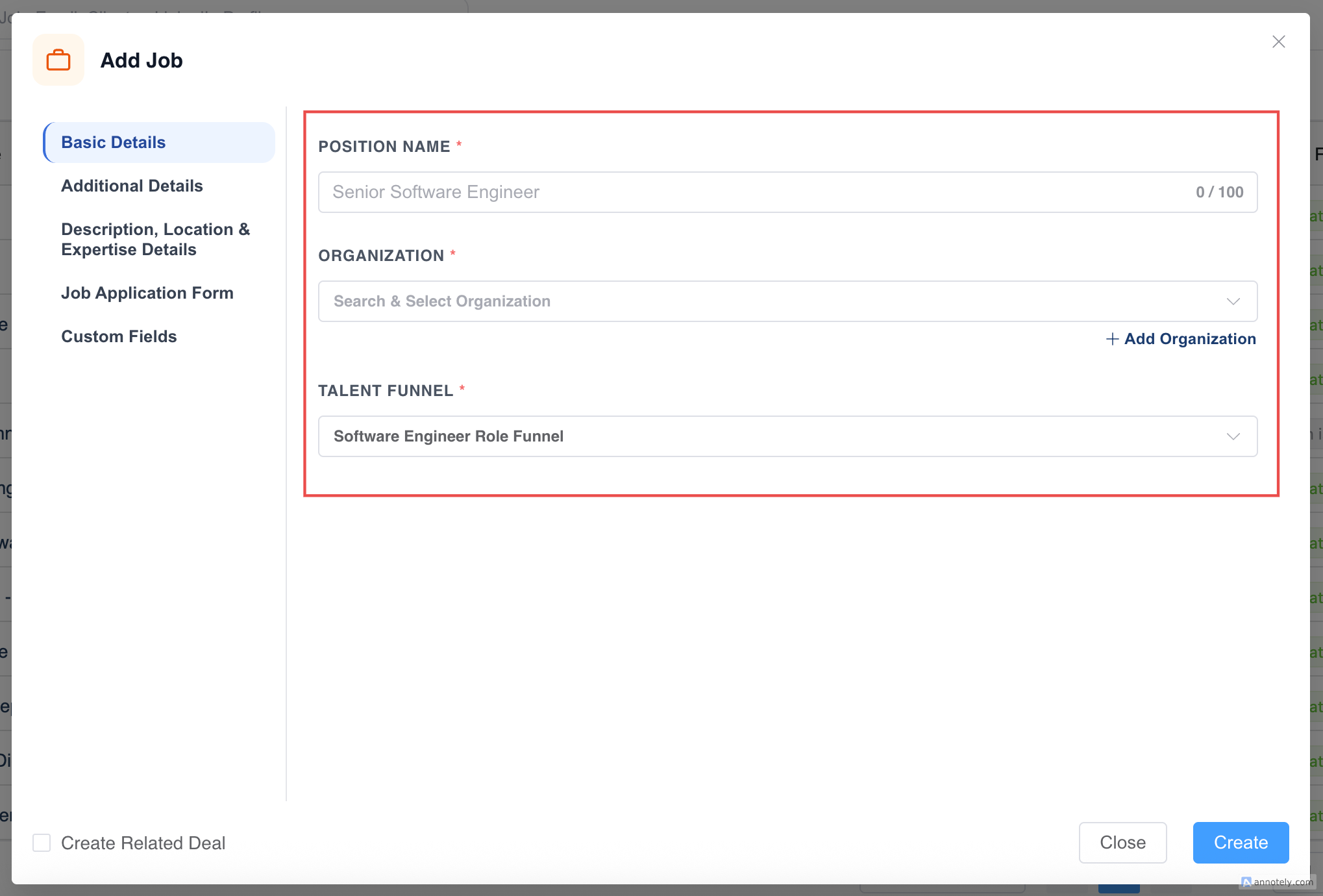
Step 4: Create the Job
Review the details and select Create.
Use Cases
New Client Requirement
Create a job immediately after receiving a new role from a client.
Internal Hiring Intake
Add a job after intake so recruiters can begin sourcing and tracking candidates.
Job Board Publishing
Complete required fields during job creation so the role is ready for application forms and job boards.
Troubleshooting
Organization Is Missing
Create or import the organization first, then return to the job form.
Required Fields Are Blocking Save
Complete all highlighted required fields before selecting Create.
Job Is Created but Not Published
Check job status, location fields, description, and job application form visibility.
Frequently Asked Questions
Can I edit the job after creating it?
Yes. Open the job detail page and update fields as needed.
Can I clone a similar job instead?
Yes. Use Clone Job when another job already has most of the same details.
Does creating a job assign candidates automatically?
No. Create the job first, then assign candidates or source applicants into the job pipeline.