
What Shifts and Timesheets Do
Shifts and timesheets help temp and contract recruiters manage scheduled work, candidate bookings, actual hours, client approvals, invoicing, and payroll workflows without paper sheets or scattered messages.
Workflow Overview
The basic flow is:
- Create a job.
- Create shifts under that job.
- Book candidates into shifts.
- Mark shifts as completed after work is done.
- ATZ CRM creates draft timesheets.
- Candidates submit actual hours through the Candidate Portal, or a recruiter submits them on the candidate’s behalf.
- Recruiters review hours.
- Timesheets are sent to clients for approval.
- Approved timesheets support invoicing and payroll.
Create a Shift
A shift represents a specific day and time when one or more candidates need to work.
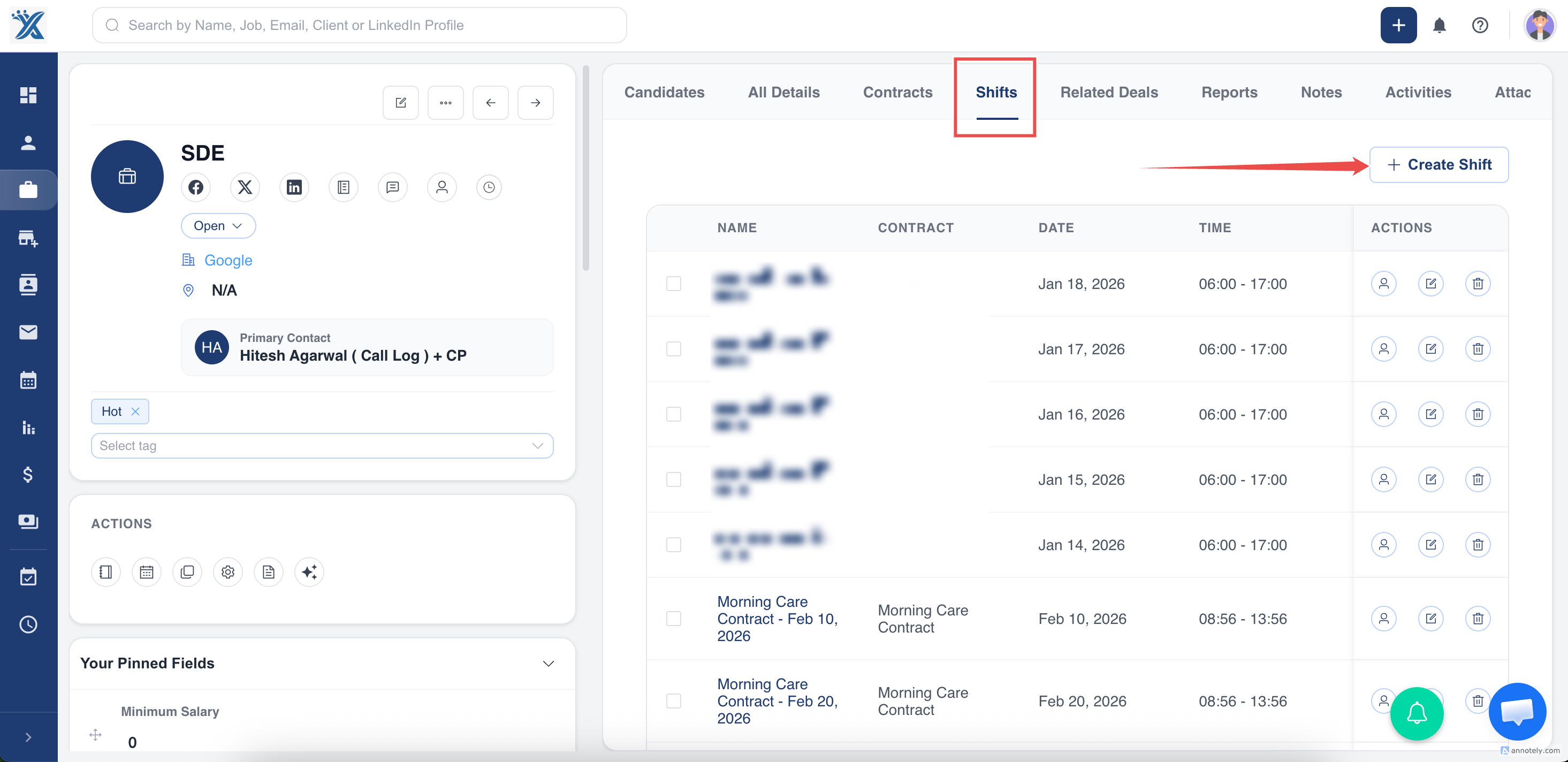
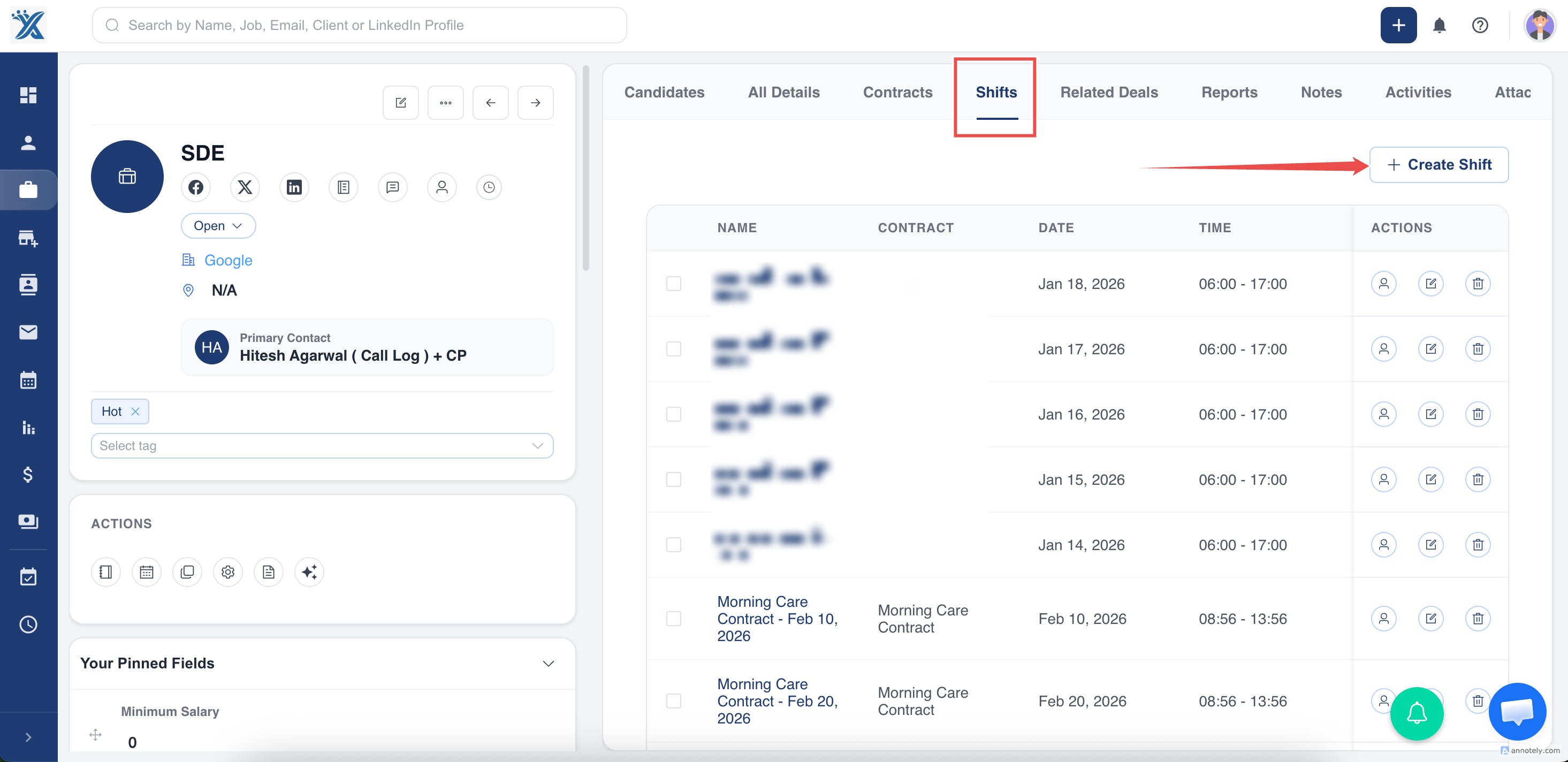
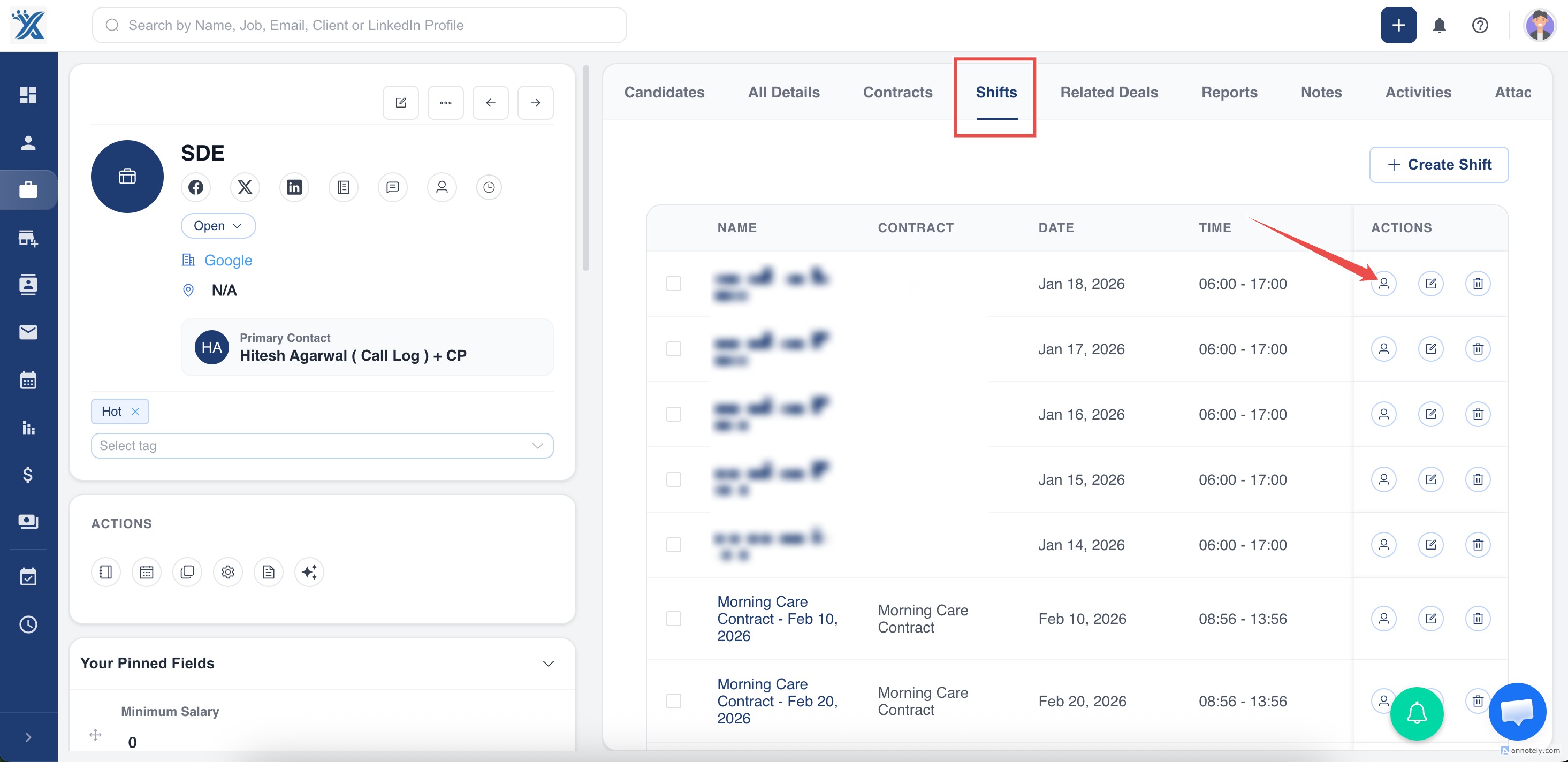
- Open the job.
- Go to the Shifts tab.
- Select Create Shift.
Add shift details such as:
- Date
- Start time and end time
- Break
- Required headcount
- Pay rate
- Bill rate
Book Candidates to a Shift
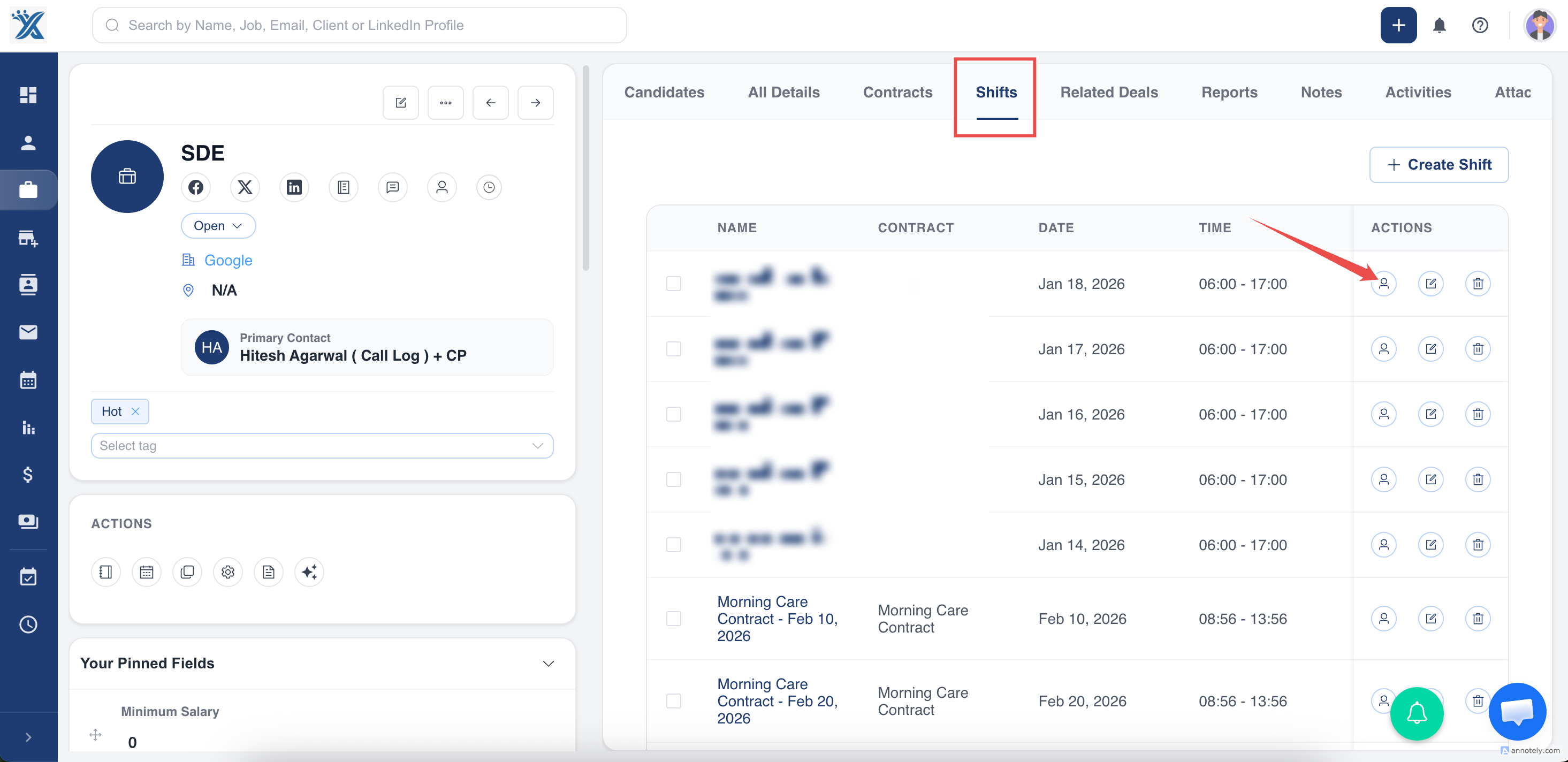
- Open the Shifts tab on the job detail page.
- Select Book Candidates for the shift.
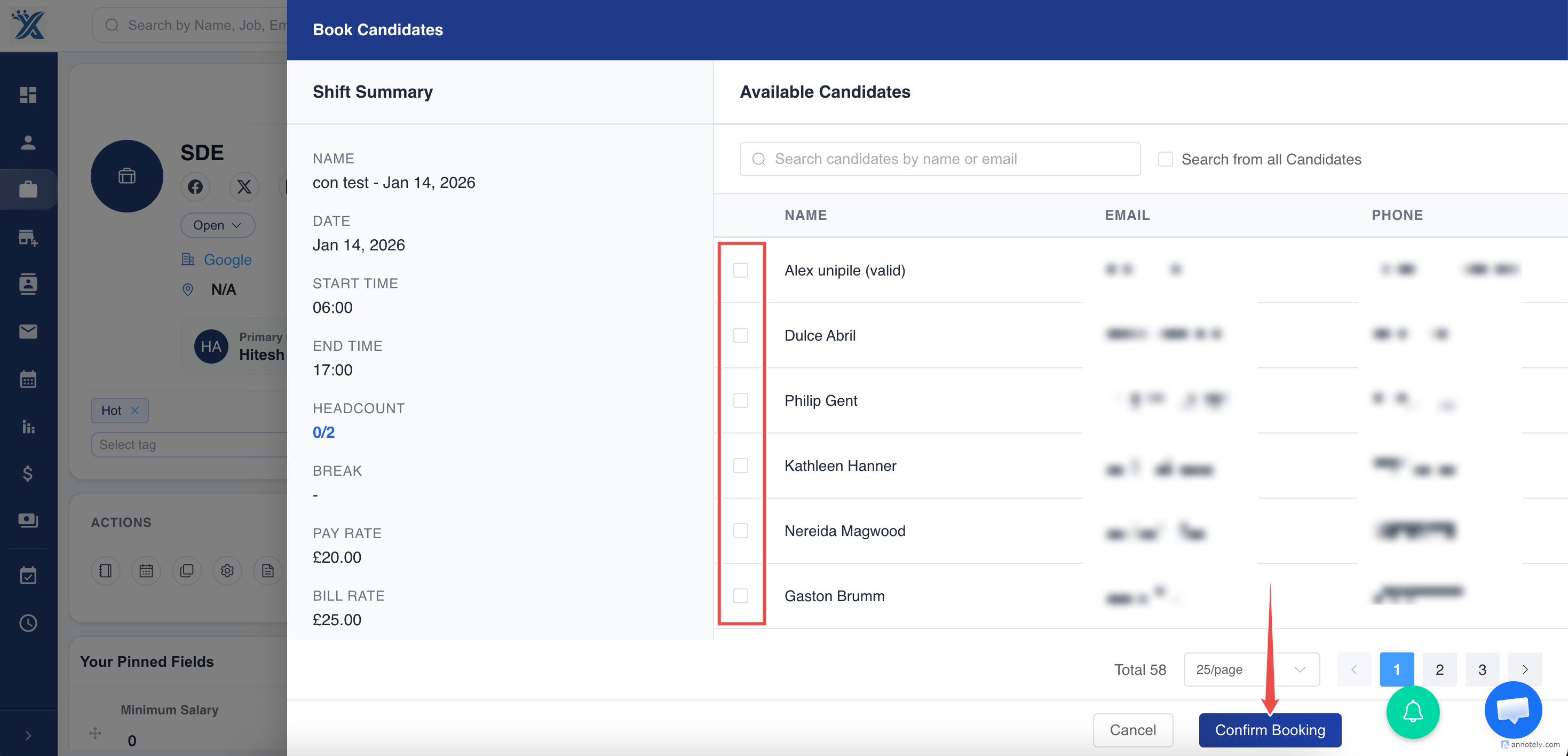
- Choose one or more candidates.
- Confirm booking.
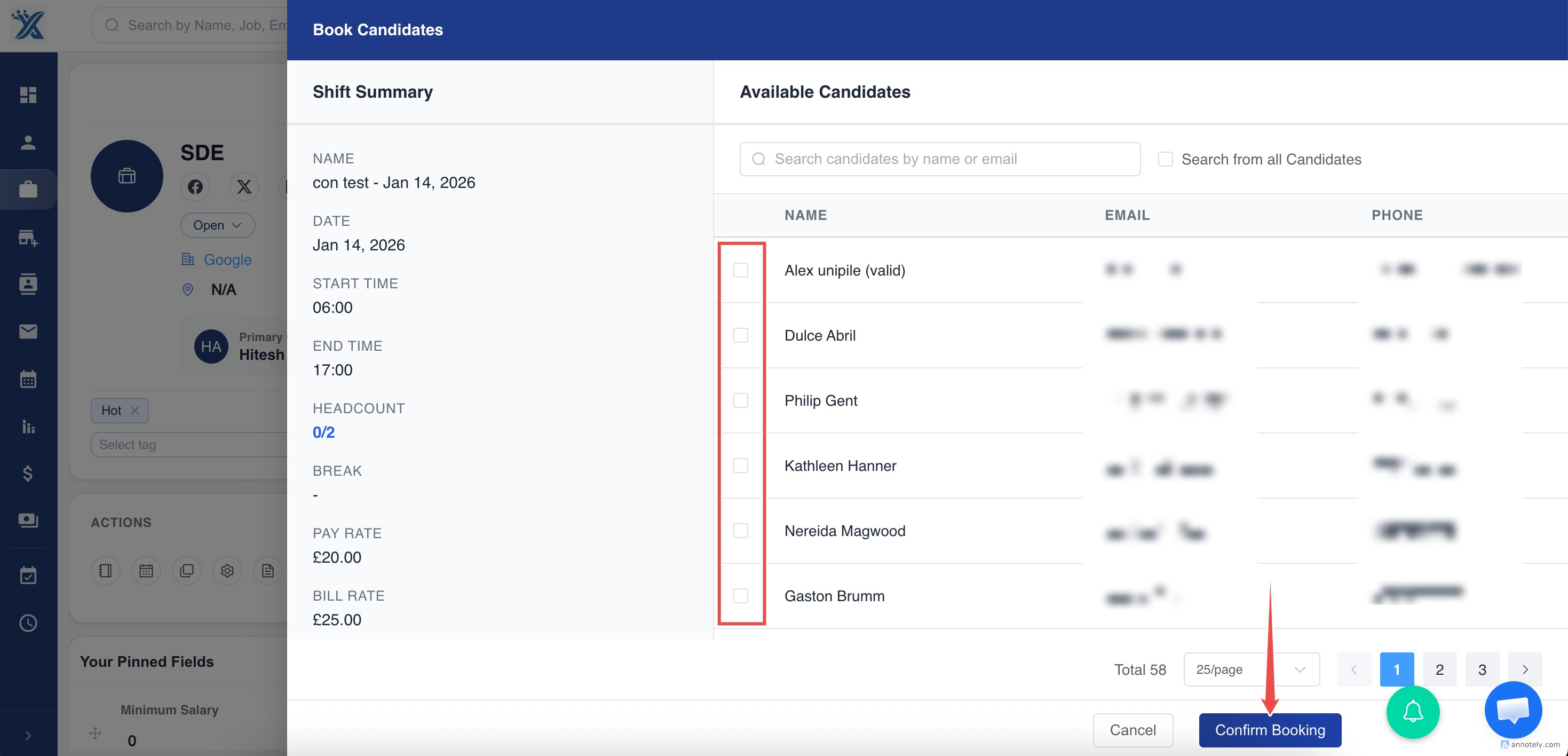
Booking rules help protect data:
- Candidates cannot be double-booked for overlapping shifts.
- Candidate availability can be reviewed for that day.
- Once headcount is reached, the shift becomes filled.
- Each booked candidate is tracked individually.
Complete a Shift
After the work is done, mark the shift as Completed.
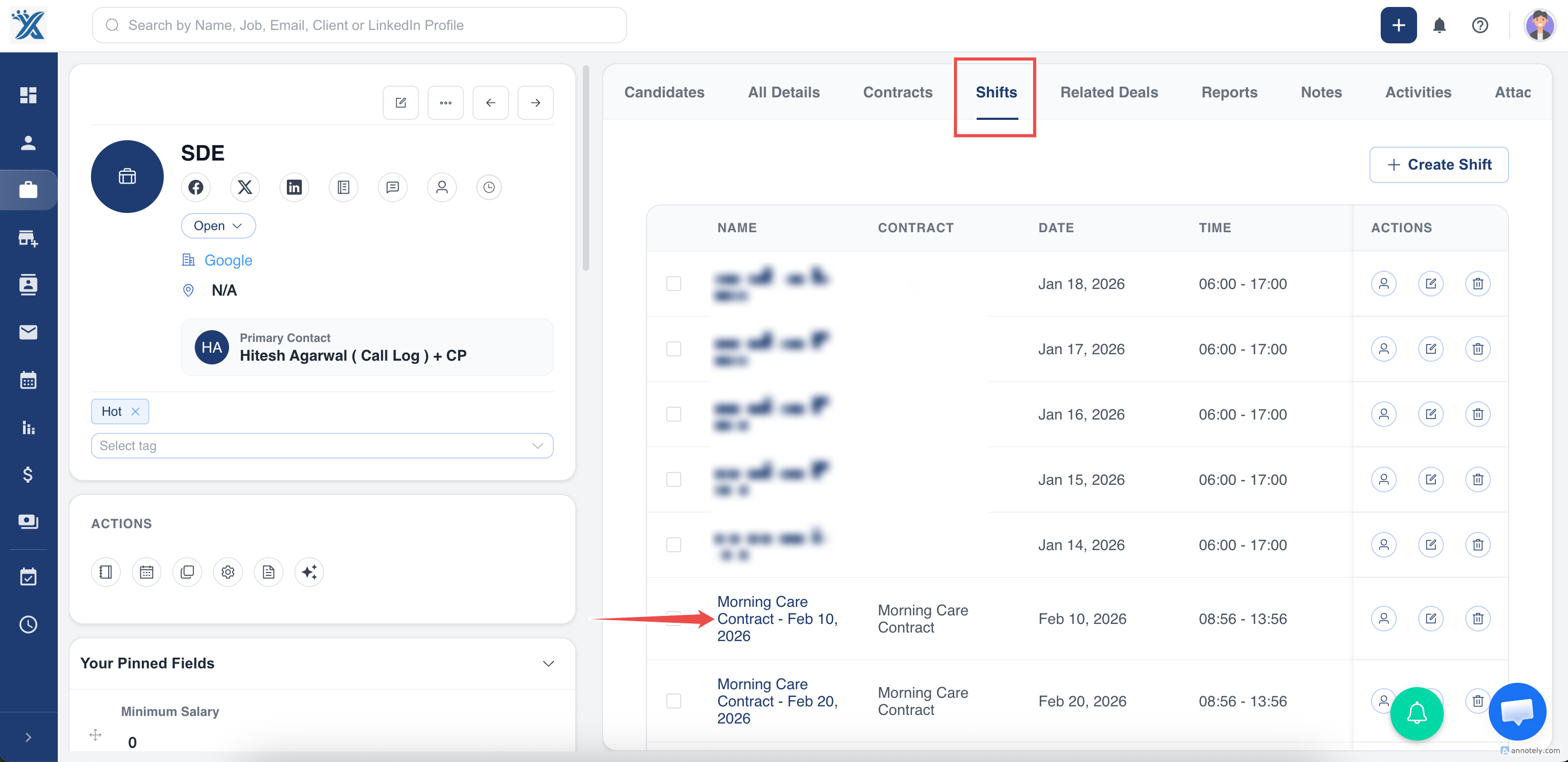
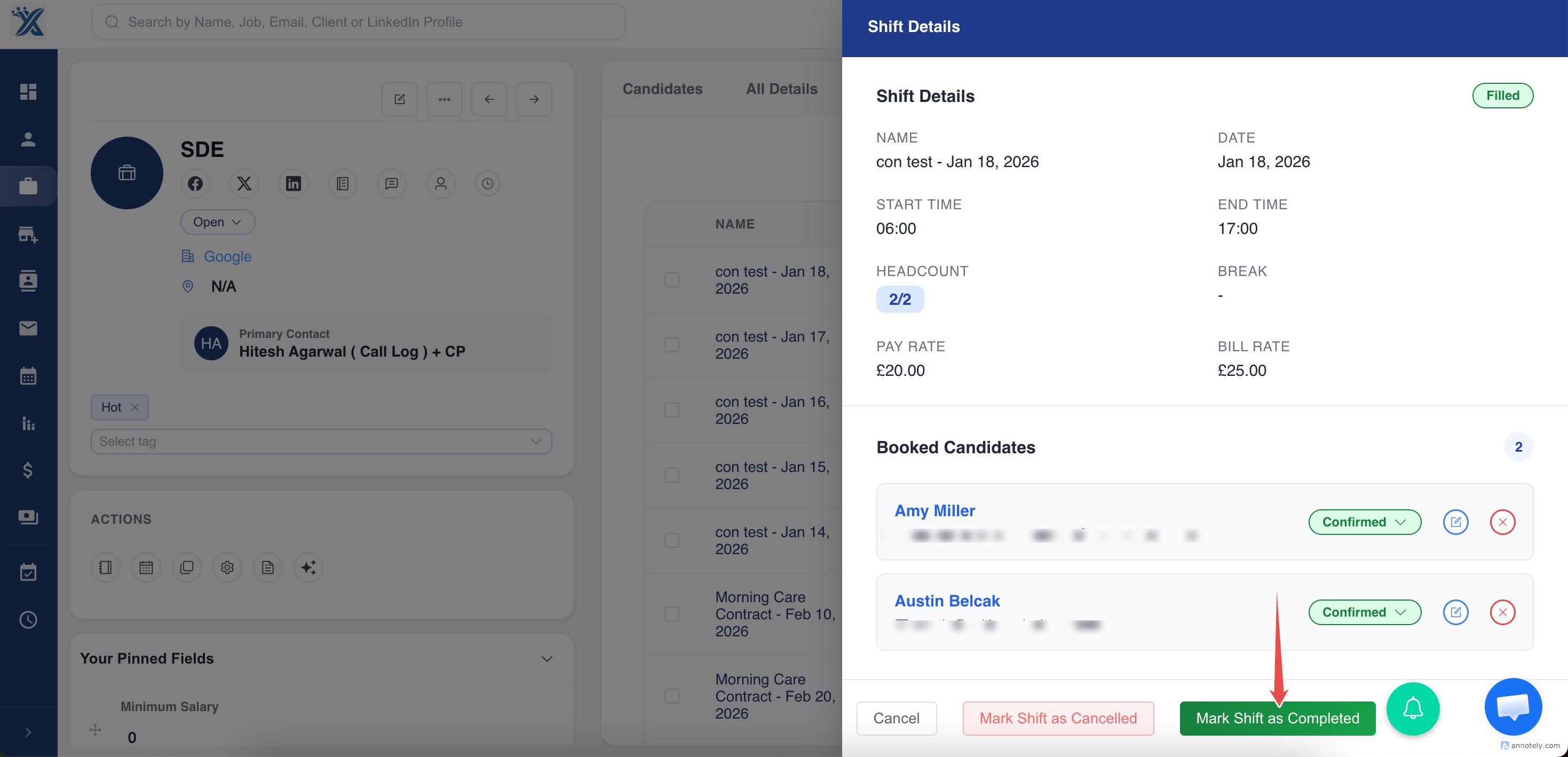
ATZ CRM then creates draft timesheets for booked candidates.
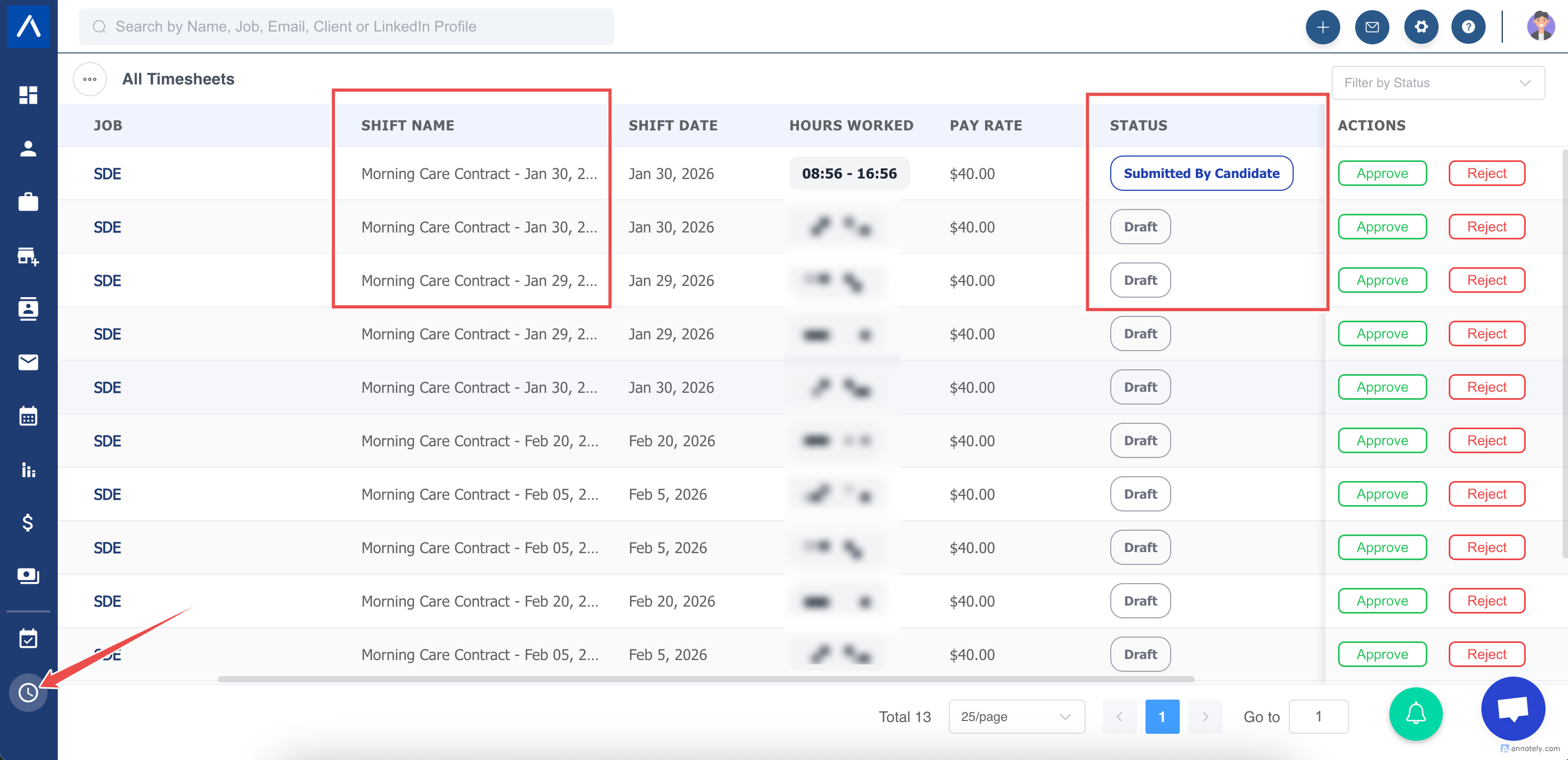
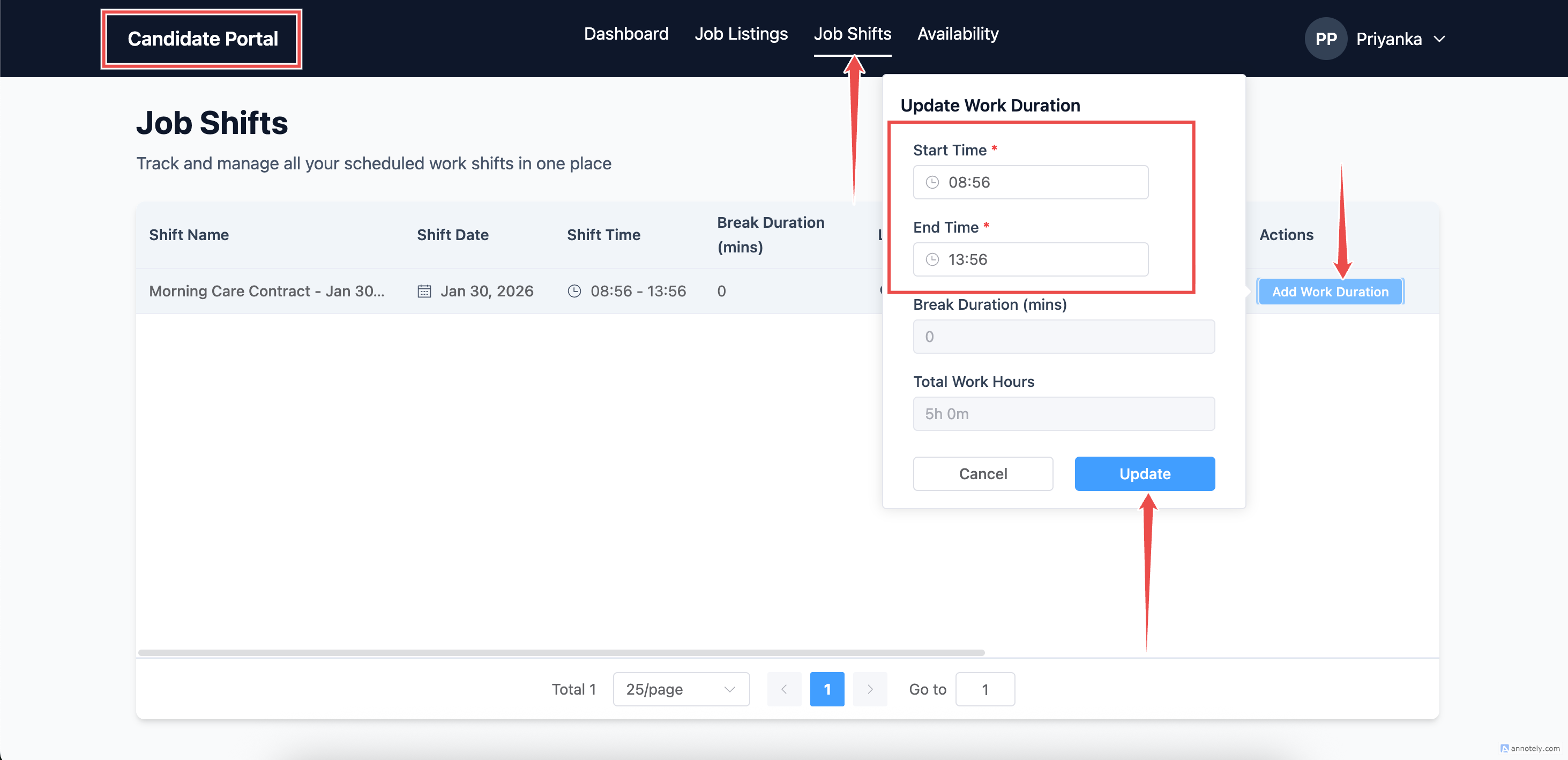
Candidate Submits Their Timesheet
Candidates submit actual hours from the Candidate Portal, including:
- Actual start time
- Actual end time
- Total hours
Submit Hours on the Candidate’s Behalf
If a candidate cannot use the Candidate Portal, a recruiter can submit worked hours from the Timesheets list.
- Find the draft timesheet that has not yet been submitted for client approval.
- Select Submit Hours.
- Enter the actual start and end time.
- Review the calculated break and total hours.
- Select Submit Hours.
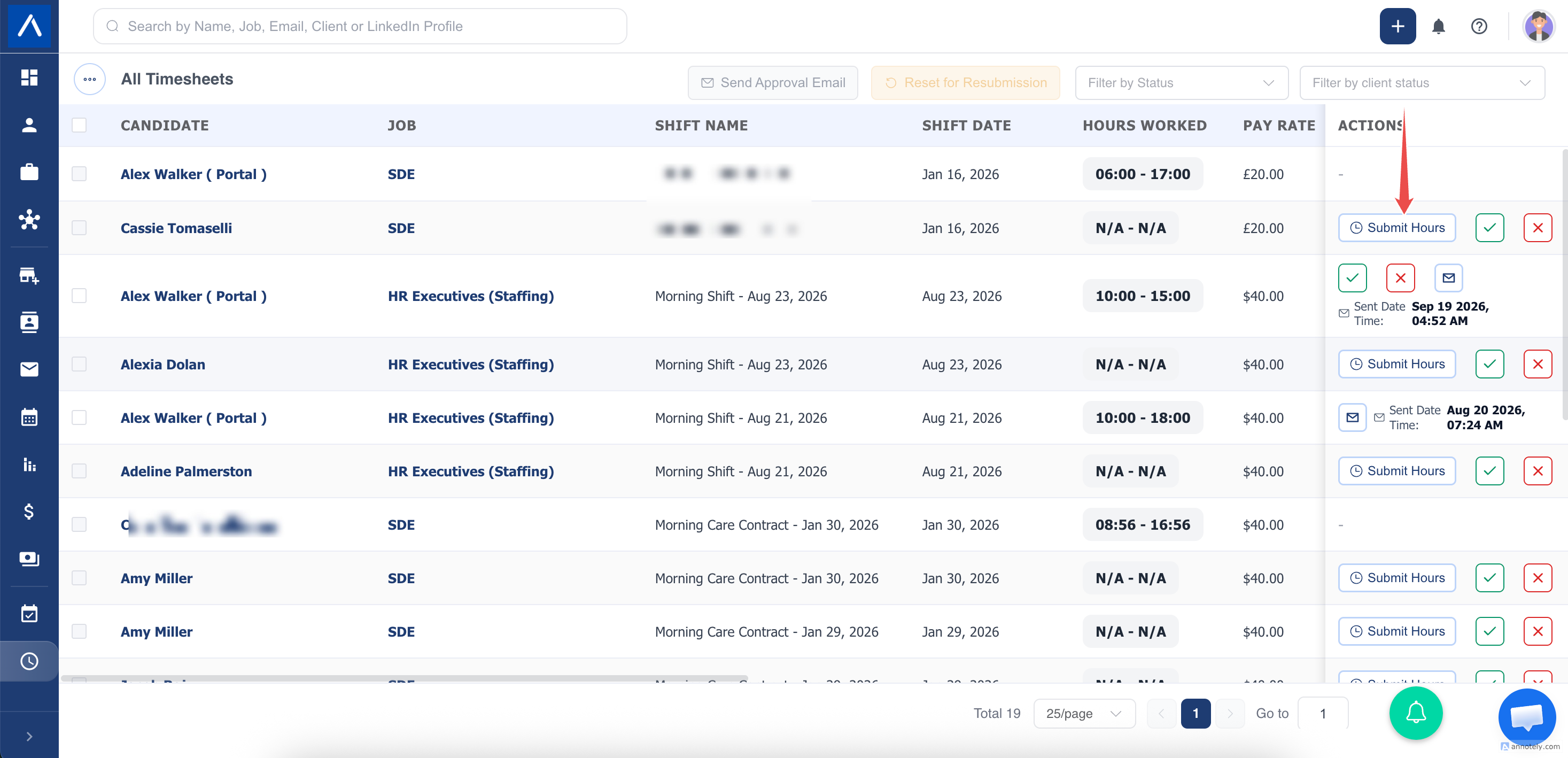
Total hours are stored in HH:MM format. Submitting hours moves the timesheet into the client-approval workflow, but it does not automatically send an email. Use the Email action separately when the contact should be notified.
Recruiter and Client Review
Recruiters can review hours, correct mistakes if needed, and send timesheet details to the client for approval.
The Email action is available only while client approval is Pending. You can send the current timesheet or select a timeframe of up to 62 days, preview how many emails will be sent, and then send the request to the contacts associated with the included jobs.
Clients receive actual submitted hours and can open Review and approve all when an email contains multiple eligible timesheets. Existing approvals or rejections are never overwritten by a later batch action.
See Email Timesheets for Client Approval for the complete workflow.
Common Scenarios
Candidate Did Not Attend
Mark as no-show so no timesheet is generated and nothing is billed.
Candidate Left Early
The candidate submits actual hours, and the client can approve reduced time.
Client Rejects a Timesheet
The recruiter reviews the issue, and the timesheet can return to the candidate for resubmission.
The recruiter who created the related contract receives grouped notifications when timesheets are submitted, approved, or rejected.
Multiple Candidates Work the Same Shift
Each candidate has their own timesheet, hours, and approval record.
Use Cases
Temporary Staffing
Plan daily work, book candidates, and track hours in one workflow.
Contract Recruitment
Capture worked hours and approvals for contractors.
Client Approval Control
Send timesheets to clients with clear approve/reject actions.
Troubleshooting
Candidate Cannot Submit Hours
Check whether the shift has been marked Completed.
Candidate Is Already Booked
Check overlapping shifts and candidate availability.
Client Rejects Hours
Review the reason, correct the timesheet if needed, and request resubmission or approval again.
Frequently Asked Questions
Can one shift have multiple candidates?
Yes. Each candidate is tracked separately.
Can recurring shifts be tracked?
Each day produces an individual shift and timesheet for cleaner tracking.
Does this replace payroll?
No. It organizes shift and timesheet data that can support invoicing and payroll workflows.