
Job Fill Health helps recruiters find active roles that need more candidate coverage, have remained open for too long, or are still short of their hiring target.
Generate the Report
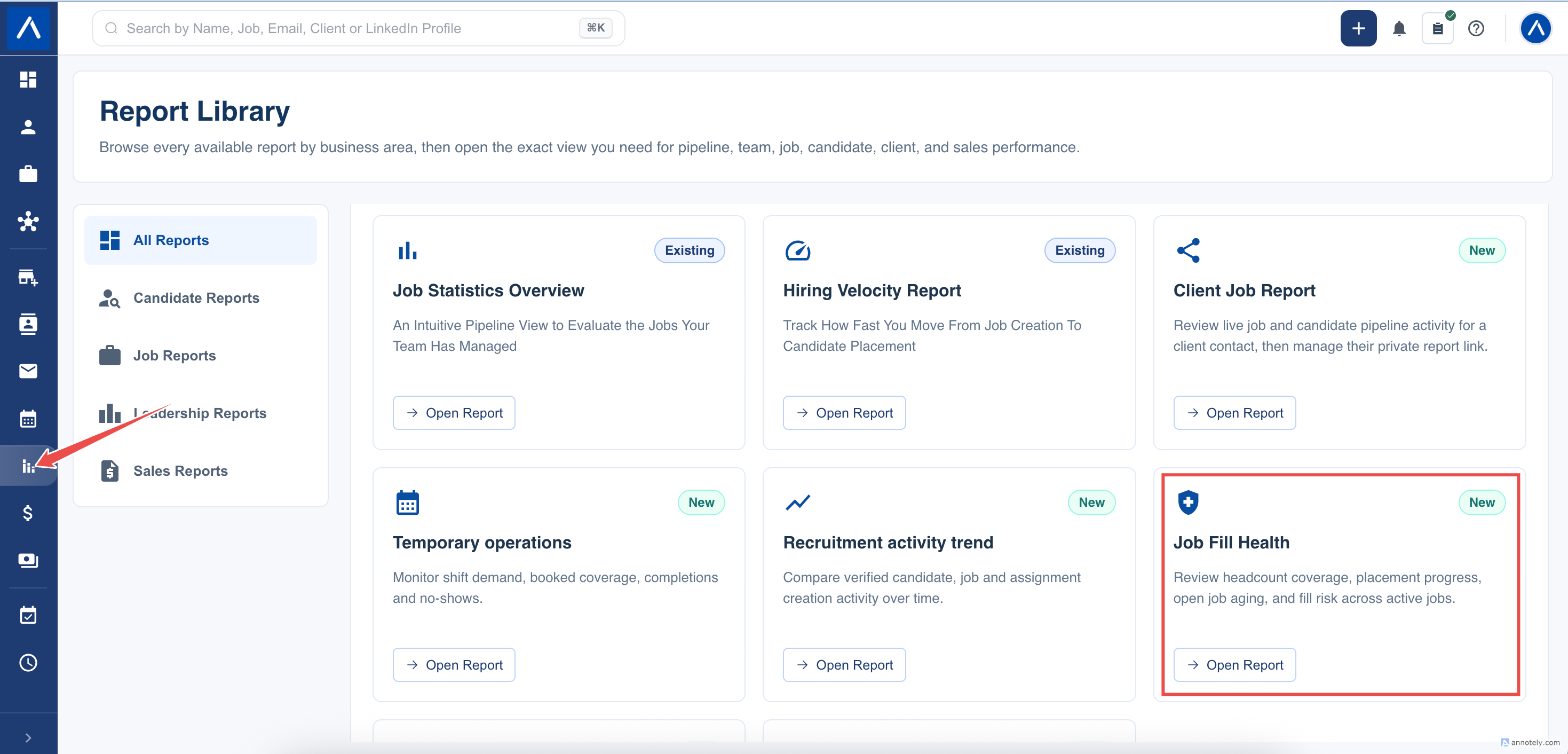
- Open Reports > Job Fill Health.
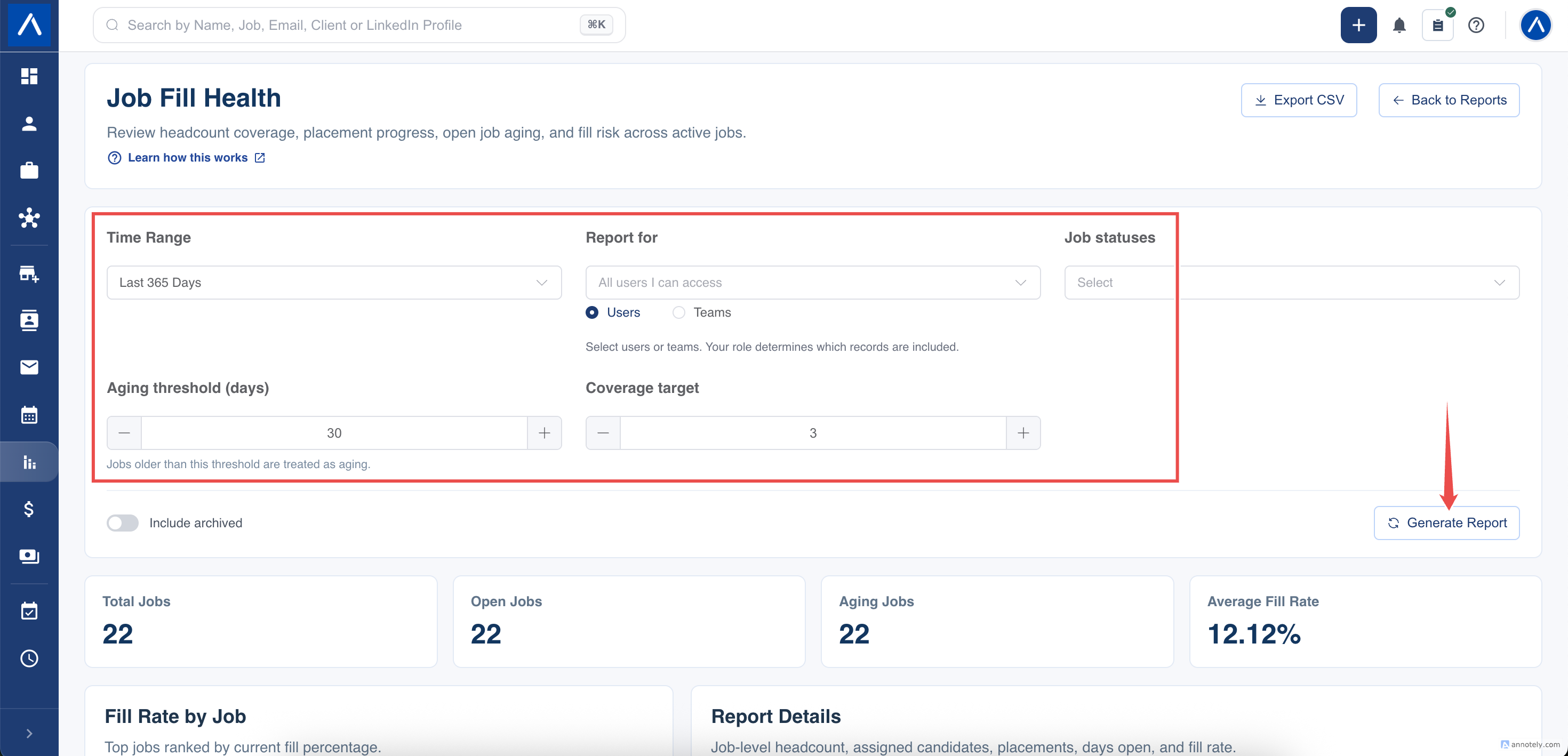
- Choose the date range in which the jobs were created.
- Apply a recruiter or team filter if required.
- Select job statuses. If no status is selected, ATZ CRM uses the statuses mapped as Open for your account.
- Set the aging threshold and candidate coverage target.
- Choose whether archived jobs and candidates should be included.
- Select Generate Report.
Understand the Time Basis
The date range chooses jobs by their creation date in ATZ CRM. It is not a date filter on candidate assignment or placement.
After those jobs are selected, the report shows their current:
- Job status.
- Assigned candidate coverage.
- Hired outcomes.
- Age in days.
- Fill rate.
This combination lets you review a group of jobs opened during a particular period while seeing where those jobs stand now.
Read the Job Measures
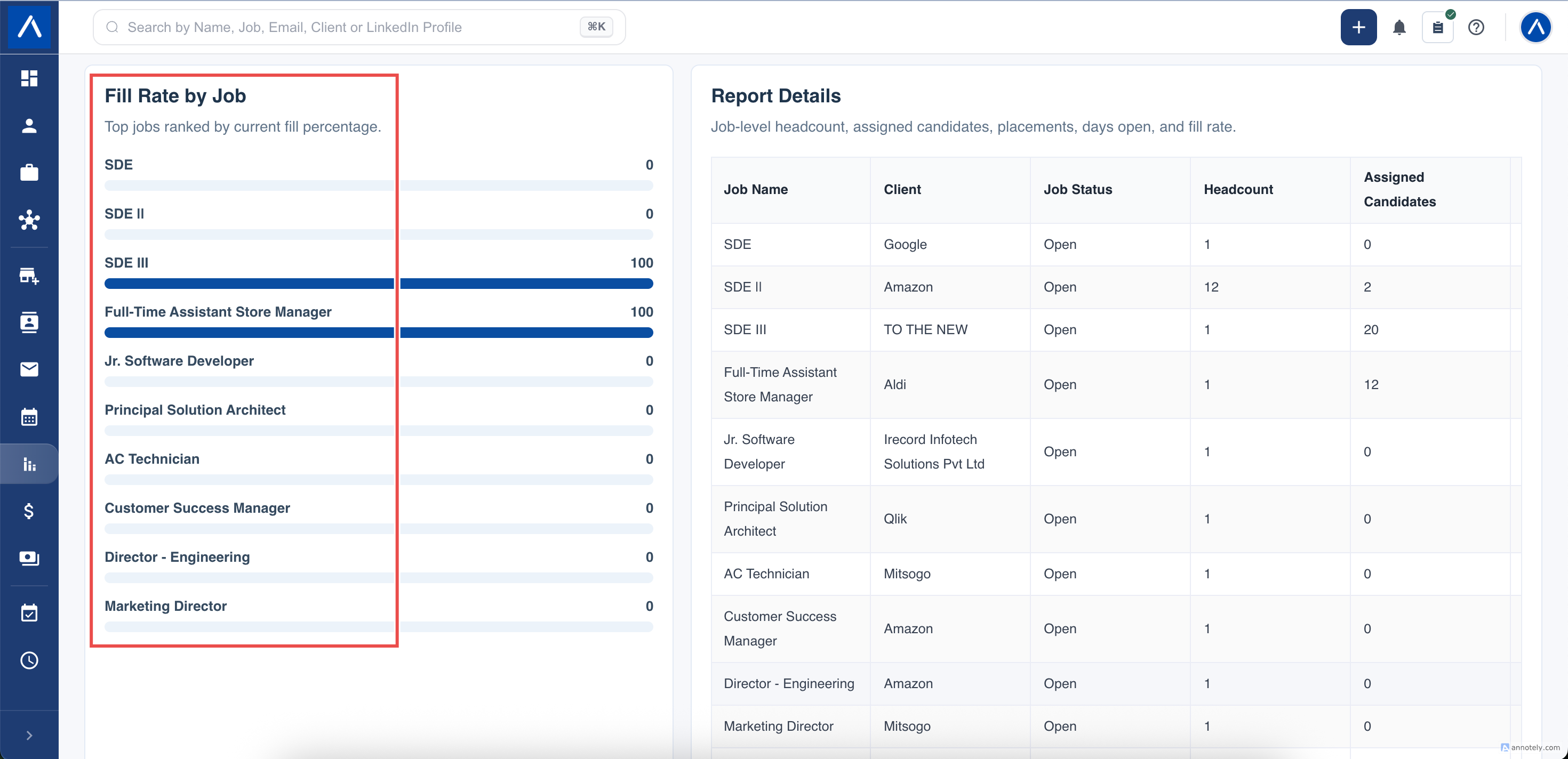
- Headcount is the job’s required number of hires. Empty or zero headcount is treated as one.
- Assigned candidates counts distinct candidates currently assigned to the job within your permitted candidate scope.
- Placements counts distinct candidates on the job whose stage is mapped as Hired.
- Days open is the number of days since the job record was created.
- Fill rate is Hired candidates divided by headcount. Each job row is capped at 100%, even when the placement count is higher than headcount.
The overall average fill rate compares total placements with total headcount across all included jobs. If jobs are overfilled, this overall figure can be higher than 100% even though individual row rates are capped.
Use Aging and Coverage Thresholds
The aging threshold controls which jobs contribute to the Aging jobs summary. The coverage target helps ATZ CRM place jobs with low assigned-candidate coverage nearer the top, alongside older jobs.
These thresholds do not remove healthy jobs from the report. Use the status and people filters to control the job population, then use thresholds to prioritize attention.
Reconcile the Report
Use the same status mappings, people scope, creation-date range, and archive setting when comparing figures. If a Hired result is missing, check whether the relevant talent stage is mapped as Hired and whether the candidate or job is archived.
FAQs
What does the date range select?
Jobs created during the period. Coverage and Hired figures show their current position.
How is fill rate calculated?
Distinct Hired candidates divided by headcount. Each job row is capped at 100%.
What happens when headcount is empty or zero?
The report uses one as the minimum headcount.