
Meeting Scheduler lets candidates and contacts book time with you without the back-and-forth emails. You set up a booking page once, share the link, and guests pick a time that is free on your calendar.
Quick Answer
Open your profile menu, choose Meeting Scheduler, and click New Booking Page. Fill in the event details, your weekly availability, and any questions you want to ask, then save and share the link.
Before You Start
To create booking pages, make sure:
- You have connected the same email account under Email Settings and Calendar Settings. Meetings are added to your calendar, and confirmations and reminders are sent from that account, so they need to match. See Email and Calendar Integration.
- You have connected Google Meet or Microsoft Teams under Meeting Integration if you want a video link created for every booking. See Google Meet Integration.
If something is missing, Meeting Scheduler shows a short notice telling you what to connect.
Open Meeting Scheduler
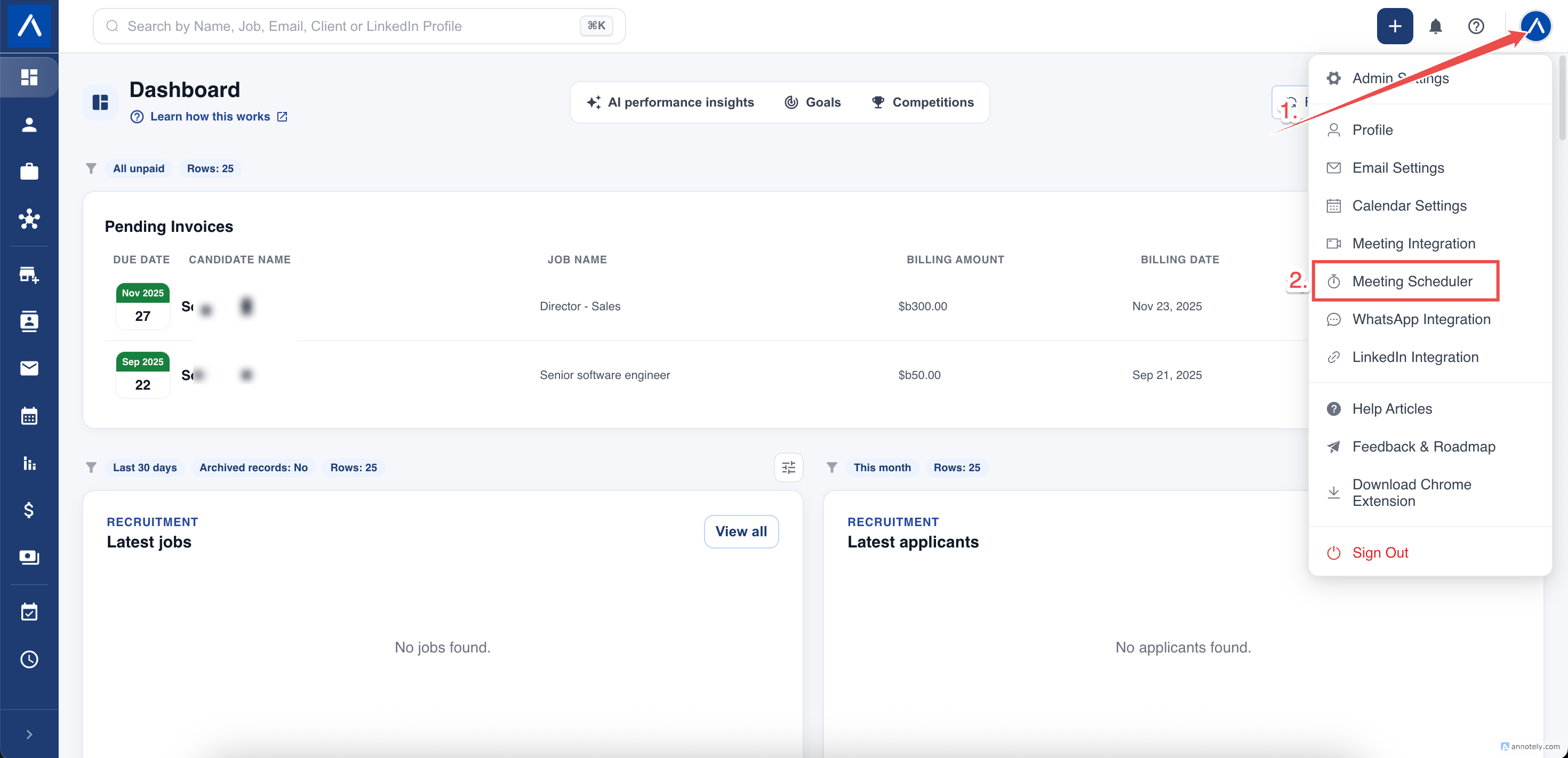
Click your profile picture in the top bar and choose Meeting Scheduler. You can also open User Settings and select Meeting Scheduler from the left menu.
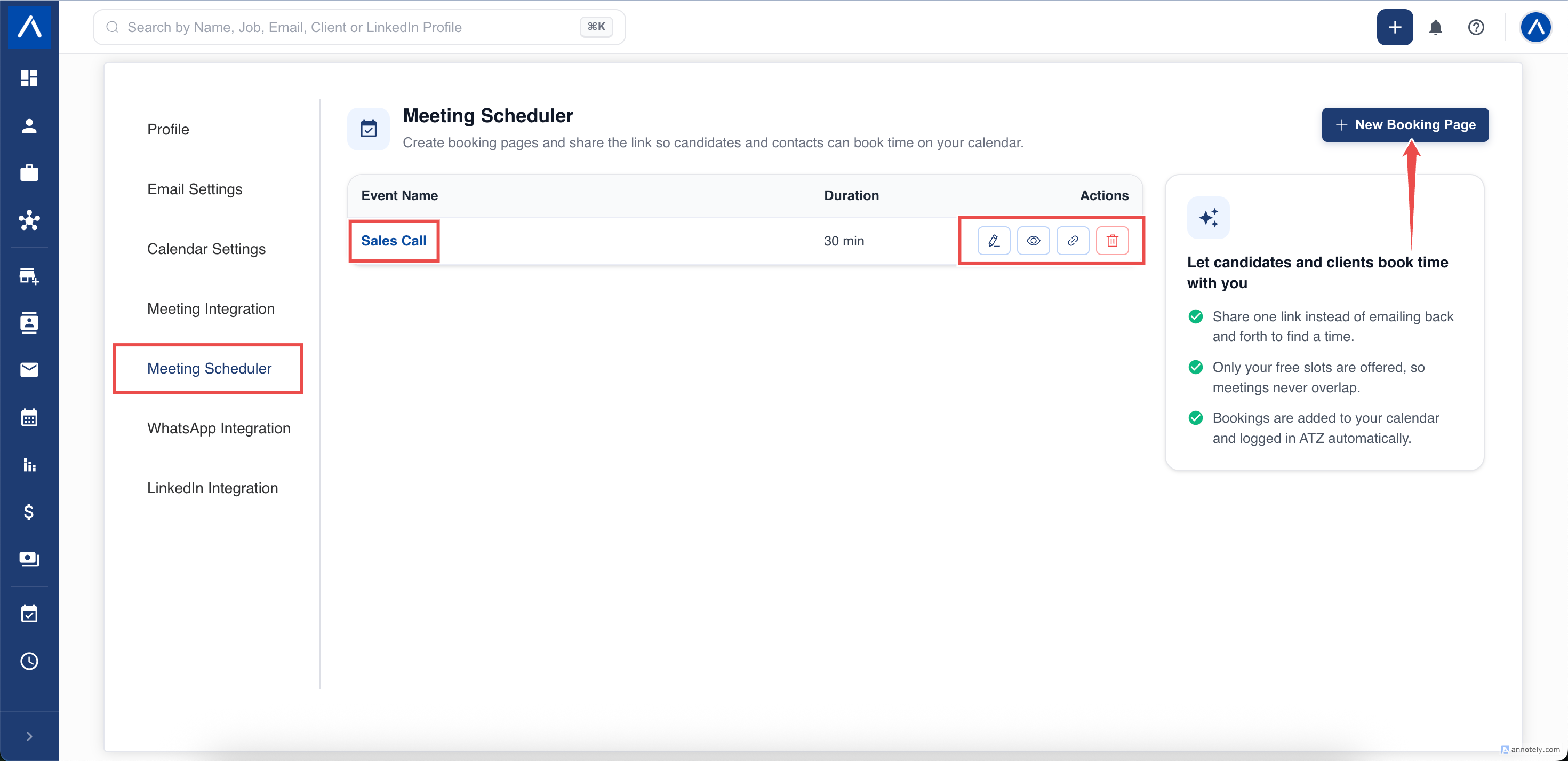
The page lists your booking pages. For each one you can Edit, Preview, Copy Link, or Delete.
Create a Booking Page
Click New Booking Page. Choose the type first, because it cannot be changed after saving:
- One-on-One: guests pick any free time from your weekly availability. Best for interviews, screening calls, and client catch-ups.
- Group: you create fixed sessions with a limited number of seats. Best for webinars, open days, and info sessions.
The form is split into sections, listed on the left. Work through them in any order. A small red dot on a section after you click Save means it still needs something.
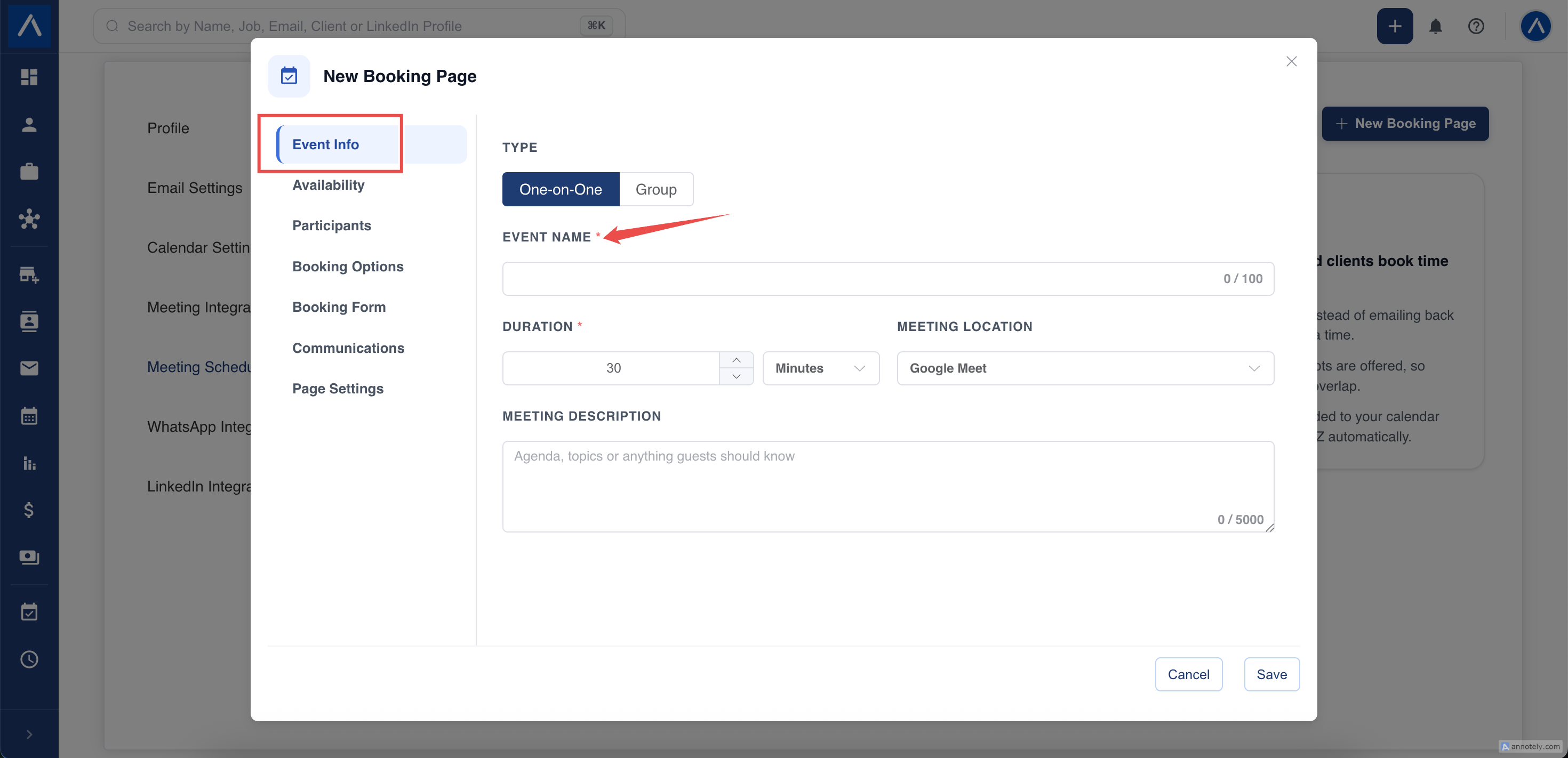
Event Info
- Event Name: what guests see, for example “30-minute screening call”.
- Duration: choose minutes or hours, for example 45 minutes or 1.5 hours.
- Meeting Location: choose None, Google Meet, Microsoft Teams, or Custom Location. Google Meet and Microsoft Teams only appear when they are connected under Meeting Integration. With Custom Location, type an address or paste a meeting link such as a Zoom link.
- Meeting Description: add an agenda, bullet points, or anything guests should know. It appears on the booking page and in the calendar invitation.
Availability
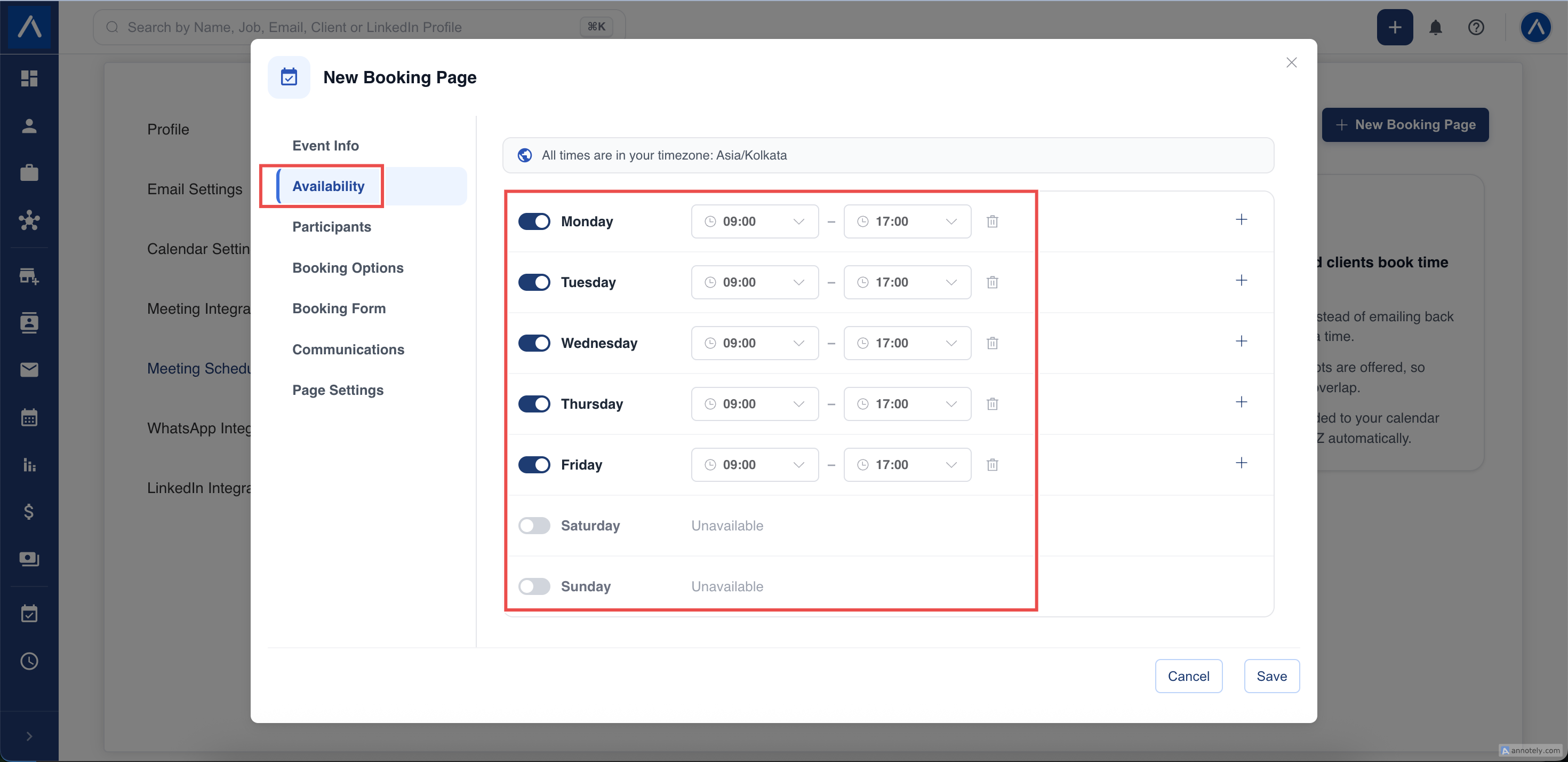
Set the days and hours you can be booked.
- Switch each weekday on or off. Days that are off show as Unavailable.
- Add more than one time slot to a day, for example 9:00 to 12:00 and 2:00 to 5:00.
- ATZ CRM warns you if two slots overlap or a slot ends before it starts.
The timezone used is shown at the top of the section. It is your ATZ CRM timezone, and guests see these times converted to their own timezone automatically.
For a Group page, set the seats per session and add each session with its own date and time instead.
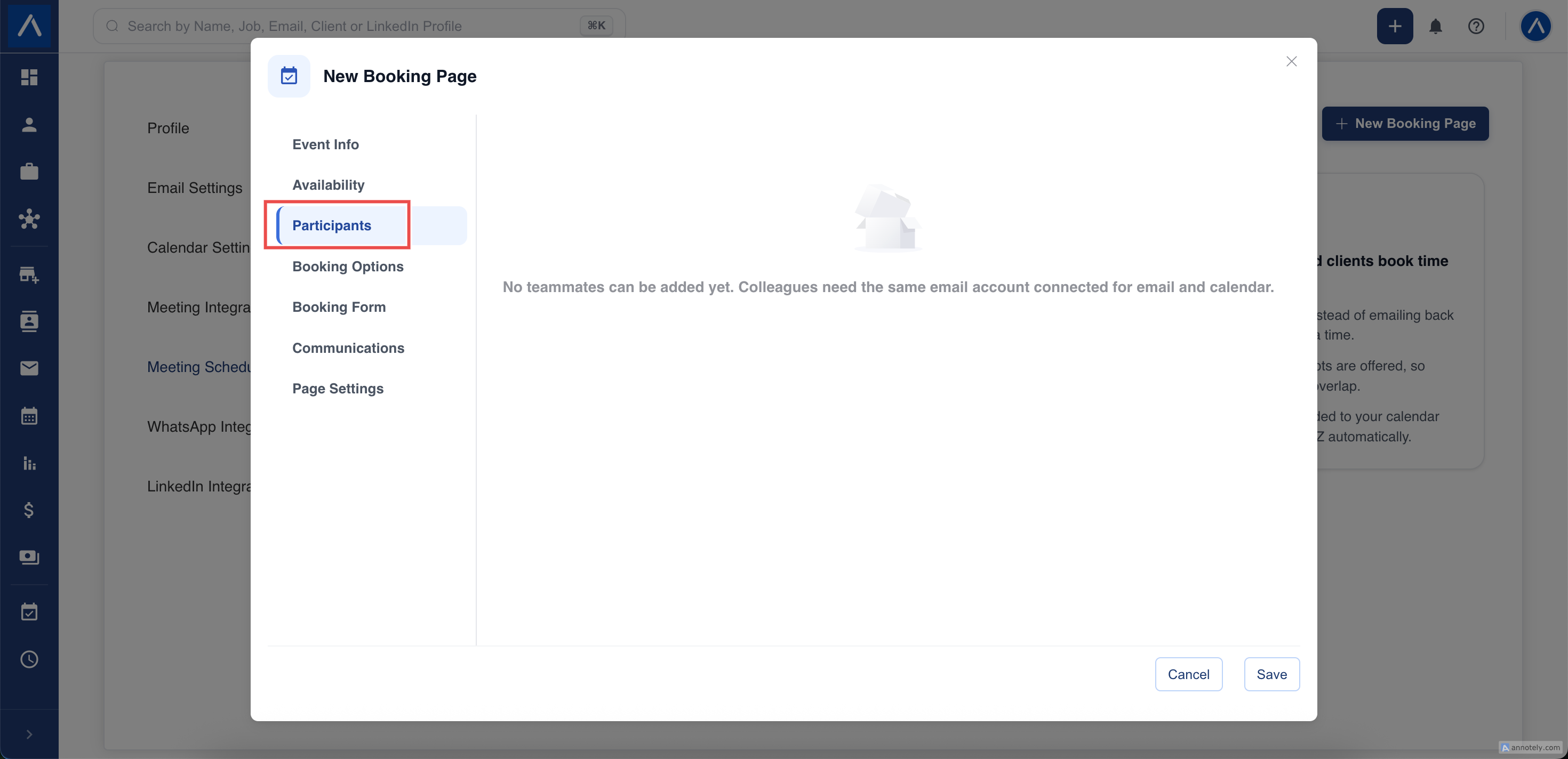
Participants
Add teammates so the meeting involves more than one recruiter. Only teammates who have the same email account connected for email and calendar can be added.
For a One-on-One page you can choose:
- Everyone attends: a time is offered only when you and every teammate are free, and all of you join the meeting.
- Round robin: each booking goes to one recruiter at a time, starting with the one who was booked least recently. This spreads bookings evenly across the team.
For a Group page, teammates you add are included in every session.
Booking Options
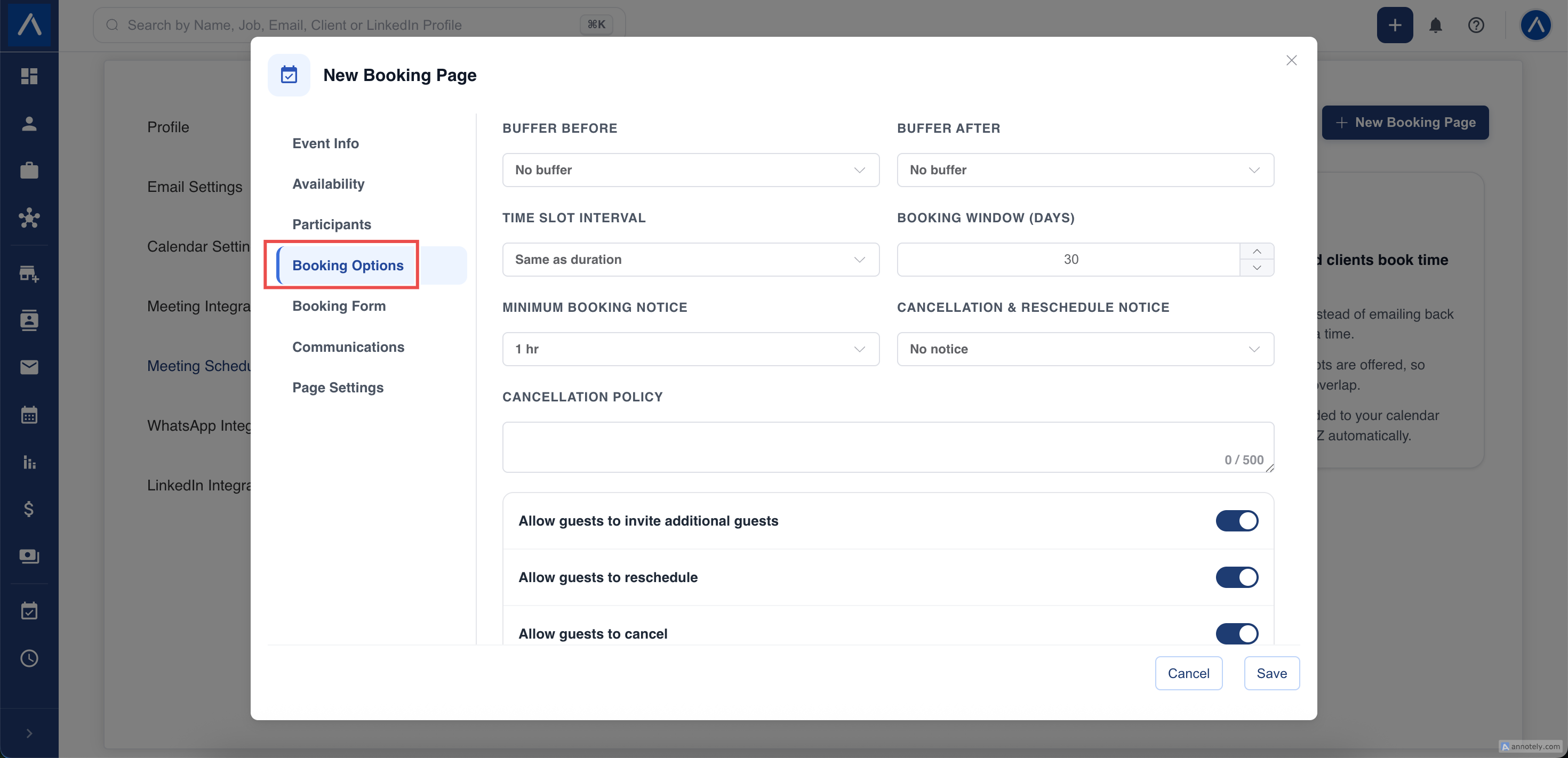
Control how and when guests can book:
- Buffer Before / Buffer After: keep free time around each meeting, up to 2 hours, so you are never back to back.
- Time Slot Interval: how often start times are offered, for example every 30 minutes.
- Booking Window: how many days ahead guests can book.
- Minimum Booking Notice: the least notice you need, so nobody books a call five minutes from now.
- Cancellation & Reschedule Notice: how much notice guests must give to change a booking.
- Cancellation Policy: a short message shown to guests when they book or cancel.
- Switches: allow guests to invite additional guests, to reschedule, and to cancel. Turn them off to hide those options from the booking page and the emails.
Booking Form
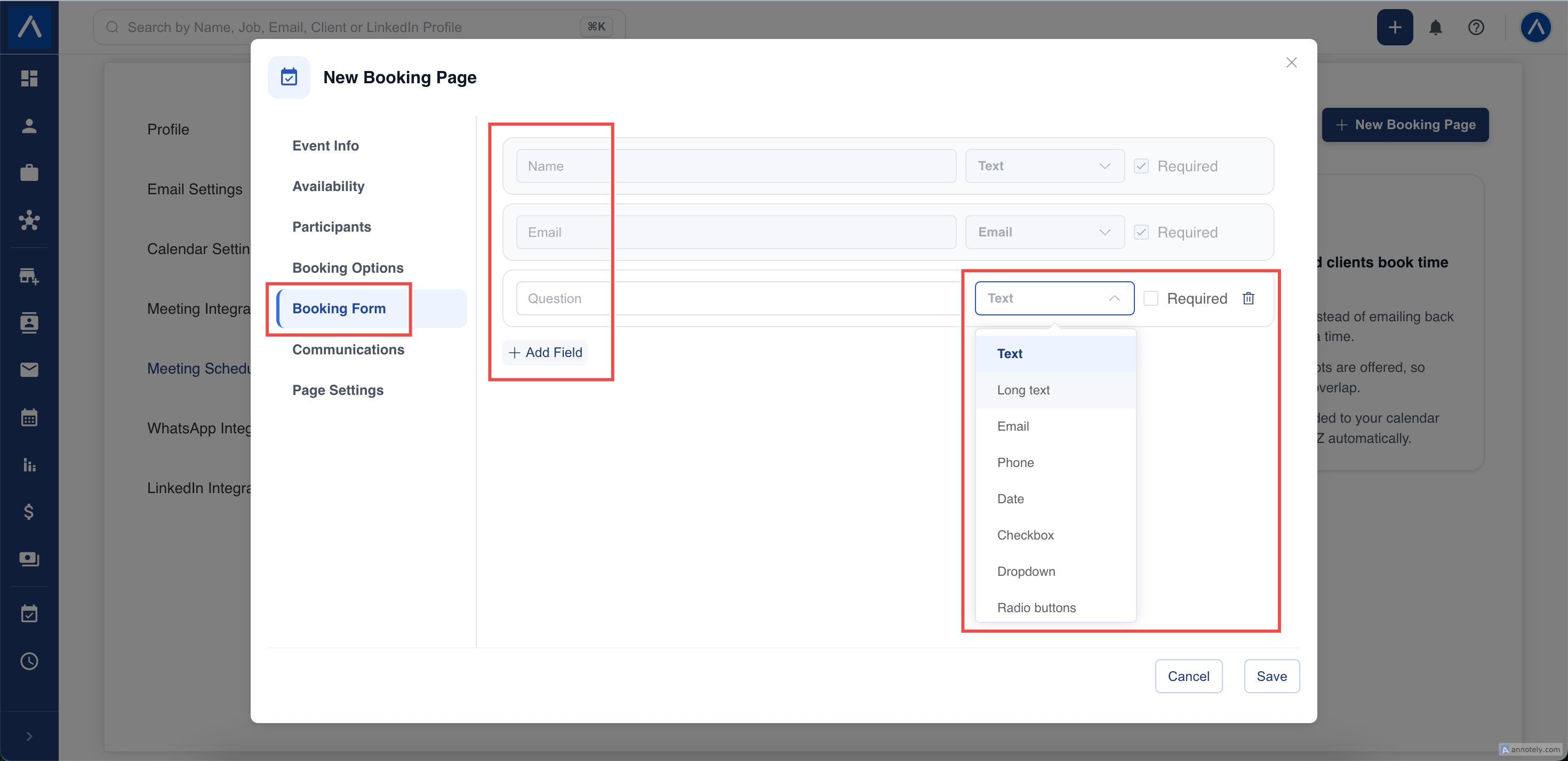
Guests are always asked for their name and email. These are required and cannot be removed.
Click Add Field to ask more, for example current company, notice period, or expected salary. You can add up to 10 fields and choose the type for each:
- Text or long text
- Email or phone
- Date
- Checkbox
- Dropdown, radio buttons, or multi-select (you type the options)
Mark a field as Required if guests must answer it before booking. Their answers appear in the activity description in ATZ CRM.
Communications
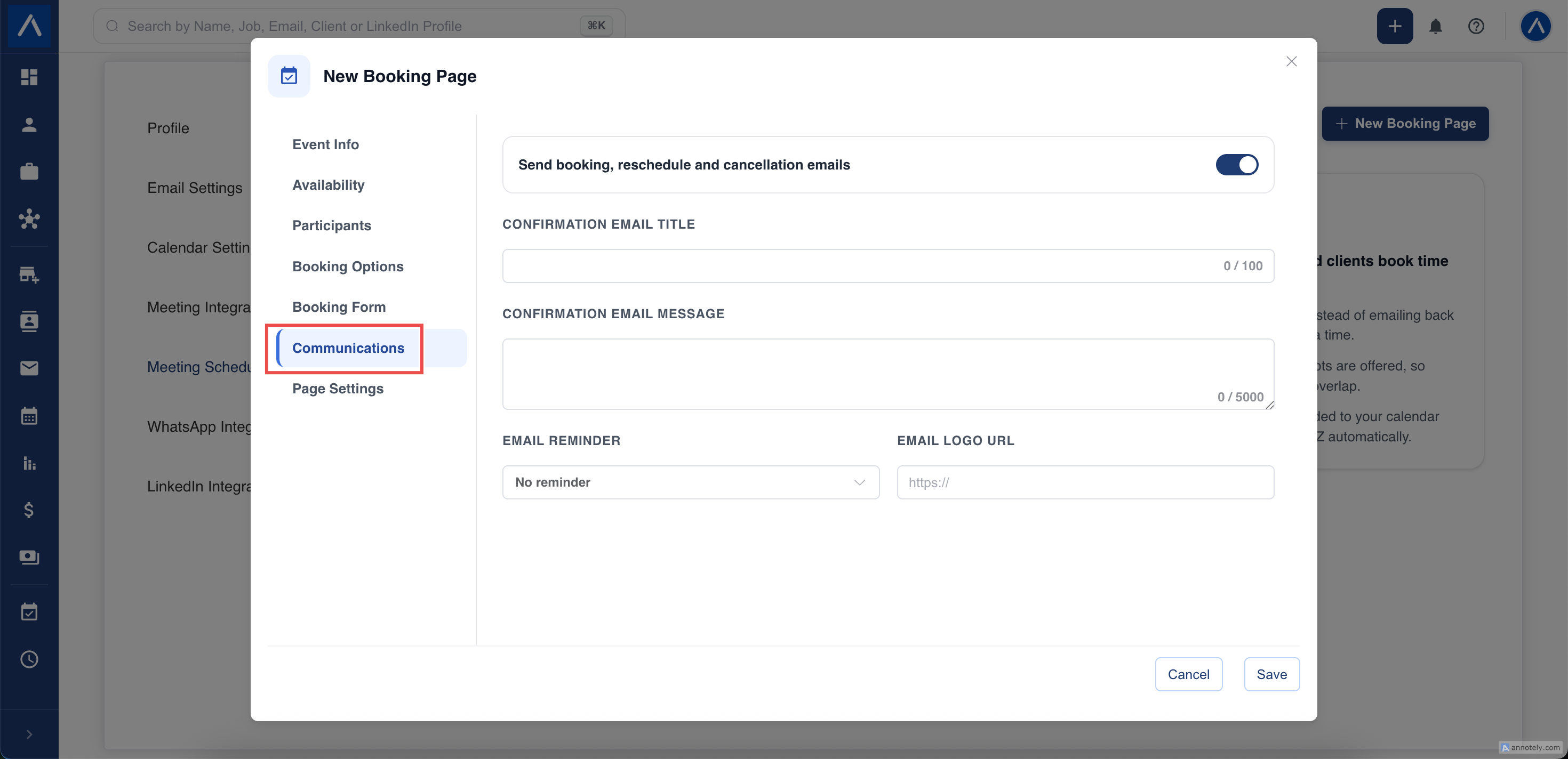
Choose which emails guests and recruiters receive.
- Email notifications: switch booking, reschedule, and cancellation emails on or off.
- Confirmation Email Title and Message: personalize the confirmation, for example “See you soon” followed by “Please bring your latest CV”.
- Email Reminder: send a reminder 15 minutes, 1 hour, or 1 day before the meeting.
- Email Logo URL: show your company logo at the top of the emails. Use a public link that starts with https.
Page Settings
Customize what guests see on the public booking page:
- Scheduling Page Name: the heading of the page. If left empty, the event name is used.
- Company Logo URL: a logo shown above the booking calendar. Use a public https link.
- Thank You Message: shown right after a guest books.
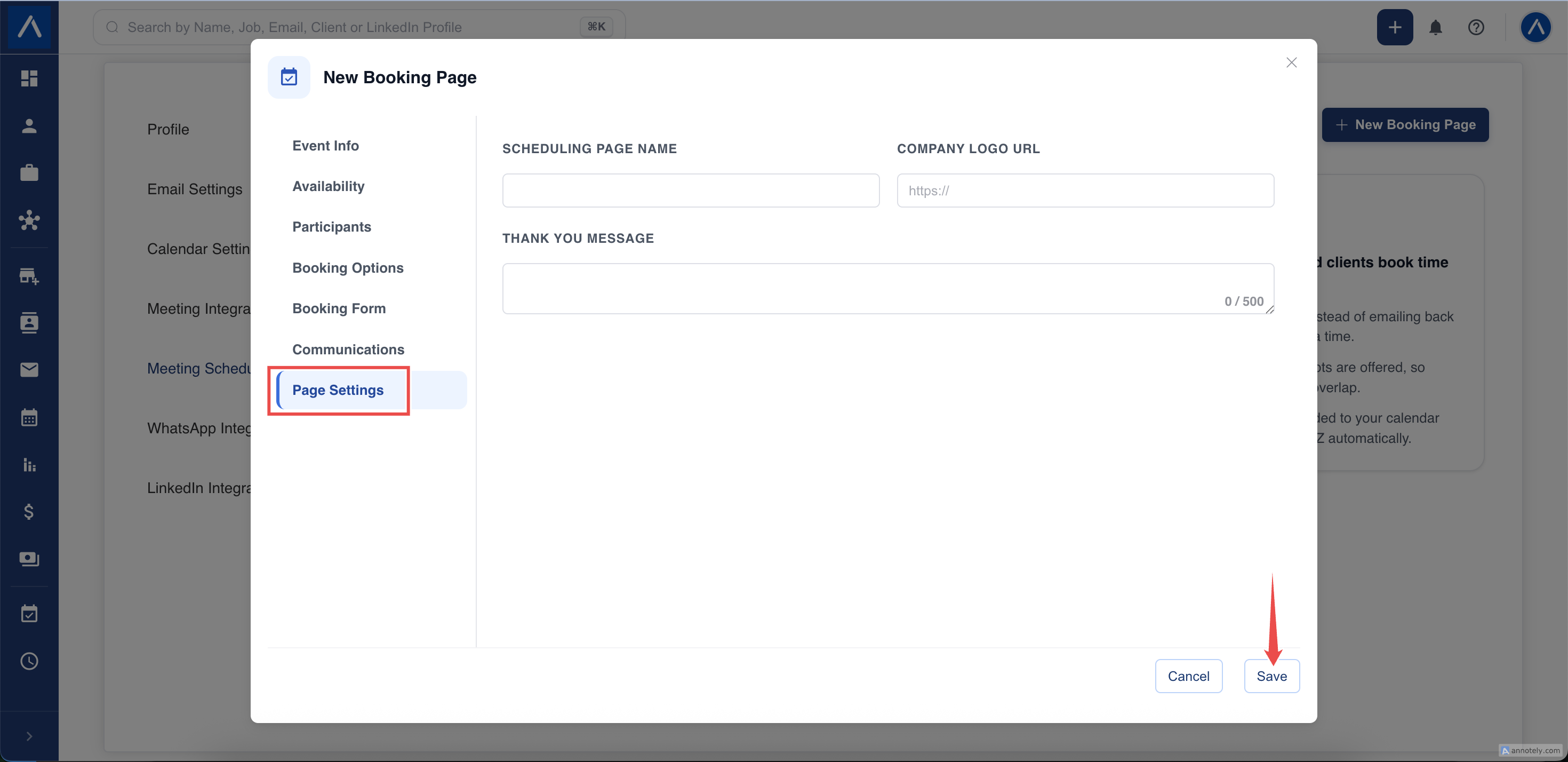
Click Save when you are done. If a section is incomplete, ATZ CRM opens it for you.
Preview and Share Your Booking Page
From the booking pages list:
- Preview opens the page exactly as candidates will see it.
- Copy Link copies the booking link so you can paste it into a message, a LinkedIn note, or an email signature.
- Edit changes any setting. Changes apply to future bookings.
- Delete removes the booking page and stops its link from working.
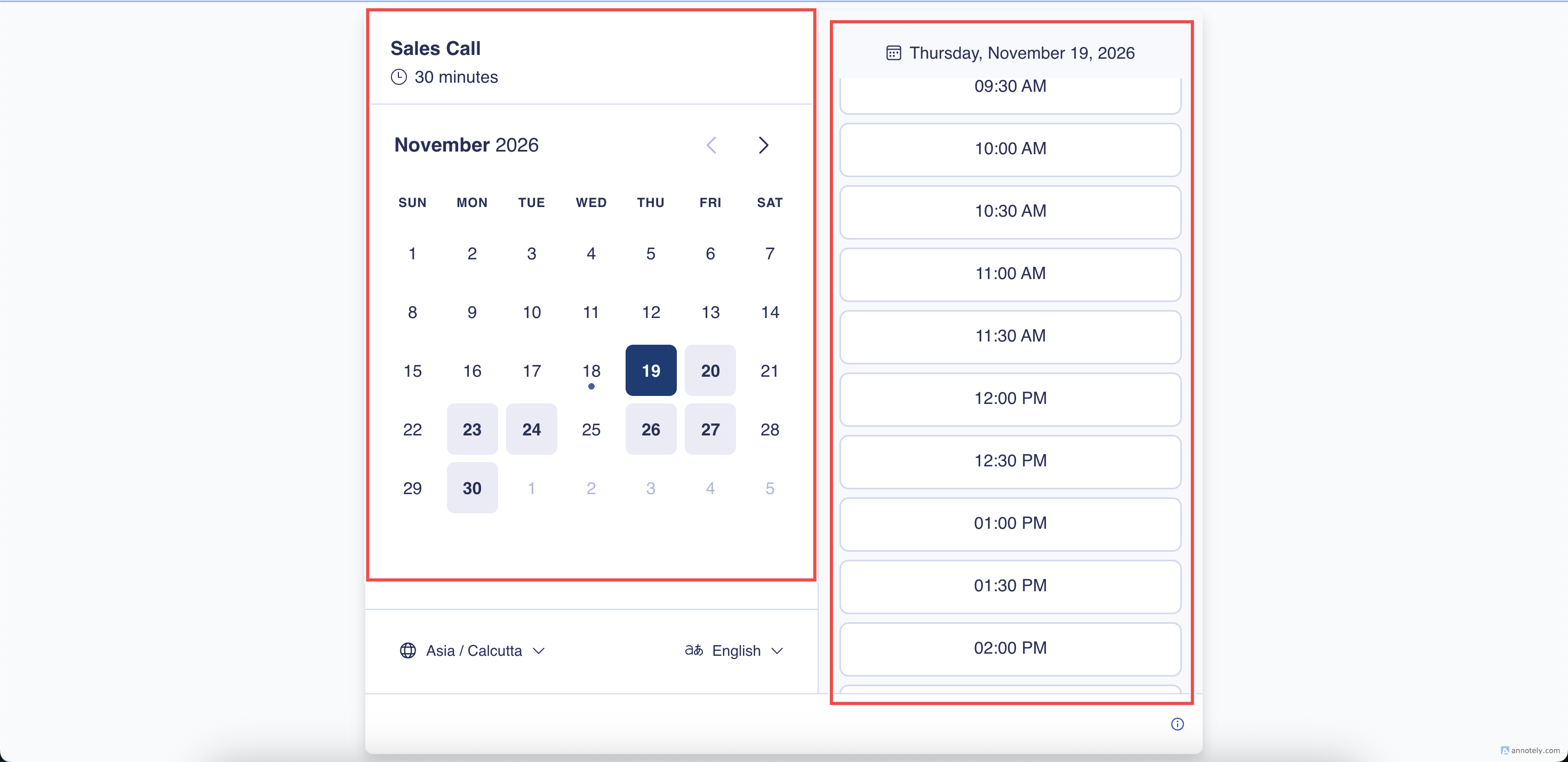
Send a Booking Link from an Email
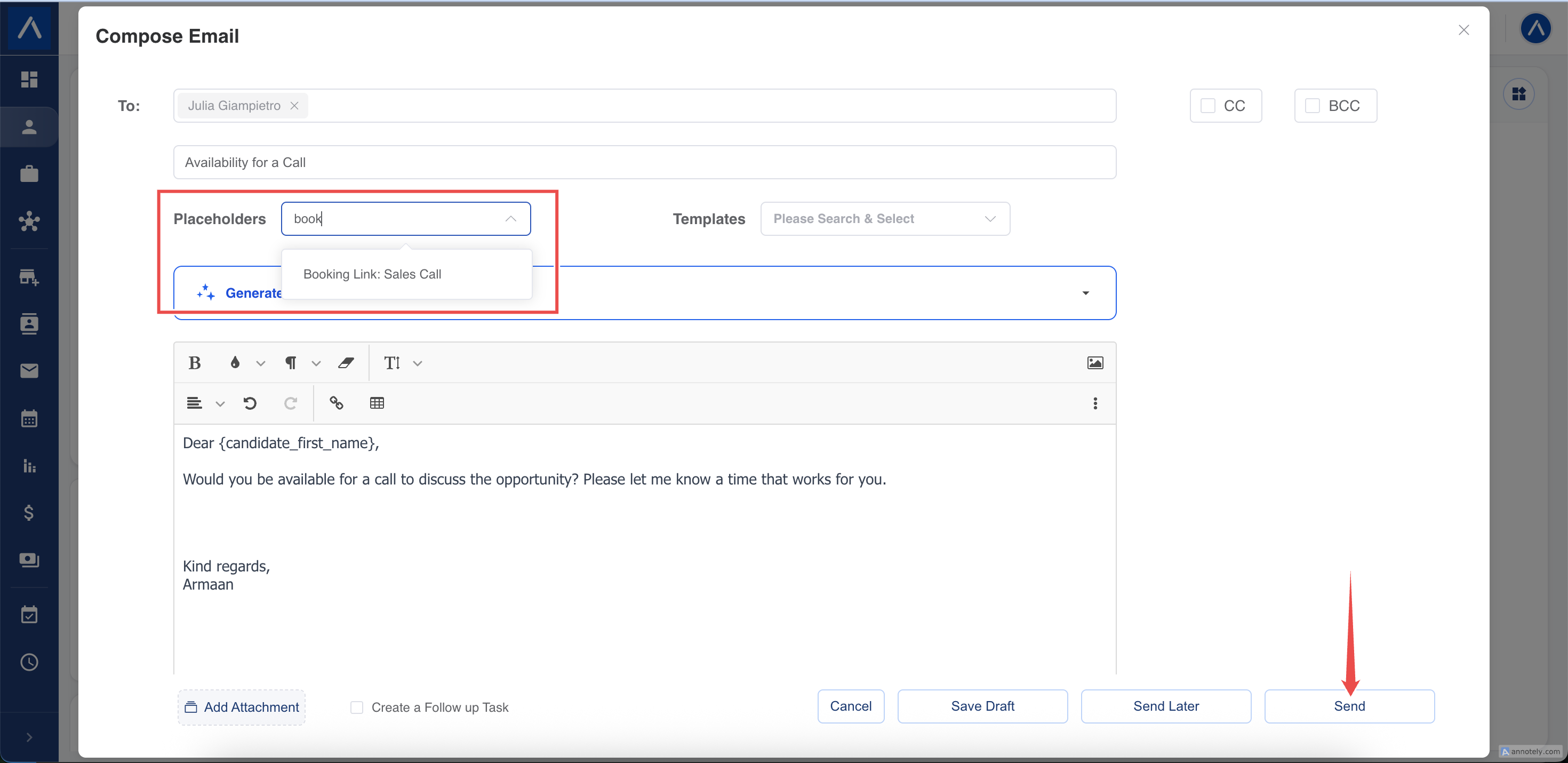
You can add a booking link to an email without leaving ATZ CRM.
- Open the email composer for a candidate or contact, or edit an email step in a sequence.
- Open the Placeholders dropdown and search for Booking Link.
- Choose your booking page. The link is inserted into the message.
Each recipient receives a personal link. When they book, the meeting is linked to their candidate or contact record, even if they book with a different email address than the one on file. See Email Candidates and Contacts and Email Sequencing.
What Happens When Someone Books
- The guest picks a time, in their own timezone, and fills in the booking form.
- The guest sees your thank you message and receives a confirmation email. You receive one too, unless you switched emails off.
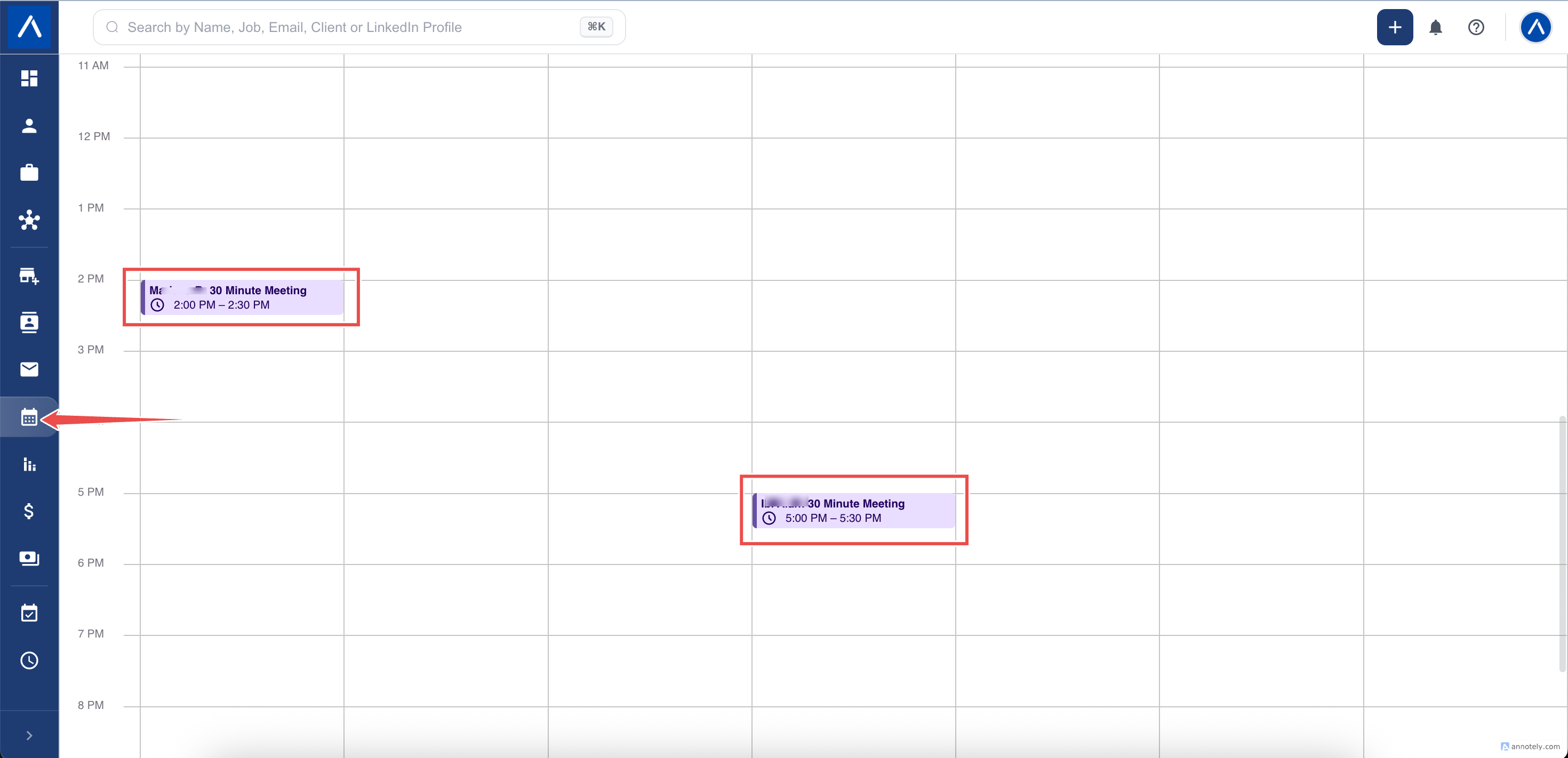
- The meeting appears on your calendar with the meeting link and agenda.
- A Meeting activity is created in Activities. It is linked to the matching candidate or contact when one is found, and the guest’s answers are added to the description.
- If the guest reschedules or cancels from their email, the calendar event and the activity are updated automatically.
Meetings Across Timezones
You set your availability once, in your own timezone. Guests see the same free times converted to their local timezone, and their emails show the meeting in their local time too.
For example, if you are a recruiter in New York available from 9:00 AM to 12:00 PM, a candidate in Buenos Aires sees those slots at their own local time and receives the confirmation in their own timezone. Nobody has to calculate the difference.
Use Cases
Candidate Screening Calls
Share one link with every shortlisted candidate. They choose a slot, and the call lands on your calendar with a Google Meet link.
Client Catch-Ups
Let hiring managers book recurring catch-ups in the hours you set aside for client work, with a buffer between calls.
Panel Interviews
Add the hiring recruiters as participants so a slot is only offered when everyone is free.
Open Days and Webinars
Use a Group booking page with a limited number of seats per session and track who signed up on the activity.
Troubleshooting
The New Booking Page Button Is Disabled
Connect the same email account under both Email Settings and Calendar Settings. Meeting Scheduler shows which one is missing.
Google Meet or Microsoft Teams Is Not in the Location List
Connect the tool under Meeting Integration. The option also needs to match your calendar provider, so Google Meet needs a Google calendar and Microsoft Teams needs a Microsoft calendar. Until then you can use Custom Location and paste a link.
A Teammate Is Missing from Participants
The teammate needs the same email account connected for both email and calendar. Ask them to check Email Settings and Calendar Settings.
Guests See No Available Times
Check that at least one weekday is switched on, that your Minimum Booking Notice and Booking Window leave room for bookings, and that your calendar is not already full during those hours.
The Booking Link Shows an Error
The booking page may have been deleted, or your calendar may have been disconnected. Reconnect your calendar, or create the booking page again.
The Logo Does Not Appear
Logos must be public links starting with https. Links that need a login or are blocked from outside access will not load.
FAQs
Does Meeting Scheduler replace activities?
No. Booked meetings are created as activities, so they appear alongside the rest of your schedule. You can still add activities manually. See Add or Edit Activities.
Can I change a booking page after I have shared the link?
Yes. Open Edit, update the settings, and save. The link stays the same, and the changes apply to future bookings.
Can I use one booking page for several types of calls?
Create one booking page per kind of meeting, for example a 15-minute intro call and a 60-minute interview, so each has the right duration, questions, and location.
Can a guest cancel or reschedule?
Yes, from the links in their confirmation email, unless you switched those options off under Booking Options.
Who sees the guest’s answers to my questions?
The answers are added to the meeting activity in ATZ CRM and appear in the confirmation emails.


