
People change jobs, emails, and phone numbers all the time. AI agents check your candidates and contacts for you and flag what is out of date, so your team always reaches the right person at the right company.
Quick Answer
Choose which records to check, schedule a run, and let the agents work in the background. When the run finishes, review the suggested updates on each record and apply the ones you want.
Meet the Two Agents
Both agents run together. Each record is checked once for both.
| Agent | What it looks for |
|---|---|
| Job Change Alert | A new company or a new job title for your candidates and contacts |
| Data Cleaning | Missing or outdated details such as email, phone, LinkedIn URL, name, and location |
A few things the agents do to keep your data clean:
- Title changes that only reword the same role, such as “Sr. Recruiter” and “Senior Recruiter”, are ignored.
- For candidates, email and phone are only filled in when they are empty, so a candidate’s personal email and phone are never replaced.
- An update you already applied or discarded is not suggested again.
- Archived and deleted records are skipped.
Before You Start
You need to be an Admin or have Plans & Billing access to schedule runs.
To be checked, a record needs details the agents can match on:
- Candidates: a LinkedIn profile URL.
- Contacts: a LinkedIn profile URL, or a first name, last name, and a company with a website.
Records without these details are skipped. The estimate shows how many records will be checked and how many will be skipped, so you can fix records first if you want them included.
Open AI Agents
Go to Admin Settings > Data > AI Agents.
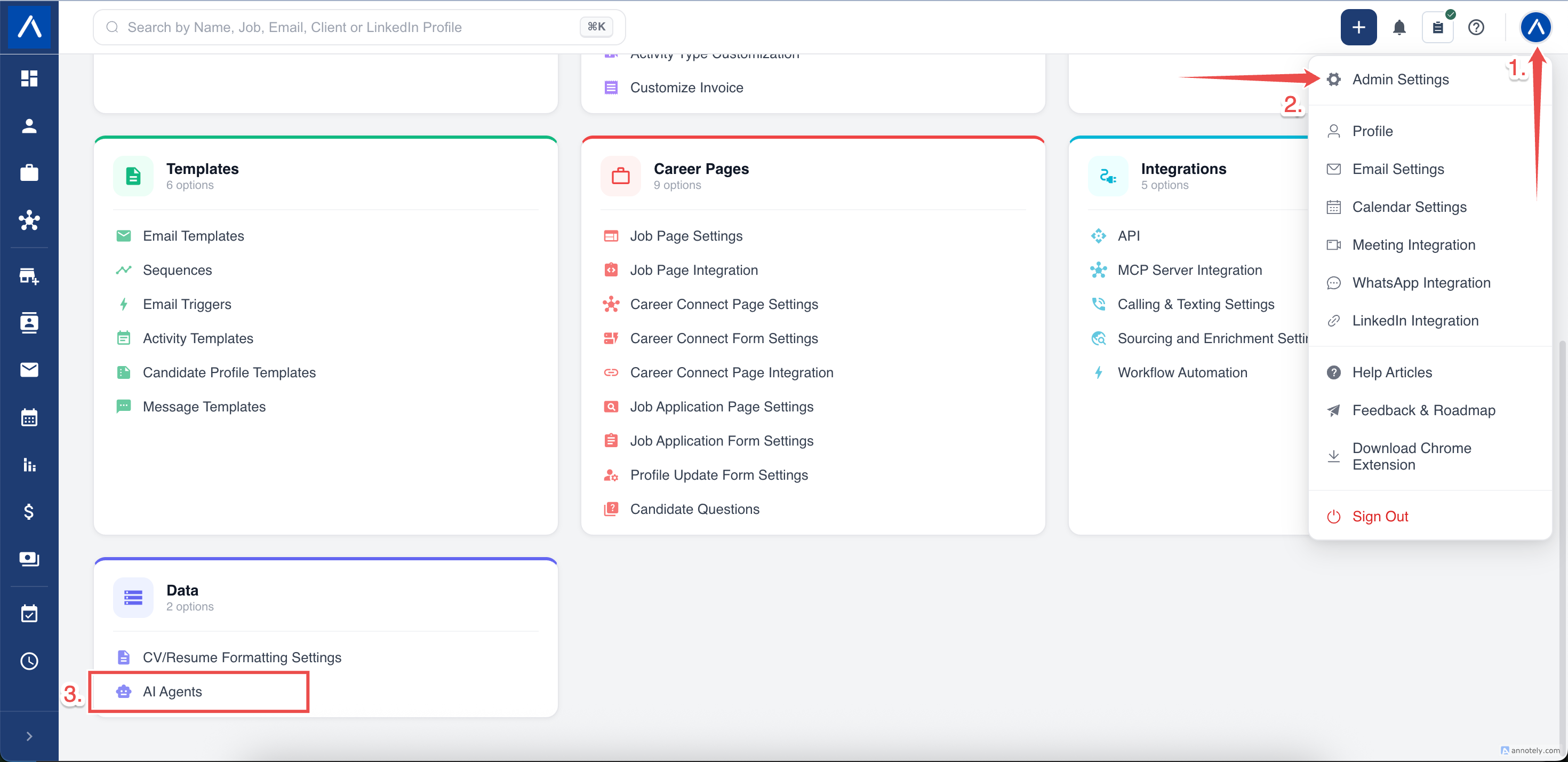
The page has three tabs:
- New run to choose records and schedule a run.
- Run history to follow your runs.
- Payment History to see your AI agent credit purchases.
Choose the Records to Check
- Open the New run tab.
- Under Select records, choose candidate folders, contact folders, or check all candidates or all contacts.
- Review the estimate. It shows how many records will be checked and how many will be skipped.
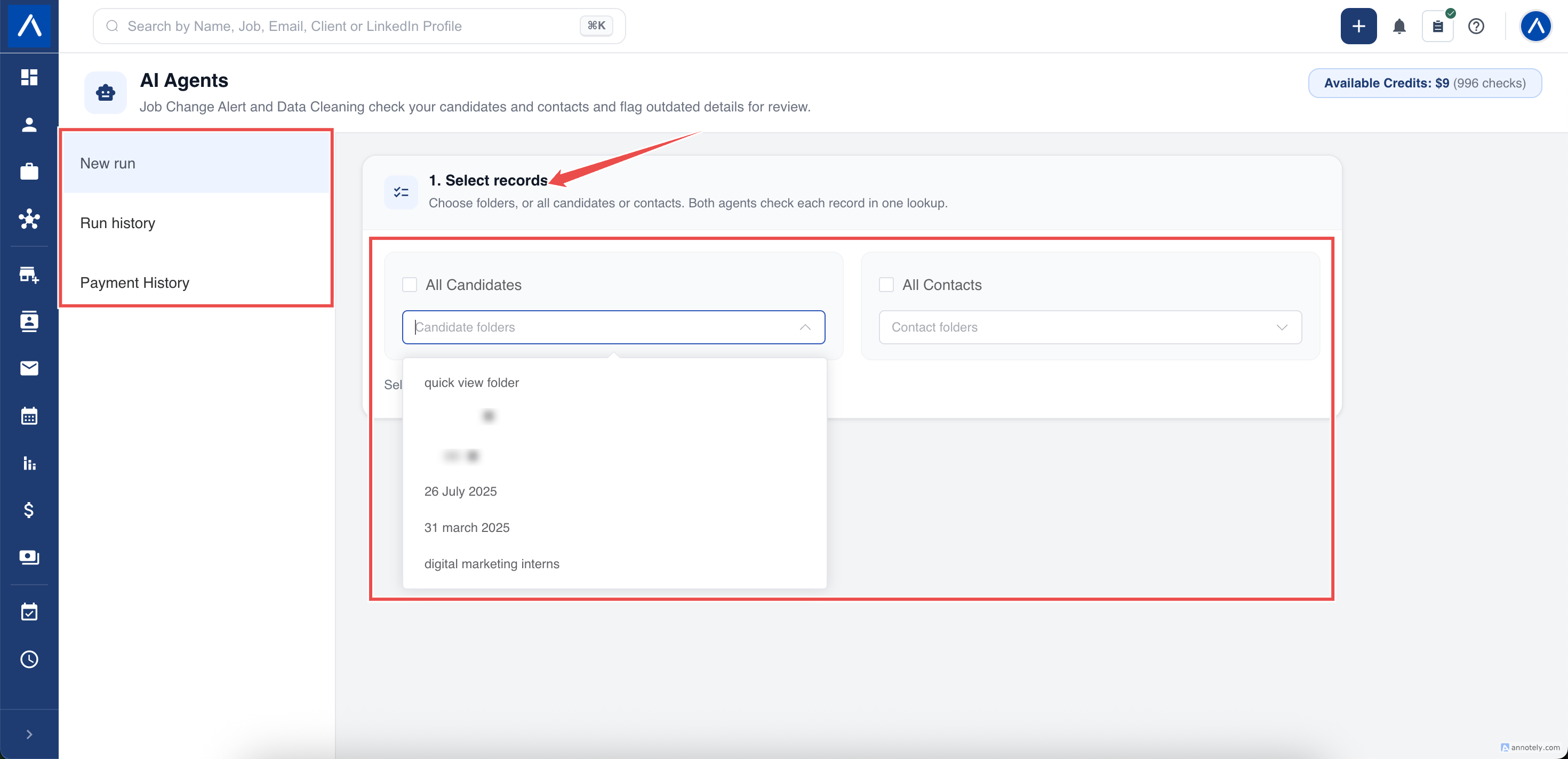
A run needs at least 10 records that can be checked.
Review the Price and Pay
AI agents cost $0.01 per record checked, which is 1 credit per record. Larger runs get a volume discount:
| Records checked | Discount |
|---|---|
| Up to 5,000 | None |
| More than 5,000 | 20% OFF |
| More than 10,000 | 25% OFF |
The Cost and payment section shows the approximate price and how many credits you already have. If your credits do not cover the run, ATZ CRM shows the Amount to pay.
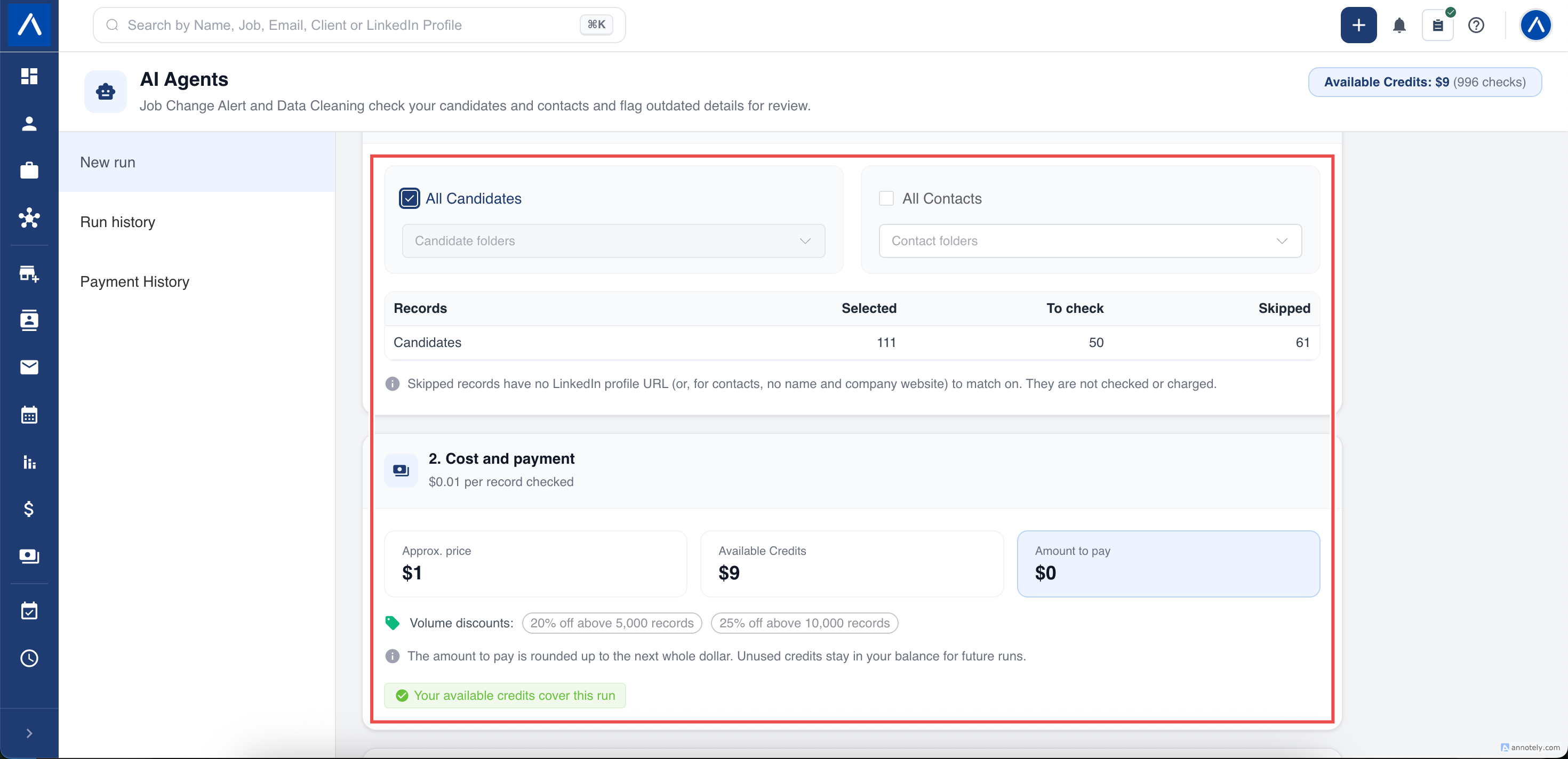
To pay:
- Click Pay. A secure Razorpay checkout opens in a new tab.
- Complete the payment.
- Return to ATZ CRM and click I’ve completed the payment.
The amount to pay is rounded up to the next whole dollar. Unused credits stay in your balance for future runs.
If your browser blocks the checkout, allow popups for ATZ CRM and click Pay again.
Schedule the Run
- Under Schedule run, choose the start date and time.
- Click Schedule run.
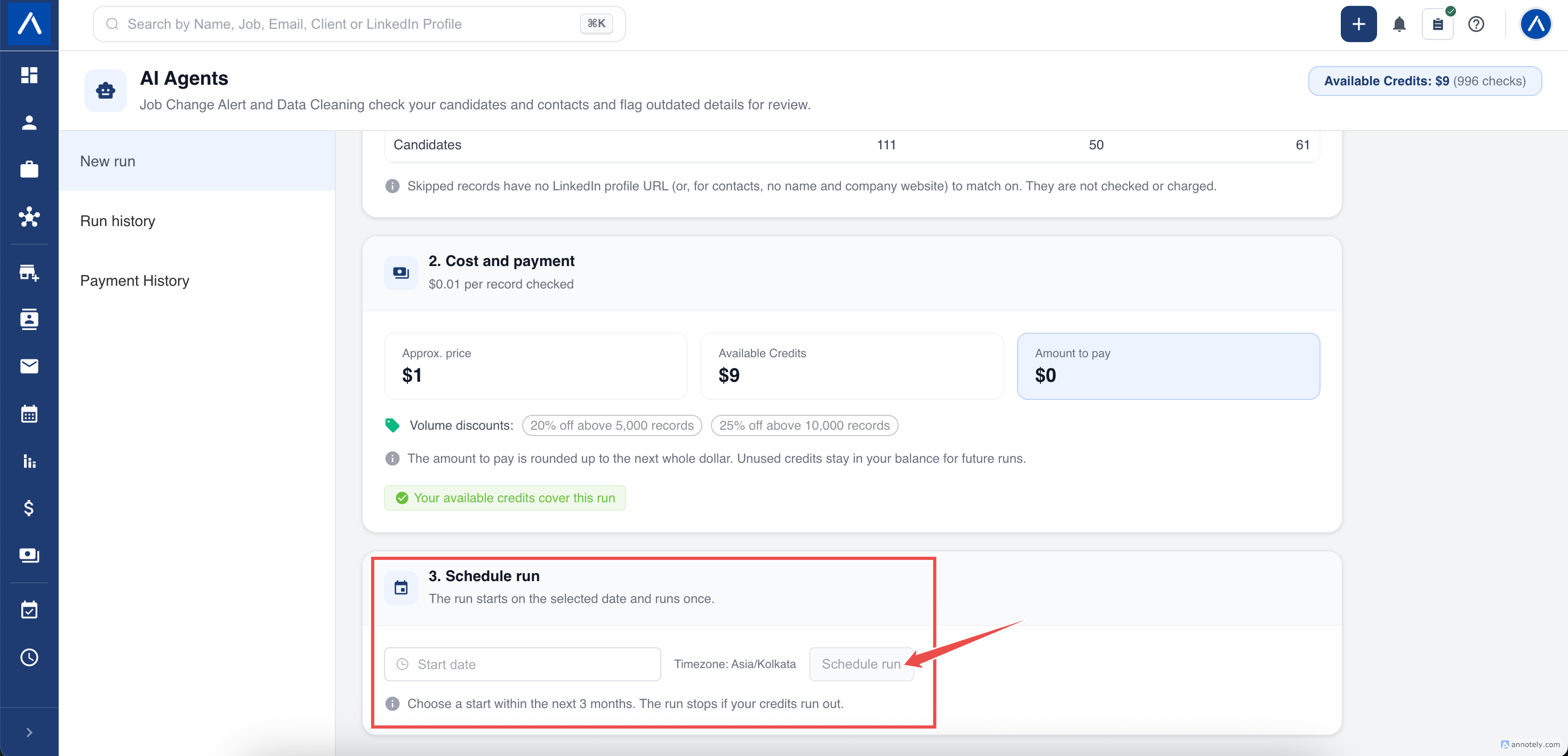
- The start time uses your ATZ CRM time zone, which is shown under the picker.
- You can choose any start time within the next 3 months.
- The run happens once. Schedule a new run whenever you want to check your records again.
- Only one run can be scheduled or running at a time.
Follow Your Runs
Open the Run history tab to see each run’s status, how many records were checked, how many records have updates, and how many credits were used.
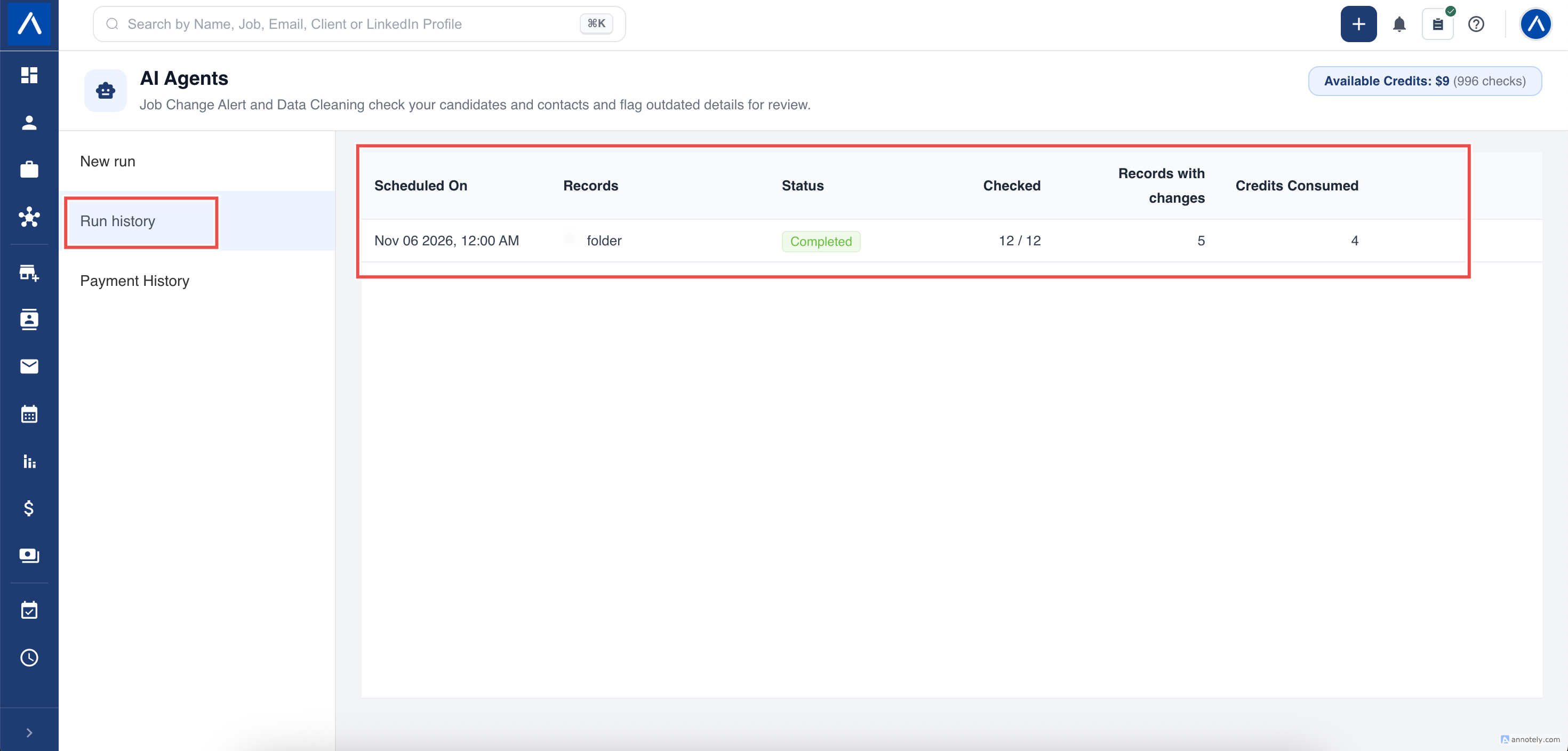
| Status | What it means |
|---|---|
| Scheduled | The run is waiting for its start time. You can still cancel it. |
| Running | The agents are checking your records. A running run cannot be cancelled. |
| Completed | Every record was checked. |
| Stopped: no credits | The run paused because your credits ran out. |
| Failed | Something went wrong and the run stopped. |
| Cancelled | The run was cancelled before it started. |
You get a notification in ATZ CRM when a run finishes or stops.
Cancel a Scheduled Run
In Run history, click Cancel next to the scheduled run and confirm. No credits are used for a run that has not started.
Resume a Stopped Run
If a run shows Stopped: no credits or Failed, click Resume run. The run continues from the records it has not checked yet, so records already checked are not checked or charged again.
If the run stopped because credits ran out, add credits first. Open New run, select the same folders, and pay the amount shown. Then go back to Run history and click Resume run instead of scheduling a new run. Any credits left over stay in your balance.
Find Records with Updates
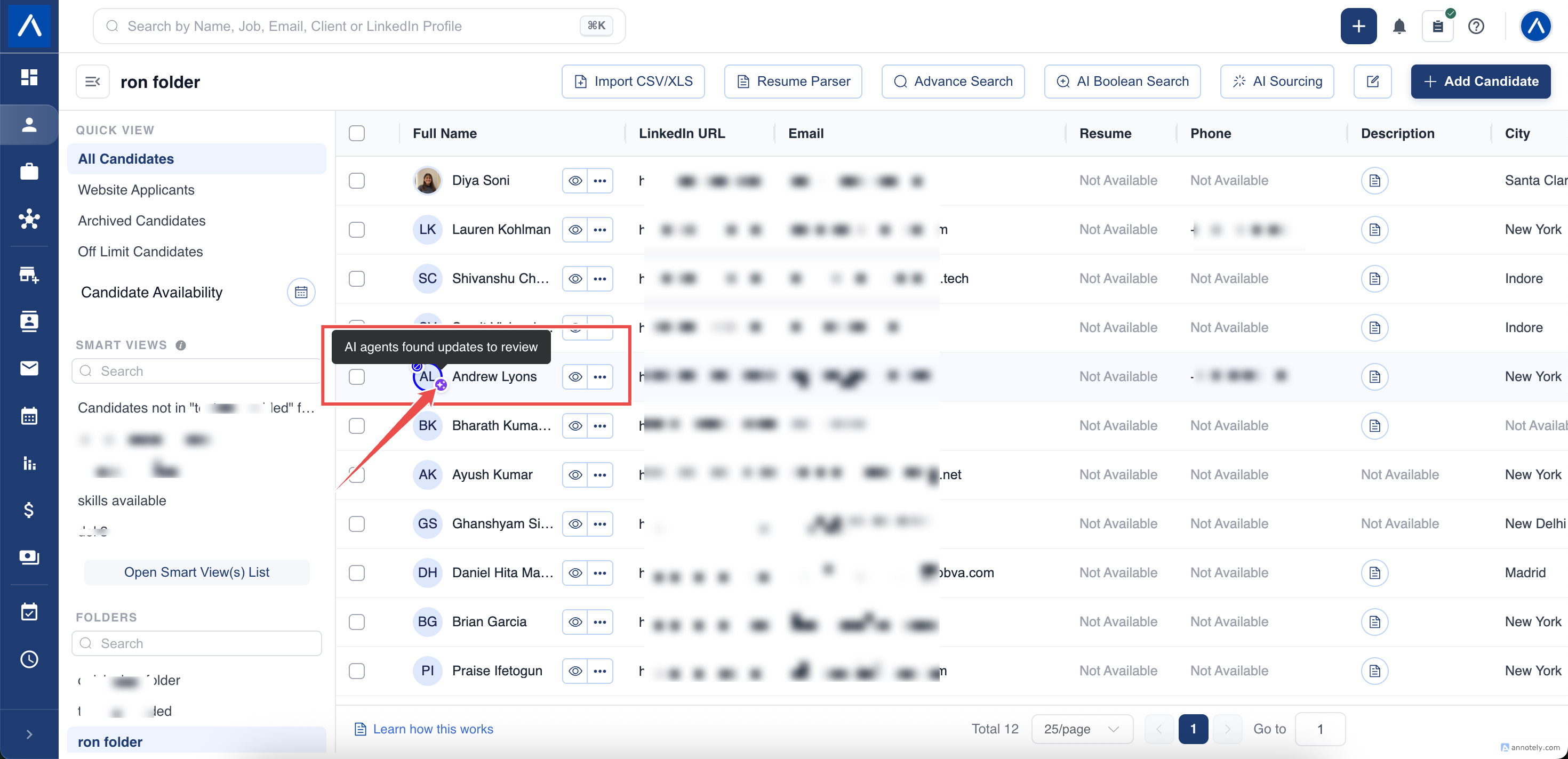
After a run, records with suggested updates show a sparkle badge next to the name in your candidate and contact lists. Hover over the badge to see AI agents found updates to review.
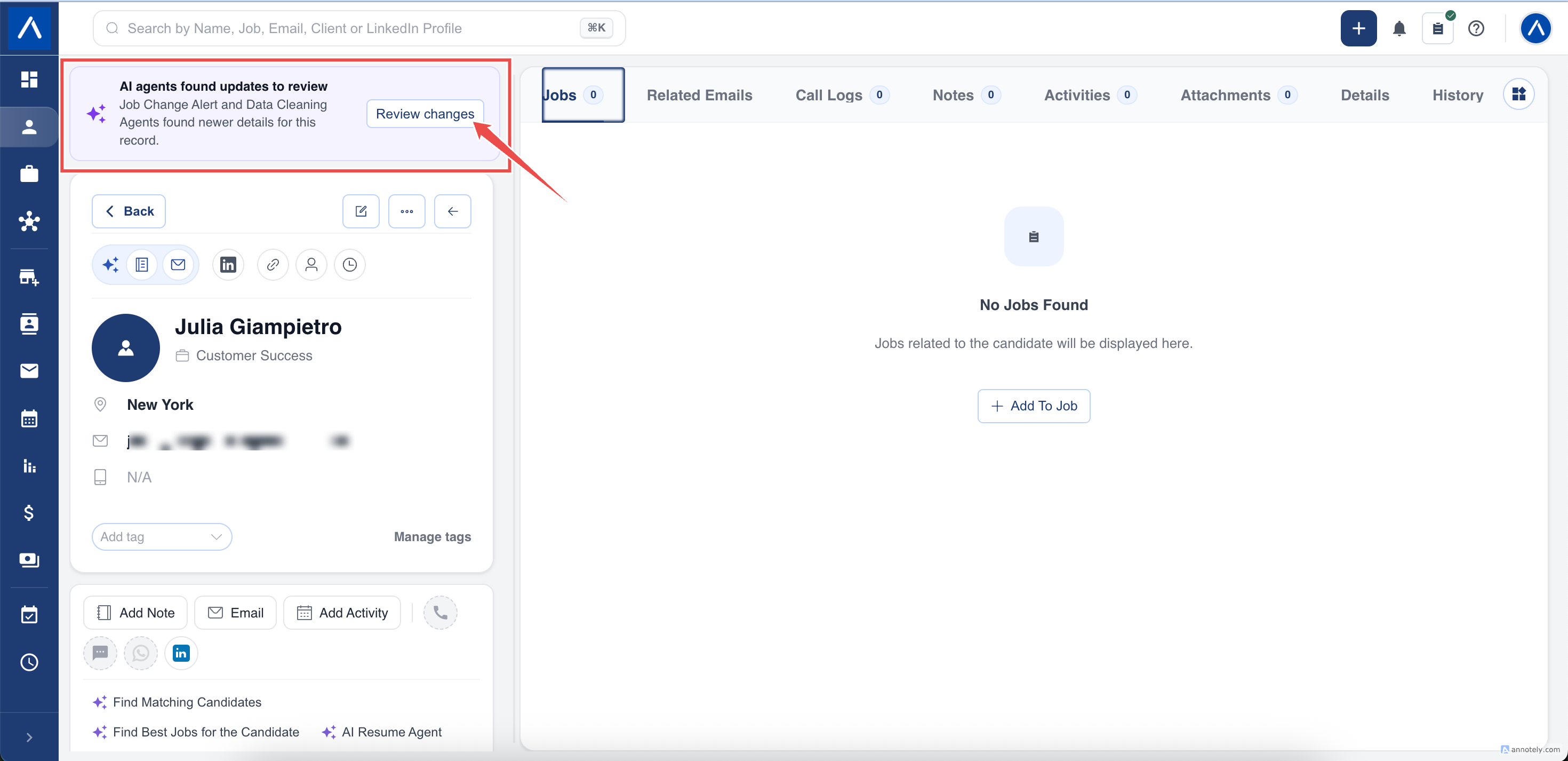
When you open the record, a banner at the top shows that updates are waiting for review. The banner also appears in the quick view.
Review, Apply, or Discard Updates
- Click Review changes on the banner.
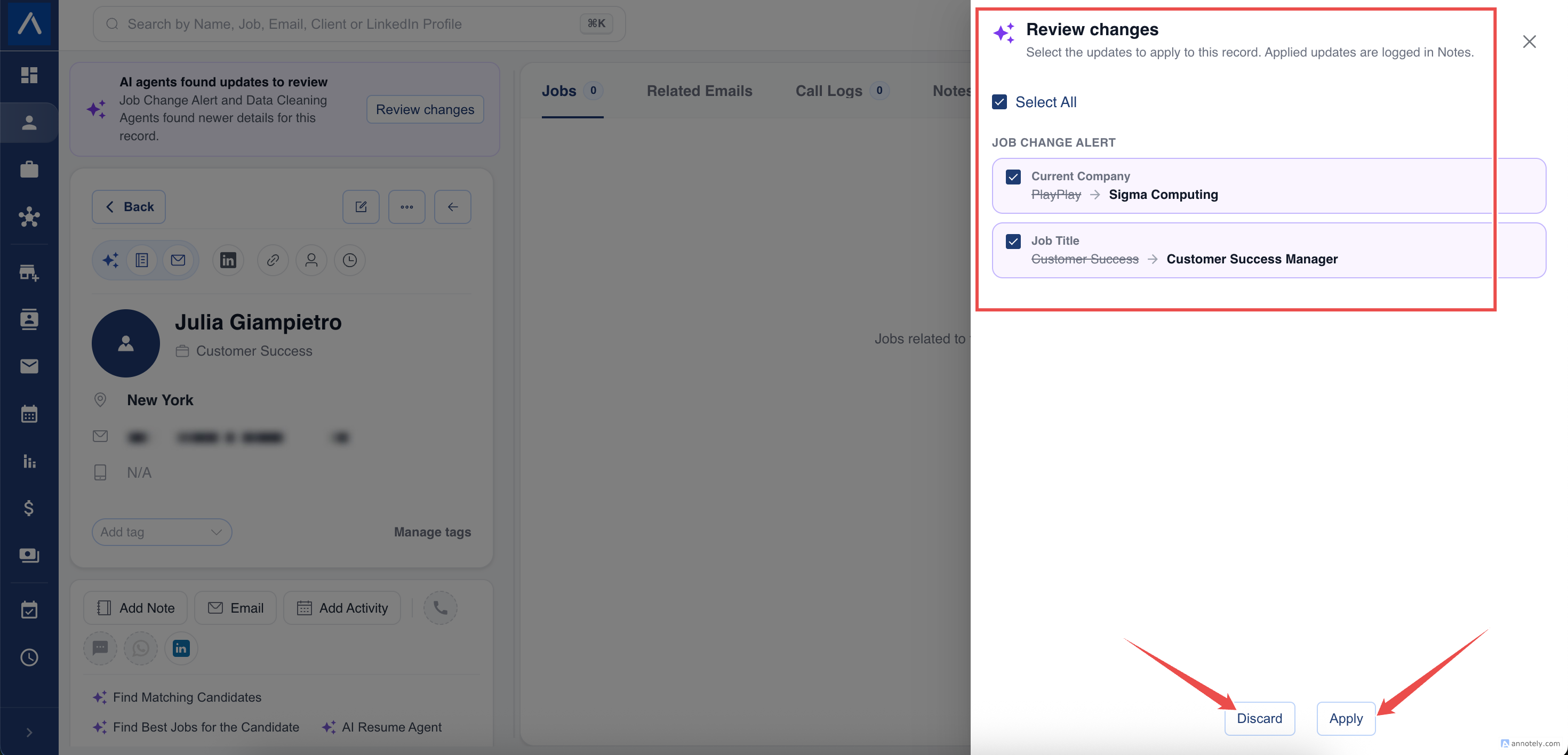
- Review each update. The current value is crossed out and the new value is shown next to it. Updates are grouped by Job Change Alert and Data Cleaning.
- Select the updates you want. The latest update for each field is selected by default.
- Click Apply to update the record, or Discard to dismiss the selected updates.
When you apply updates:
- The record is updated with the new details.
- If a candidate moved to a new company, the new role is added to their work history and the previous company is saved as their last company.
- If a contact moved to a new company, the contact is linked to that company. ATZ CRM creates the company if it does not exist yet.
- The change is saved in the record’s history.
Notes for Every Decision
Whenever updates are applied or discarded, ATZ CRM adds a note to the record. The note lists each field with the old and new value and shows who approved or discarded the updates.
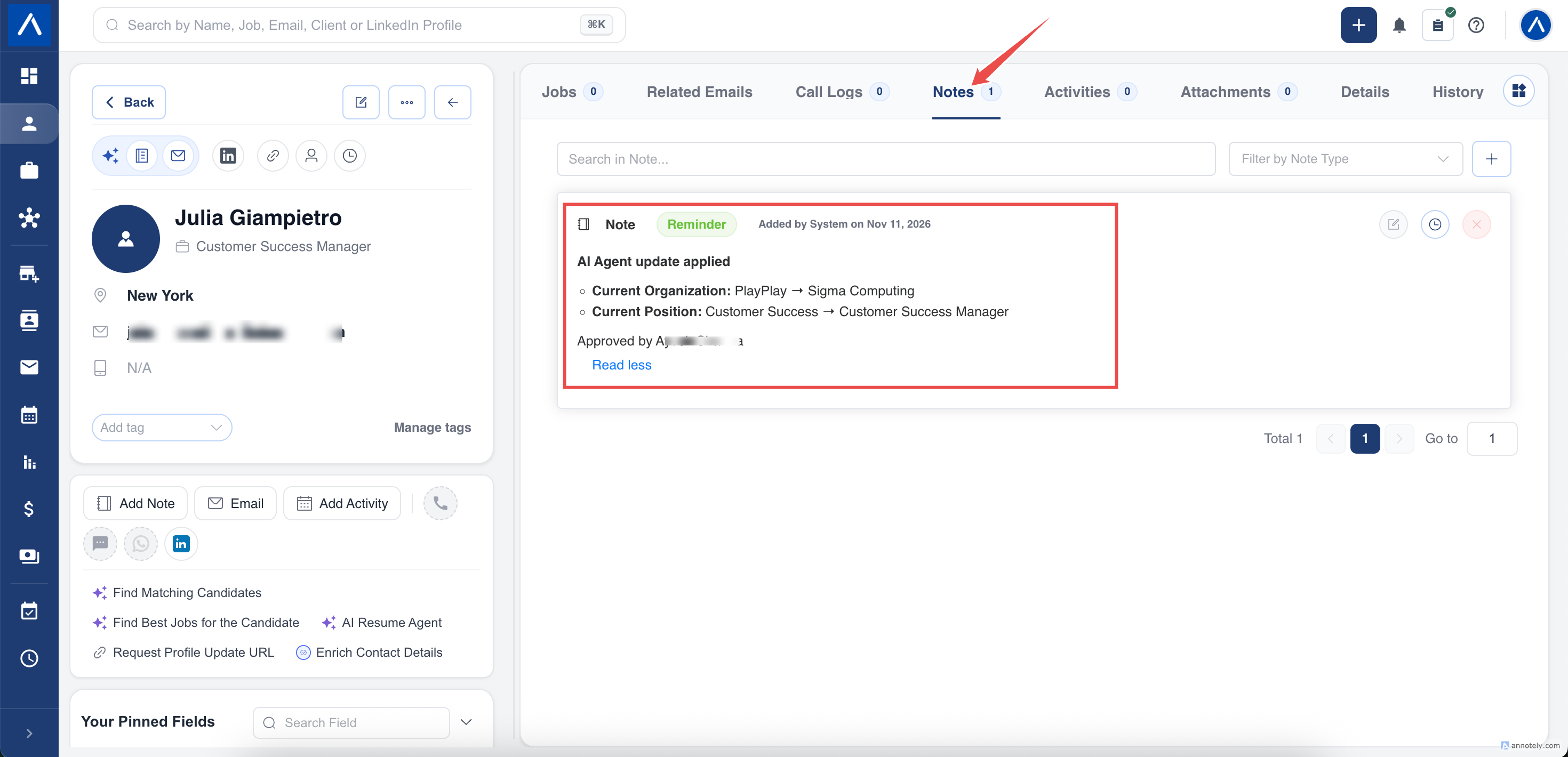
These notes are created by System, so they cannot be edited or deleted. Your team always has a clear record of what changed and why.
Payment History
Open the Payment History tab on the AI Agents page to see your credit purchases, amounts, and payment status.
Self-serve accounts can also see these payments under Admin Settings > Billing & Subscription.
Troubleshooting
AI Agents Is Missing from Admin Settings
AI agents are available to Admins and users with Plans & Billing access. Ask your administrator to review your access.
Many Records Are Skipped
Skipped records do not have the details the agents need to find a match. Add LinkedIn profile URLs to candidates. For contacts, add a LinkedIn profile URL, or make sure the contact has a first and last name and their company has a website.
The Pay or Schedule Button Is Disabled
Check that you selected at least 10 records that can be checked. If another run is already scheduled or running, wait for it to finish before scheduling a new one.
I Paid but Cannot Schedule the Run
Click I’ve completed the payment to refresh your balance. Payments can take a moment to confirm.
A Record Has No Badge After the Run
The agents found nothing new for that record, or the record was skipped because it did not have the details needed for a match.
FAQs
Will the agents overwrite my data?
No. Every update needs your approval. Nothing changes until someone clicks Apply.
Can I run the agents on only some records?
Yes. Put the records in a folder and select only that folder when you create the run.
How often should I run the agents?
Many teams run them every one to three months to keep their database fresh. Each run happens once, so schedule a new run whenever you want to check again.
Do unused credits expire?
Unused credits stay in your balance and are used for your next run.


